

Company settings
These settings change how Customry One behaves for everyone in your company. Each is under Administration, and each needs its own permission to change.
Company settings
Section titled “Company settings”Your company details, home currency, and how dates, times and numbers are shown. A preview shows how they’ll look with your choices.
Numbering
Section titled “Numbering”Numbering sets the format and next number for sales, deliveries, invoices, credit notes, proformas, purchase orders, stock transfers, stock takes and the rest. Numbers are given in order without gaps where it matters, such as invoices.
Sales settings
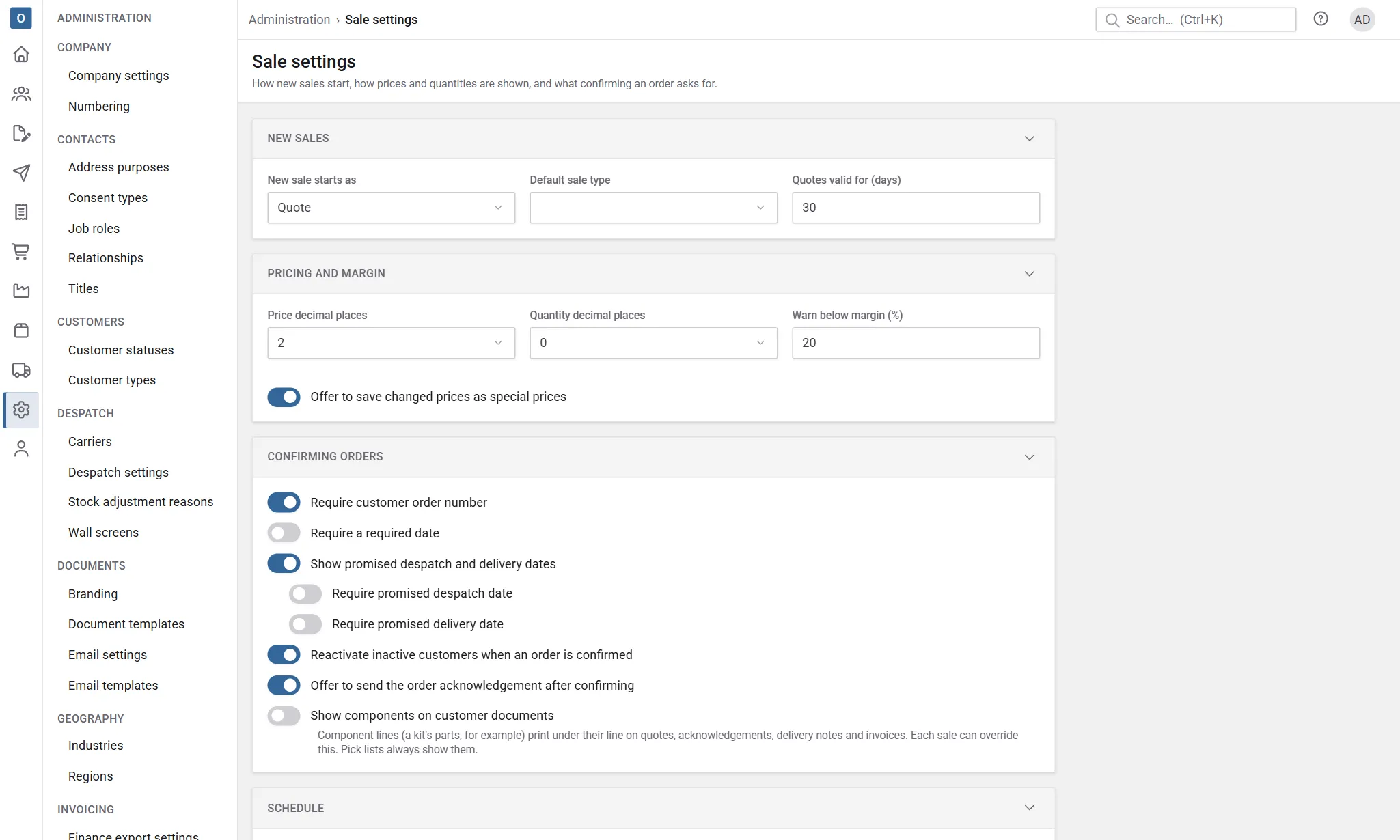
Section titled “Sales settings”How new sales start and behave: for example how long a quote is valid for, the default sales type, and how carriage is worked out when a customer has no carriage value or threshold of their own. Show components on customer documents decides whether a kit’s components print under it; each sale can override it. See Kits.
Schedule
Section titled “Schedule”Schedules, their fields and how their references are numbered have moved to Products → Configurator → Schedules, so each kind of configured product can have its own. The Schedule section here links to them. See Schedules.
Sales statuses, types, lost reasons and delivery terms are lists in the same group.
Despatch settings
Section titled “Despatch settings”| Choice | Means |
|---|---|
| Picking | Use the picking stage, or despatch planned deliveries straight away. |
| Stock works orders still need | Whether deliveries can use materials that released works orders still need. Allow: despatch ignores them. Warn: To despatch and the delivery show them, and planning or despatching them asks first. Stop: they’re kept back, and planning or despatching them is refused. See Stock works orders need. |
| Pickers | Whether pickers can take unassigned deliveries themselves, whether the Deliveries list opens on My picks for them, and how a picker’s day is measured on the pickers board: in Lines (the default) or Minutes. In lines, set how many stock lines a picker picks in a day (120 unless you change it). In minutes, set Minutes per delivery and Minutes per line for the estimate, and Minutes a picker picks in a day (420 unless you change it). A suggestion from the last 90 days is shown beside them. See Lines or minutes. |
| Default carrier | Used when neither the customer nor the order names one. |
Allow stock to go below zero has moved to Stock settings.
Stock settings
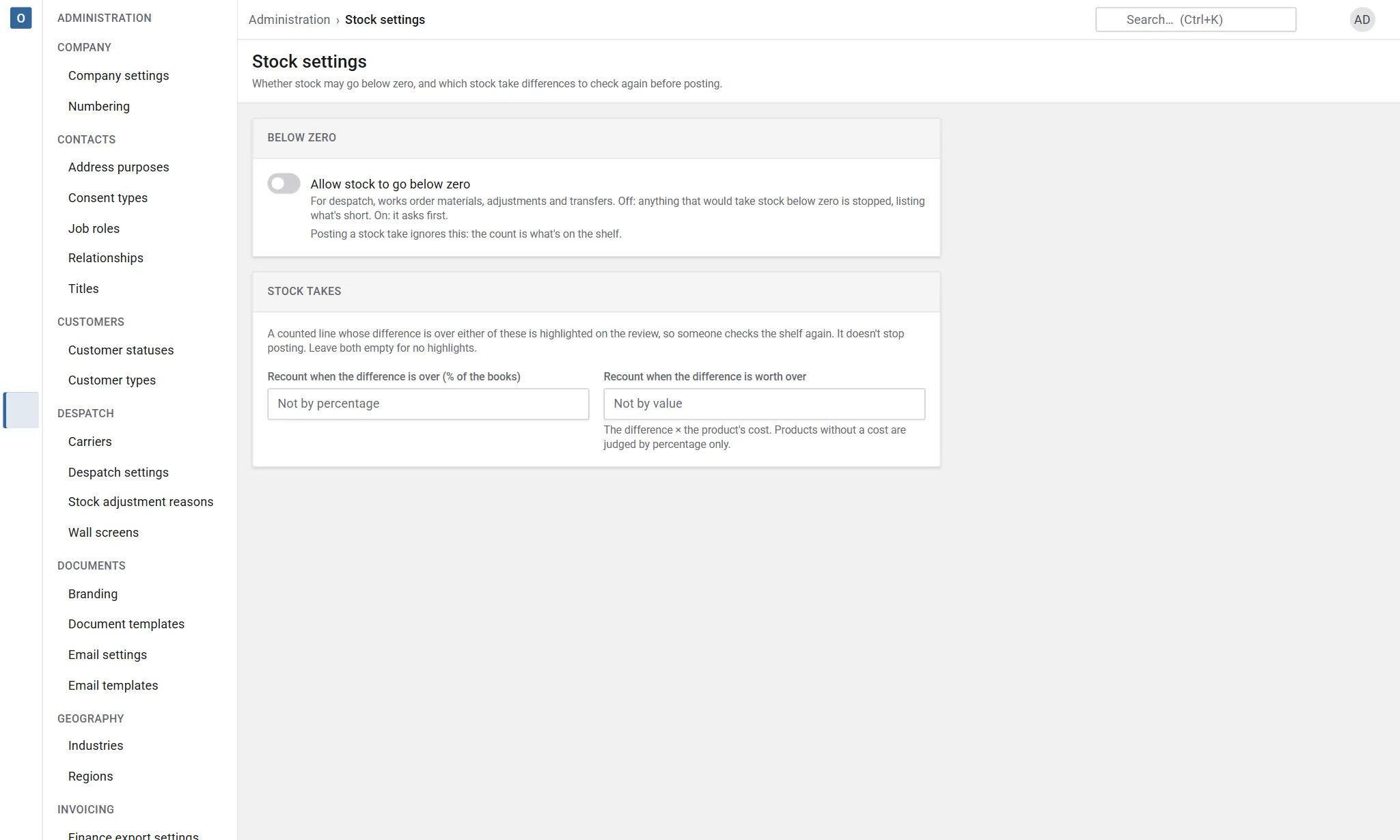
Section titled “Stock settings”In Administration → Stock settings. People who manage despatch or run stock takes can change them.
| Choice | Means |
|---|---|
| Allow stock to go below zero | For despatch, works order materials, stock adjustments and stock transfers. Off: anything that would take stock below zero is stopped, listing what’s short. On: it asks first, then lets stock go below zero. Posting a stock take ignores it: the count is what’s on the shelf. |
| Recount when the difference is over | A percentage of the books, a value, or both. On a stock take’s review, a counted line whose difference is over either is marked Recount, so someone checks the shelf again. The value is the difference × the product’s cost; products without a cost are judged by the percentage only. It never stops posting. Leave both empty for no highlights. |
Invoicing settings
Section titled “Invoicing settings”- Invoice before despatch: off, only despatched goods and non-stock lines can be invoiced; on, any ordered quantity can be.
- Head office billing and combining orders: see Head office billing.
- Bank details and a payment note printed on invoices, such as “Please quote the invoice number as your payment reference.”
Finance export settings
Section titled “Finance export settings”Nominal codes, summarised or itemised rows, the customers file, and whether payments are kept in your accounts package. See Sage 50 export.
Purchasing settings
Section titled “Purchasing settings”| Choice | Means |
|---|---|
| Use requisitions | On, or send needs straight to draft purchase orders. |
| Requisitions need approval | Never, always, or only over the requester’s limit. |
| Purchase orders need approval | Never, always, or over an amount. |
| Ordering a requisition | Start a new draft purchase order per supplier, or add to the supplier’s open draft. |
| Last purchase price | Update it when an order is placed, when goods are received, or never. |
| Over-receiving | Refuse, warn, or allow booking in more than was ordered. |
| Booking in starts with | Everything still to come, or blank. |
| Late confirmation warning | Warn when a supplier confirms a date after the one you need. |
| Add the product’s extended description to order lines | A new purchase order line for a product gets its name, then its Extended description underneath, whether it comes from purchasing needs, a requisition or is added by hand. Lines already on orders don’t change. |
Security settings
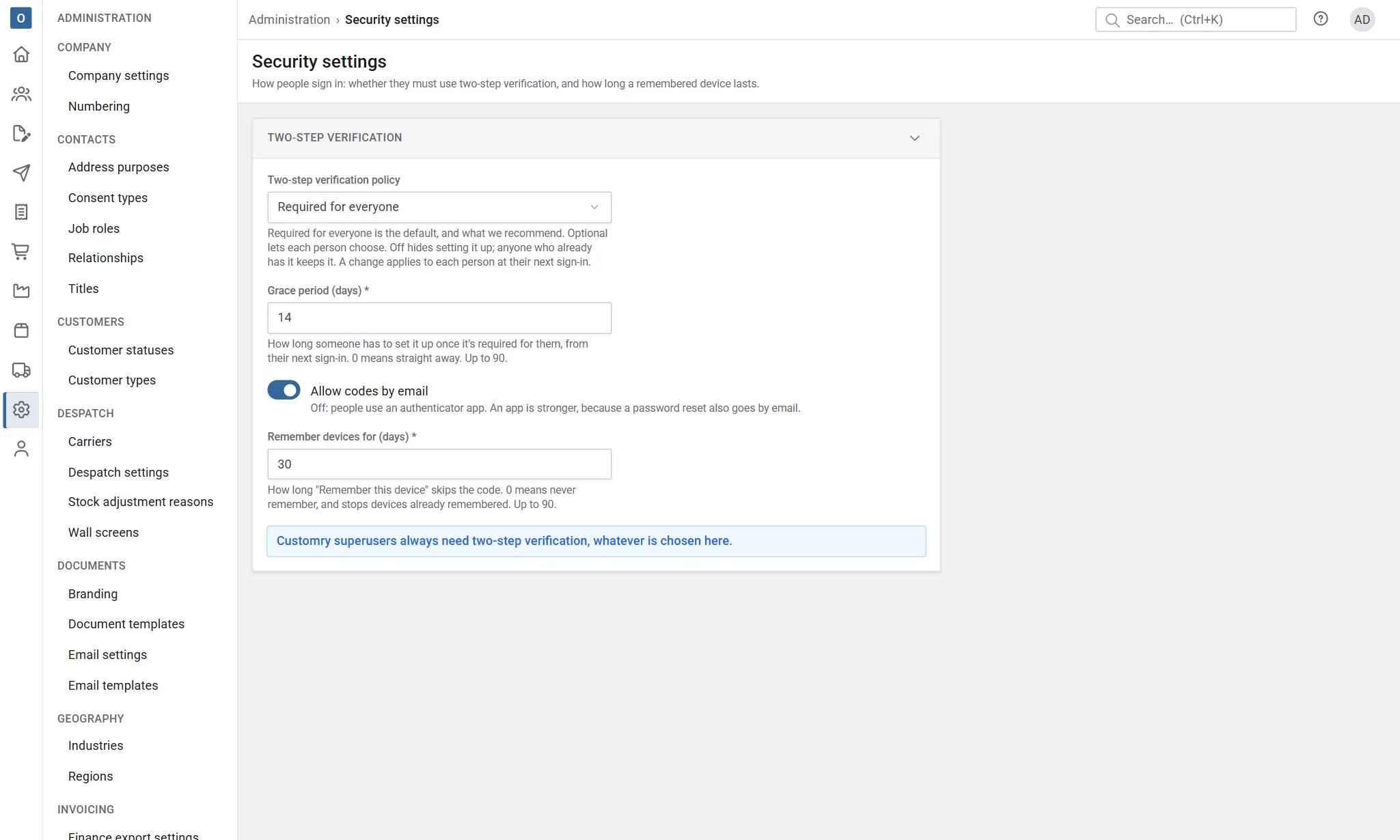
Section titled “Security settings”Administration → Security settings decides whether people must use two-step verification when they sign in: a 6-digit code from an authenticator app or sent by email, after their password.
| Choice | Means |
|---|---|
| Two-step verification policy | Required for everyone is the default, and what we recommend. Required for some roles asks it only of people holding the roles you choose. Optional lets each person decide. Off hides setting it up; anyone who already has it keeps it. |
| Roles that need it | Only for Required for some roles: choose at least one. Anyone holding one of them must use it. |
| Grace period (days) | How long someone has to set it up once it’s required for them, counted from their next sign-in: 14 unless you change it, up to 90. 0 means at their next sign-in. Until then they sign in as usual and see a reminder; after it, signing in takes them straight to setting it up. |
| Allow codes by email | On unless you turn it off. Off: people use an authenticator app, which is stronger, because a password reset also goes by email. |
| Remember devices for (days) | How long Remember this device skips the code on someone’s own device: 30 unless you change it, up to 90. 0 never remembers, and stops devices already remembered. |
A change applies to each person at their next sign-in; nobody already signed in is signed out. Customry superusers always need two-step verification, whatever you choose. To clear someone’s two-step verification when they’ve lost their phone, see Reset someone’s two-step verification.