

Despatching
Despatch a delivery
Section titled “Despatch a delivery”- Open the delivery and select Despatch….
- Check the carrier and details, then confirm.
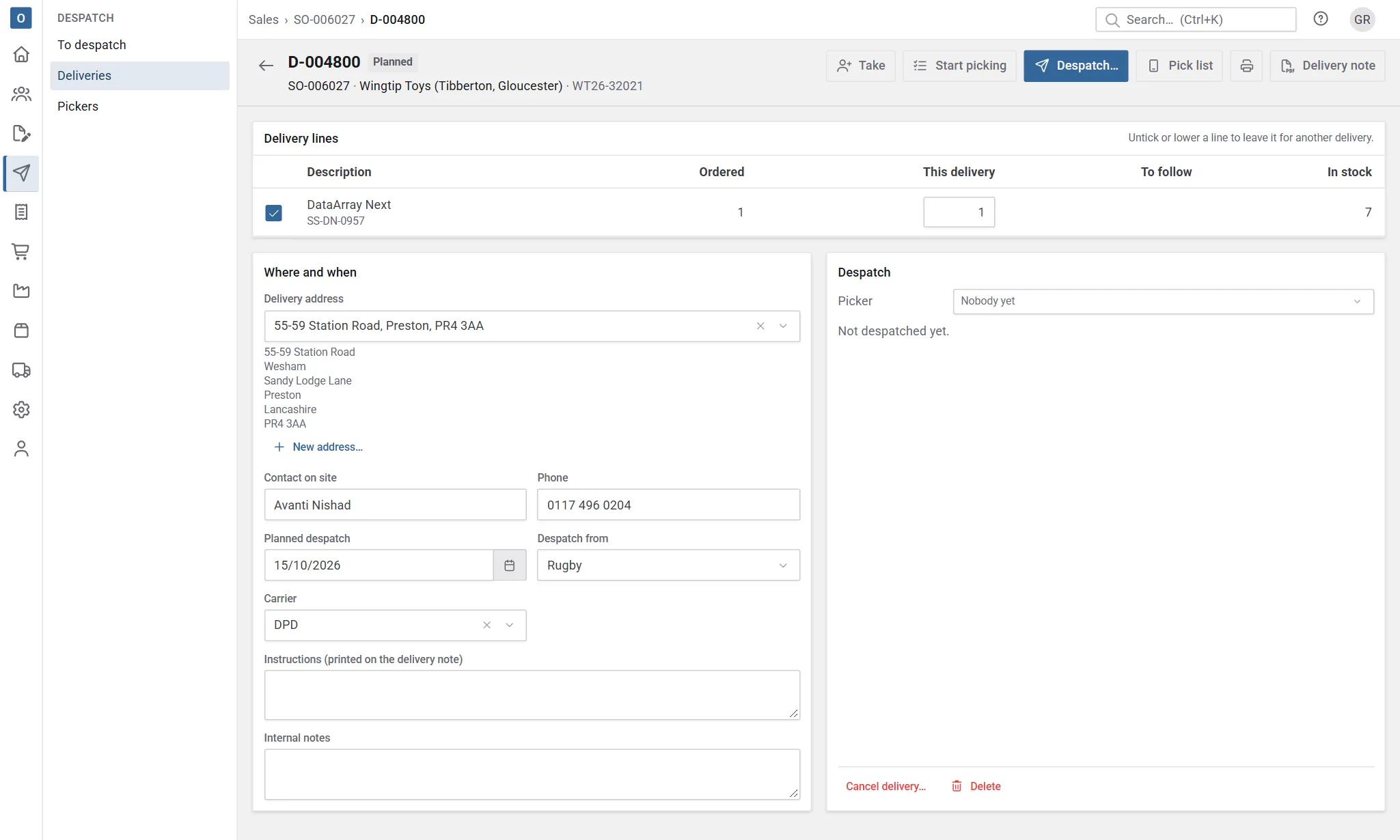
Despatching books the stock out of its locations and keeps the delivery note as a PDF. Services on the delivery go out with the goods but move no stock. A kit goes complete: its stock components are booked out, and the kit line itself moves no stock. See Kits. The order’s lines show the goods as delivered, and the order appears in Invoicing → To invoice.
Made parts
Section titled “Made parts”A configured item’s made parts aren’t picked: each one is marked made on the delivery, with its Made tick. If any made part on the delivery isn’t marked made, the despatch is stopped and the parts are named, for example “2 made parts on D-000040 aren’t marked made: Leaf (line 3), Frame (line 3).” Mark them made and despatch again. While some are waiting, the delivery says how many.
With Made parts come from works orders switched on in Manufacturing settings, made parts aren’t ticked: each is made when its works orders record it made, and the delivery’s Made column shows them (Made 2 of 4 while it waits). The despatch is stopped in the same way until they’re made. A tick given before the setting was switched on still counts. See Despatch waits for works orders.
Made parts move no stock. Once despatched, each shows who marked it made and when; made by works orders, that’s when and by whom the works order recorded it, and the works orders it was Made on. Reversing the despatch takes that back.
When there isn’t enough stock
Section titled “When there isn’t enough stock”If a line needs more than is in its location, Customry One lists what’s short.
- Normally the despatch is stopped until the stock is there. Adjust the stock or change the quantities first.
- If your company allows it, you can choose Despatch anyway and give a reason. Stock goes below zero, for example when goods leave before they’ve been booked in.
When works orders need the stock
Section titled “When works orders need the stock”If despatching would take materials that released works orders still need, the despatch dialog lists each product, how much, and the works orders that need it. With Stock works orders still need set to Warn, Despatch anyway sends it; set to Stop, it can’t go until there’s more stock or the works orders have used what they need. See Stock works orders need.
Send the delivery note
Section titled “Send the delivery note”On a despatched delivery, select Email… to send the delivery note. The PDF kept at despatch is attached, exactly as it was issued.
Record that it arrived
Section titled “Record that it arrived”Select Mark delivered…, check the date, and note who received it (for example “left at reception”) and anything else worth keeping.
Put a mistake right
Section titled “Put a mistake right”| What happened | What to do |
|---|---|
| Planned the wrong things | While it’s Planned, edit the delivery or use Delete. Once picking has started, lower the quantities or use Cancel delivery…. Either way, what’s left goes back to “to follow” on the order. |
| Started picking too soon | Back to planned returns it to Planned. |
| Recorded a despatch by mistake | Reverse despatch… puts the stock back where it came from. |
A delivery that’s already been invoiced can’t be reversed. Credit the invoice instead, which can return goods to stock. See Invoices and credit notes.