

Shop floor
Manufacturing → Shop floor is for the people doing the work. It’s made for a phone or tablet at the bench, with big buttons and as little typing as possible, and works on a computer too. From it you can start an operation, book your time to it, mark it done, and record what’s been made, without opening the full works order.
Everything is recorded on the works order itself, with the same checks as the works order page, so the office sees it straight away. Each person signs in as themselves: time you book is booked to you.
Find a works order
Section titled “Find a works order”At the top of the page, type the works order’s number and select Find (or press Enter). You can type it as printed (WO-000123), in small letters, without the dash, or just the number: 123 opens works order 123 (so a label with only a number on it, scanned into the box, would too).
To scan instead:
- With the phone’s camera: select Scan and point the camera at the QR code by the number on the printed works order. It opens as soon as the code is read. The first time, the browser asks to use the camera: allow it. Scan only shows on browsers that can read codes from the camera (Chrome and Edge on Android, and Safari on recent iPhones and iPads). Elsewhere, type the number.
- With a barcode scanner that types what it reads (USB or Bluetooth): click in the box and scan. It’s the same as typing the number and pressing Enter.
A code that isn’t a works order’s (a product’s label, say) is never taken for one: the page says there’s no such works order.
The work waiting
Section titled “The work waiting”Below the box, Work waiting lists the released and in-progress works orders, the ones due first at the top, with each one’s operations still to do. Late ones are marked Late. It shows the first 200 and says so when there are more: choose a work centre, or find the one you want by its number.
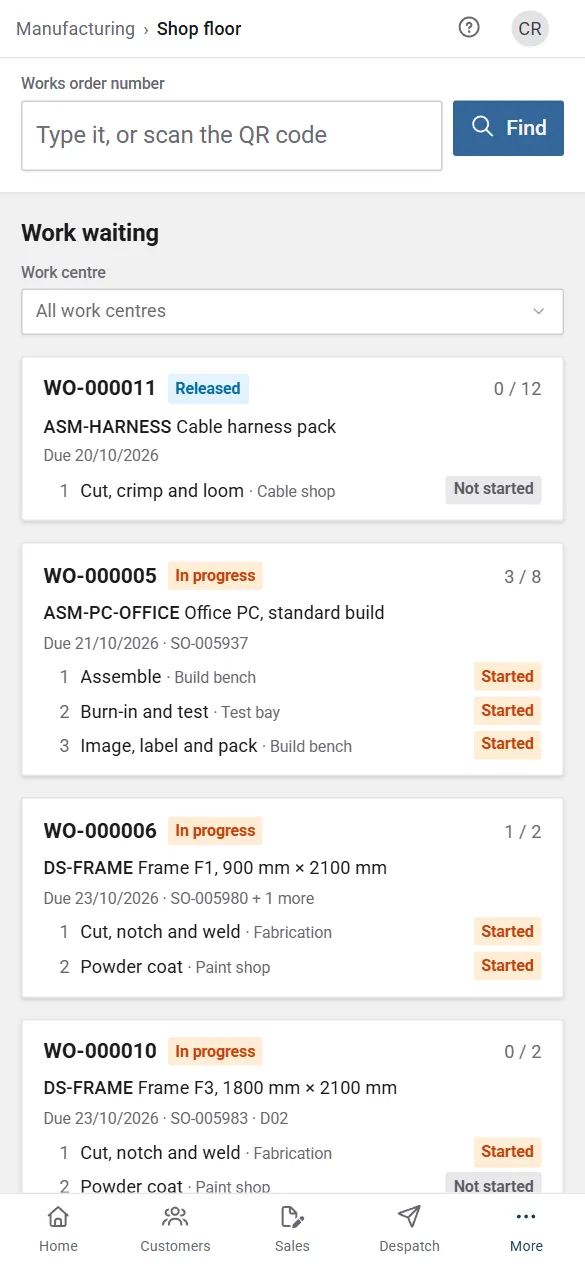
Choose your Work centre to see only the works orders with an operation still to do there, and only those operations. The page remembers the choice on that phone or tablet, so a device kept at a bench opens on that bench’s work. Clear it to see all the work.
Select a works order to open it.
Work on a works order
Section titled “Work on a works order”The works order shows what’s being made, how many, how many are made and still to make, when it’s due, where it goes and its instructions. Below come its Operations (those at your work centre first), then a made part’s Specification and the Materials with how many are needed and used. All work goes back to the list.
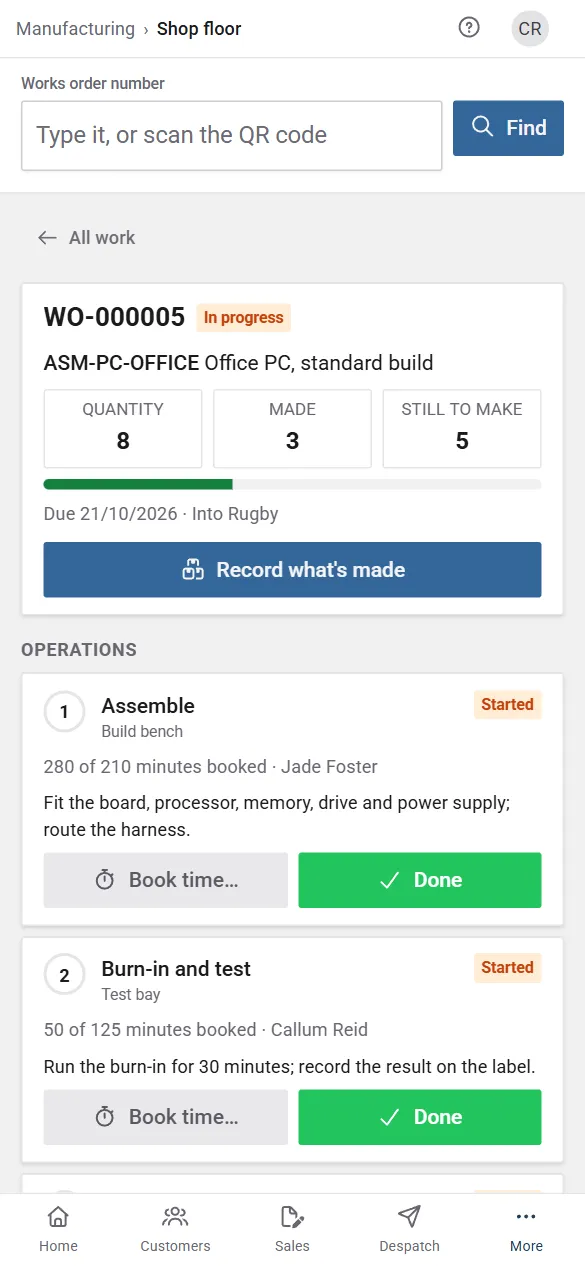
On each operation:
- Start when you begin.
- Book time… to record the time you spent: the Minutes (the +15, +30 and +60 buttons add to it), How many done if you like, and a Note. It’s booked to you, for today. To take time off a booking, book negative minutes with a note saying why. Who did it and which day can be changed on the works order page.
- Done when it’s finished.
- Undo start if it was started (or marked done) by mistake, while nothing is booked on the works order.
Record what’s made records how many were Made and Scrapped. For an assembly made for stock, choose where it goes in Into (left empty, the usual place from the Manufacturing settings); a made part goes to its order, so there’s no choice. If materials would go below zero, the page says which, and Record anyway records it if your settings allow that. When everything’s made, the works order is completed and leaves the work waiting.
Nothing can be recorded on a draft (it isn’t released yet) or on a finished one.
A works order for several items says For: D01, D02 (2 orders) under what it makes, and the work waiting shows its first item with + 1 more. It’s recorded as any other, in parts and with scrap; what’s made is shared between its items earliest due first. A supervisor can share it differently, or move it later, on the works order (see Record what’s made on a shared works order).
The cutting list
Section titled “The cutting list”A works order whose made part has cut pieces shows its Cutting list under the specification, in larger type: each material’s pieces with the item they’re for, and the bars drawn to scale with their offcuts, to read at the saw. Select Cutting list (PDF) to print it. See Cutting lists.
Who can use it
Section titled “Who can use it”The page needs the Manufacturing permission Record what’s been made on works orders (completions)…. Costs never show here.