

Stock takes
A stock take is a count of what’s on the shelf at one location. Find them in Products → Stock takes; each has a reference such as SC-000004. Anyone can look; entering counts needs permission to count stock, and starting, posting or cancelling a stock take needs permission to run stock takes.
Counting doesn’t change the stock. Posting the stock take corrects the books to what was counted.
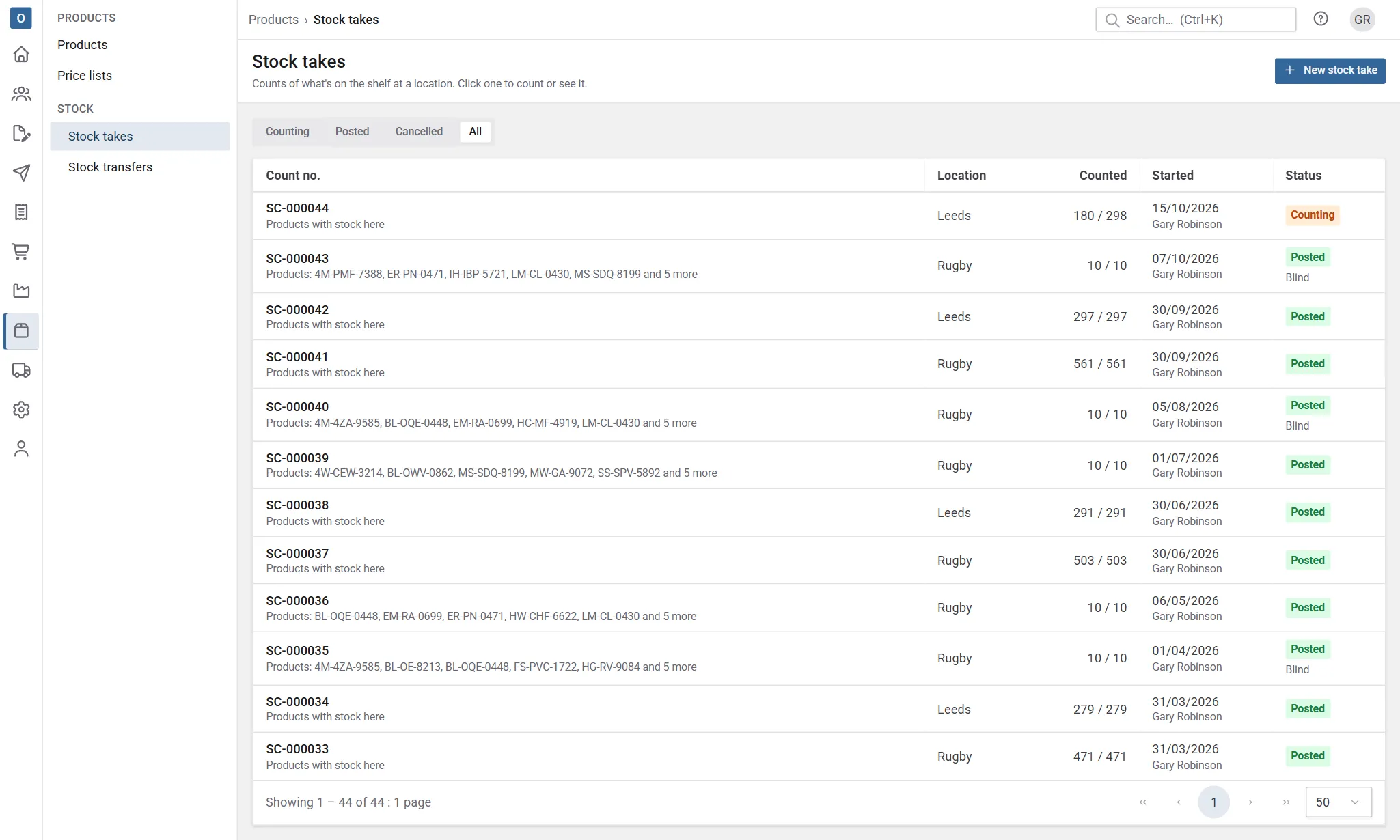
Start a stock take
Section titled “Start a stock take”- In Products → Stock takes, select New stock take.
- Choose the Location.
- Choose What to count:
- Products with stock here: everything whose balance there isn’t zero;
- Everything kept here: every product the location keeps, at zero too;
- Product categories, Product ranges or Product brands: the ones you pick, of the products kept there (a category includes its sub-categories);
- Chosen products: the products you pick, whether or not they’ve been kept there before.
- Tick Blind if counters shouldn’t see what the books say. They count what’s there instead of looking for a number. People who can run stock takes still see the books.
- Select Start counting.
Only one stock take can be counting at a location at a time.
Open the stock take on a phone or tablet as you walk the shelves, or on a desk to type up a count sheet.
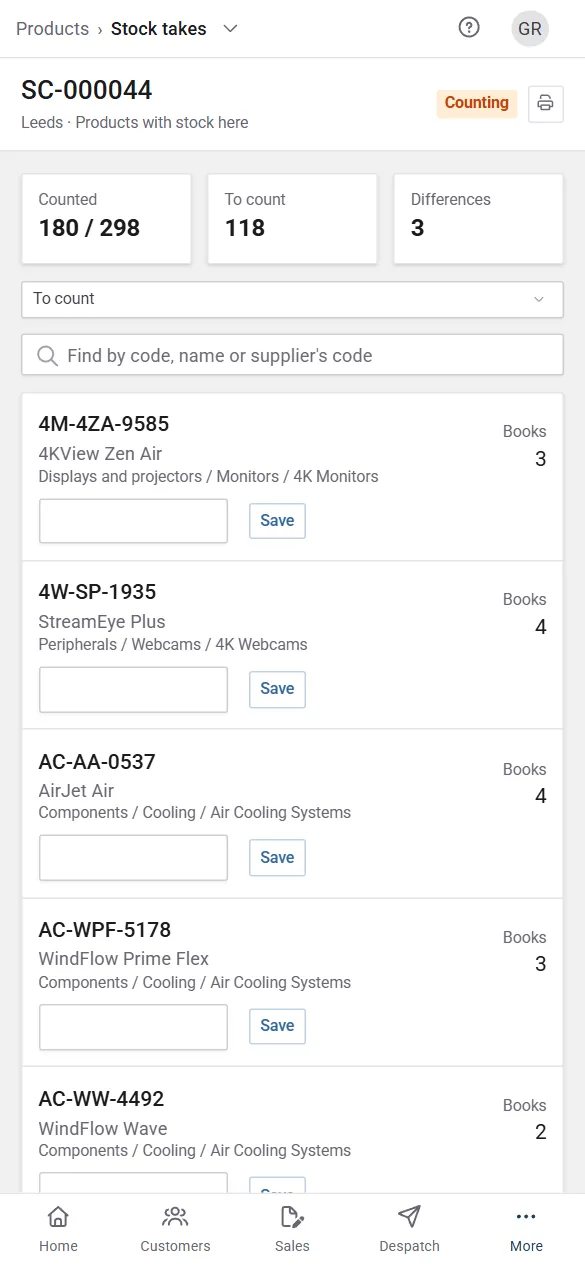
- To count lists the products not counted yet; Counted, Differences and All show the rest. Find a product by its code, name or a supplier’s code.
- Type the quantity on the shelf and select Save, or press Enter to save and move to the next one. Enter 0 when there are none.
- A counted line shows a tick, who counted it and when. Unless the stock take is blind, it also shows the books and the difference.
- To change a count, type over it and save again. ↺ takes a count back.
- Several people can count the same stock take at once. If two people count the same line, the second is told and sees the first count.
Found something on the shelf that isn’t on the list? Find it under Found something not on the list? and select Add to the count.
Counting while you trade
Section titled “Counting while you trade”Nothing is frozen while you count. Each count is measured against what the books said at the moment it was saved, so a despatch or a goods receipt in the middle of the count isn’t lost. For example: the books say 40, a despatch takes 5, then you count 34. The books said 35 when you counted, so the difference is −1.
Print a count sheet
Section titled “Print a count sheet”Select Print count sheet for a sheet to write the counts on, then type them in. The sheet’s layout is in Administration → Document templates → Count sheet; it can show what the books say, which is off unless you turn it on.
Review and post
Section titled “Review and post”When the counting’s done, select Review and post (or Review above the list).
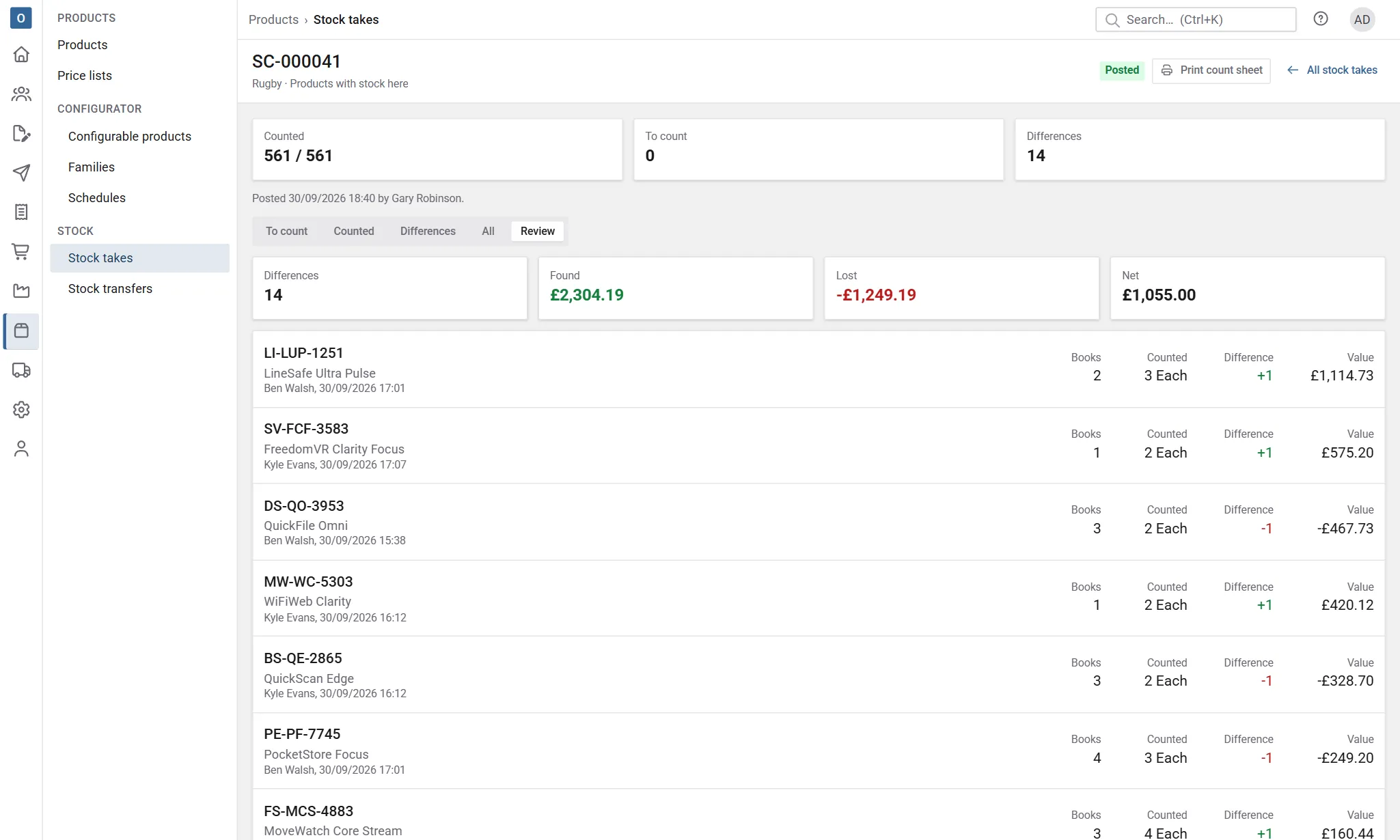
- The review lists every counted line that differs from the books: what the books said when it was counted, the count and the difference, biggest first.
- If you can see costs, each difference also shows its Value (the difference × the product’s cost), with what was Found, what was Lost and the Net at the top. Products without a cost are left out of the values, and the review says how many.
- Lines over the recount threshold in Stock settings are marked Recount. Check the shelf again, and change the count if it was wrong. It doesn’t stop you posting.
- Lines nobody counted are left as they are when you post. If they really aren’t there, select Set uncounted to zero to count them all as none on the shelf, so posting takes their stock off. Show them lists them first.
Select Post stock take. The books are corrected to the counts: each line with a difference gets a Stock take movement in the product’s stock movements, with the reason Stock take and a link back to the stock take. Each difference is measured from the books when the line was counted, so anything sold or received during the count stays as it was. Posting doesn’t follow Allow stock to go below zero: the count is what’s on the shelf.
A posted stock take keeps its counts, differences and values, at the cost each product had when it was posted. Open it from Posted in the list.
Cancel a stock take
Section titled “Cancel a stock take”Select Cancel stock take. Nothing is posted, and the location can be counted again.