

Finding your way around
Every screen in Customry One is laid out the same way, so once you know one, you know them all.
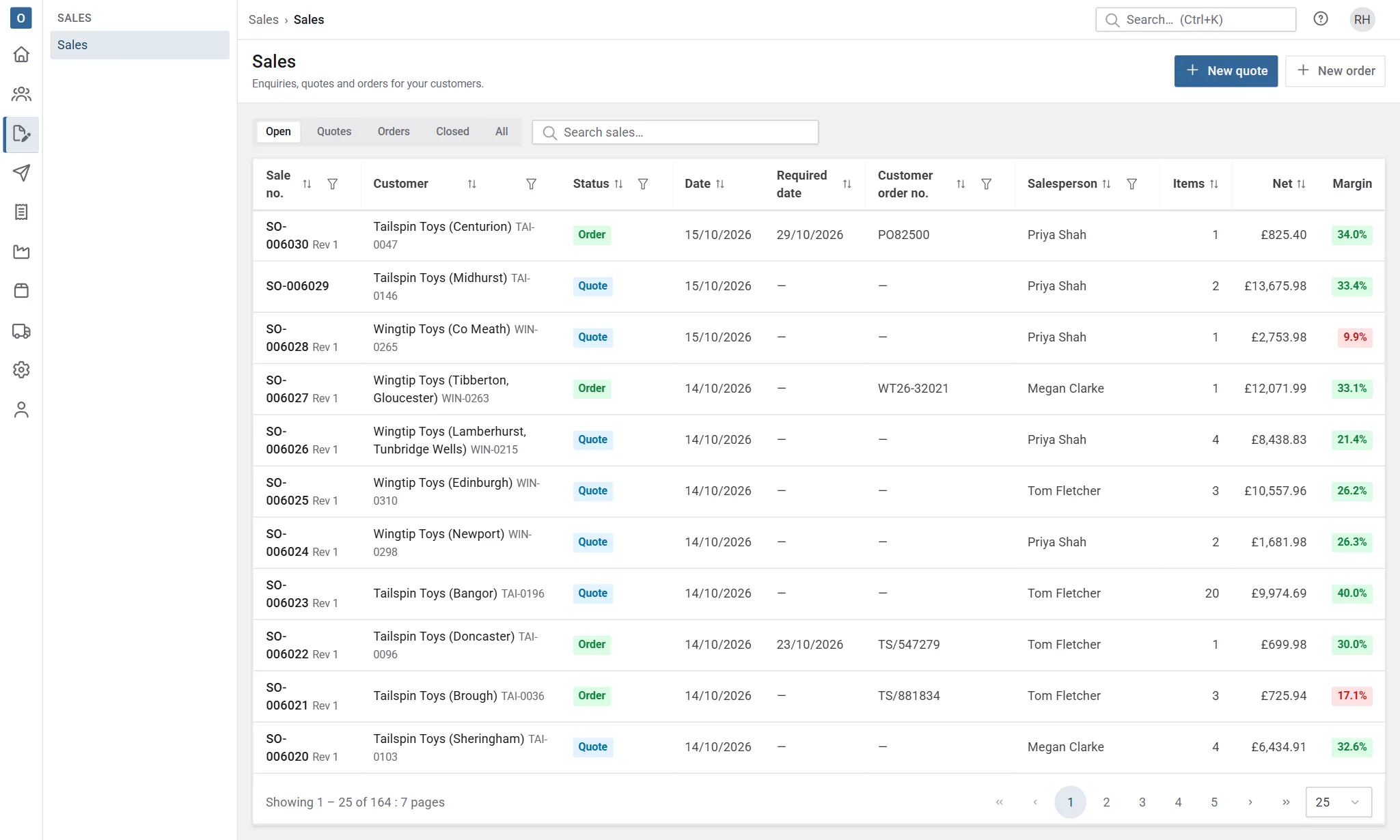
The rail
Section titled “The rail”The slim bar down the left has one icon for each area of Customry One:
| Area | What’s in it |
|---|---|
| Home | Your own board of widgets. See Home. |
| Customers | Customer accounts, with their addresses, contacts, prices, sales, invoices and history. |
| Sales | Enquiries, quotes and orders. |
| Despatch | To despatch, the work waiting to go, and Deliveries. |
| Invoicing | To invoice, Invoices, Proformas and the Finance export. |
| Purchasing | Reorder, Requisitions, Purchase orders and Goods in. |
| Products | Products, stock and Price lists. |
| Suppliers | Supplier accounts and their purchase orders. |
| Administration | Settings and lists for your company. Only people who manage them see it. |
You only see the areas and pages your permissions allow. If something a colleague uses is missing for you, ask your administrator.
The page list
Section titled “The page list”When an area has more than one page, a panel next to the rail lists them. You can keep it pinned open, or collapse it so it opens when you select the area’s icon and closes once you pick a page.
The header and account menu
Section titled “The header and account menu”Along the top you’ll find where you are, then on the right the ? button and your account menu.
- ? opens the help article for the page you’re on, in a new tab. Pages without an article of their own open the help home page.
- The account menu has your Profile, Help (the help home page) and Sign out.
Each page has a header with its title and the actions for that page, such as Save or Confirm order. One button is filled in colour: that’s the main thing to do next. Other actions are often under More.
Lists keep their headings in view as you scroll, and long records are split into tabs. A sale, for example, has Details, Lines, Revisions and History tabs.
Unsaved changes
Section titled “Unsaved changes”If you try to leave a page with changes you haven’t saved, Customry One asks first, so you don’t lose work by accident.
When someone else changed it first
Section titled “When someone else changed it first”If a colleague saves a record while you’re editing it, Customry One won’t let your save overwrite theirs. You’re told someone else changed it, so you can reload, see their changes and make yours again.
On a phone or tablet
Section titled “On a phone or tablet”On a narrow screen the rail becomes a bar along the bottom with the main areas, and a More button for the rest. Each area’s pages open from the bottom of the screen.