

Importing and exporting
A family and its configurable products can be exported to one Excel workbook, edited there, and imported again. This is quicker than the screens for big changes, such as a new list of values, a hundred new options, or a price grid from a supplier. The examples here are from a server build.
Exporting
Section titled “Exporting”Open the family (Products → Families) and select Export at the top of the page. The workbook downloads with the family’s name.
It holds the family’s draft: everything you’d see on the screens, not the published versions.
What’s in the workbook
Section titled “What’s in the workbook”Each sheet has one row per item, with headings in the first row. Columns are found by their heading, so you can move them, but don’t rename or delete them.
| Sheet | What each row is |
|---|---|
| Read me | What each sheet holds. It’s ignored when you import. |
| Attributes | An attribute: its key, name, kind, unit, decimals, whether it holds several values, and for a worked-out attribute its formula and what the formula gives. |
| Values | A choice value: the attribute’s key, the value’s key, name and code, and its order. |
| Sections | A section, with its order. |
| Kits | A kit, with its description. Its components are on the Components sheet. |
| Lookups | Every lookup in the family, with the sheet it’s on. |
| Products | A configurable product in the family, by product code, with its pricing and description template. |
| Steps | A step of a product, in order: kind, the attribute it fills, whether it’s required, the fewest and most picks, and where its options come from. |
| Entries | An entry on an enter-values step, with its limits and default. |
| Options | An option on a step, in order: its code, whether it’s the default, what it sets, its kits and its price. |
| Components | A component, with its Ref, owner and number, kind, section, where the part comes from, quantity, When condition, and cost and price formulas. |
| One sheet per lookup | The lookup’s key and name at the top, then a row for each column setting, then the rows. |
Keys and codes
Section titled “Keys and codes”Rows are matched with what’s already there by their key (products by their product code, components by their Ref). Keys can’t be changed: a row with a key that isn’t there yet is added. Leave the key blank on a new row and one is made from the name.
Renaming is fine. Change the Name and keep the key: the import renames it, and rewrites the formulas, conditions and templates that use the old name, as renaming on screen does.
Writing values
Section titled “Writing values”- Kinds, such as Choice, PickOne or CostPlusMargin, are written as the Read me sheet lists them. Spaces and capitals don’t matter, so
pick oneworks too. - Yes or no columns take
yesorno. A blank means no. - Sets lists what an option sets, as
Attribute name=Value, separated by semicolons:Chassis=1U rack; Remote management=yes. Put a value in double quotes if it contains a semicolon. - Kits and Specification list keys, separated by commas.
- When is a condition written as it is in the app’s text form:
[Chassis] in ("1U rack", "2U rack") and [Drive count] > 2. See Formulas. - Products are given by their product code, in components and in lookup cells. Choices in lookup cells are given by the value’s name.
Components
Section titled “Components”A component’s Owner says what it belongs to:
| Owner | Belongs to |
|---|---|
product:SRV-1U | The product: every configuration gets it. |
option:SRV-1U/memory/m32 | An option: product code, step key and option key. |
kit:rails | A kit. |
Ref identifies each component (C and a number). It’s how a row finds the component it changes, so leave it as exported, and never copy it to another row. For a new component, leave Ref blank. You can move, insert and delete rows freely.
Number sets the order of an owner’s components (1, 2, 3…). Leave it blank on a new component and it’s added at the end.
For where the part comes from, fill in one of Product code, Lookup key (with Lookup column), or Code template. With none of them, it’s a part with no product, such as a note or a made part.
Use made product’s bill (yes or no) is for made parts with materials: whether their made product’s bill of materials is used as well. A workbook without this column keeps what’s stored.
Made materials
Section titled “Made materials”The Made materials sheet holds made parts’ materials and cut pieces, one row each. Owner and Number name the made part as the Components sheet does, and Order sets the order of its rows. Kind is Material or CutPiece. Fill in one of Product code, Lookup key (with Lookup column) or Code template (with Fallback Problem or Product, and a Fallback product code). Name is a template; When a condition. A material has a Quantity; a cut piece has Pieces and Length, and Width for a piece cut from a sheet. Note is for whoever makes it.
With this sheet in the workbook, a made part’s rows on it replace its list. A made part with no rows on it keeps its list, unless Remove what’s not in the file is ticked: then it loses it. A workbook without the sheet leaves every made part’s materials as they are. A row naming a made part that isn’t on the Components sheet, or a bad formula, is reported on its own row.
Lookups
Section titled “Lookups”At the top of a lookup’s sheet are its Lookup key, Lookup name and No match. Below them, a row for each column setting (key, name, role, attribute, match, snap and output kind), then a heading row, then the lookup’s rows, one per row. The first column is the Row key, and the second is Default (yes for the default row).
A band column takes two cells, from and to, so its key appears twice in the Column key row.
To add a lookup, copy a lookup sheet, give it a new Lookup key and Lookup name, and change its columns and rows. Add it to the Lookups sheet too.
A lookup’s sheet can be left out of the workbook, for example to import just one large lookup on its own: as long as the lookup is still listed on the Lookups sheet, it’s left as it is.
Importing
Section titled “Importing”- On the family’s page, select Import.
- Select Choose workbook and pick the file.
- Tick Remove what’s not in the file if rows you’ve deleted should be removed (see below).
- Select Preview. Nothing is saved yet.
- Check what the import will do, then select Import.
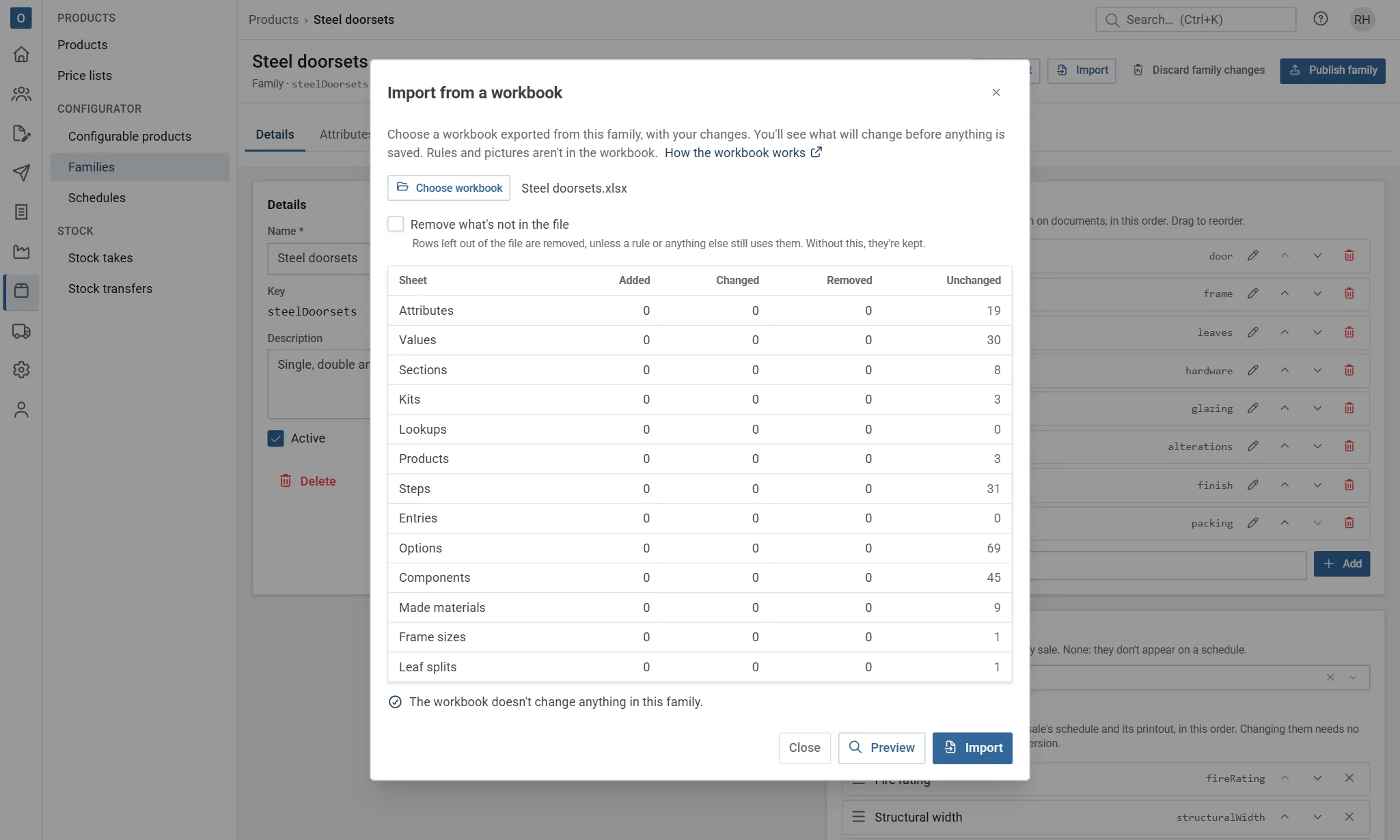
The preview shows, for each sheet, how many rows will be Added, Changed and Removed, and how many are Unchanged. It also lists every problem it finds, with the sheet, the row number and the column, such as an attribute that doesn’t exist, a value that isn’t a number, or a condition that doesn’t make sense. Each row is checked exactly as it would be if you made the change on screen.
If there are any problems, nothing is imported. Fix them in the workbook, choose it again and select Preview.
Import then saves everything together: either the whole workbook goes in, or none of it does. The family’s draft changes, so test it and publish it as you would after any change.
Removing rows
Section titled “Removing rows”Without Remove what’s not in the file, the import never removes anything: rows you’ve deleted from the workbook are kept.
With it ticked, rows that aren’t in the workbook are removed: values, sections, kits, attributes, and the steps, options and components of the products in the file. A lookup is removed only when it’s left off the Lookups sheet. A whole sheet that’s missing from the workbook is left alone, and so is a product that isn’t on the Products sheet.
Something still in use is never removed. Rules aren’t in the workbook, so the preview names any rule that uses something you’ve left out: change the rule first, or put the row back.
What isn’t in the workbook
Section titled “What isn’t in the workbook”- Rules and switch-offs are set up in the app. See Rules.
- Pictures stay as they are.
- Fixed values stay as they are.
- Configurable products aren’t created or renamed by an import: create them on screen first, then fill them in from the workbook.
A workbook can be up to 10 MB, with up to 50,000 rows across all its sheets.
Formulas in the workbook aren’t worked out by the import: it uses the values Excel saved. If a cell’s formula has no saved value (for example, a file made by another program), open the workbook in Excel and save it first.