

Configured items
A configured item is a product built to the customer’s answers: a server build with the processor and memory they chose, say, or a door made to size. You answer its steps on the sale, and Customry One works out its description, its parts and its price. The item is one line on the sale, with its parts under it.
Configurable products are set up and published under Products → Configurator. See Configurable products. Only published products can go on a sale.
Add a configured item
Section titled “Add a configured item”- Open the enquiry, quote or order, and go to its Sale lines tab.
- Select Add configured item (it’s also under Add other).
- Choose the product. They’re grouped by family; type to search by code or name.
- Answer the steps. The steps down the left tick off as you go, and the summary on the right shows the description, the price and the parts as they change. On a step that asks for numbers, such as sizes, each box takes numbers only and shows its unit, with the range it allows underneath. A number outside the range is kept as you typed it, and the reason shows in red under the box until you put it right. A warning about the answer shows under the box too, until it’s accepted. The ↑ and ↓ keys move it up or down by one step (the entry’s Steps of, or 1). What you type is used when you press Enter or leave the box; a box you only click into or Tab through keeps its value, such as a default. Empty the box to clear your answer.
- Set the Quantity under the price.
- Select Finish and save.
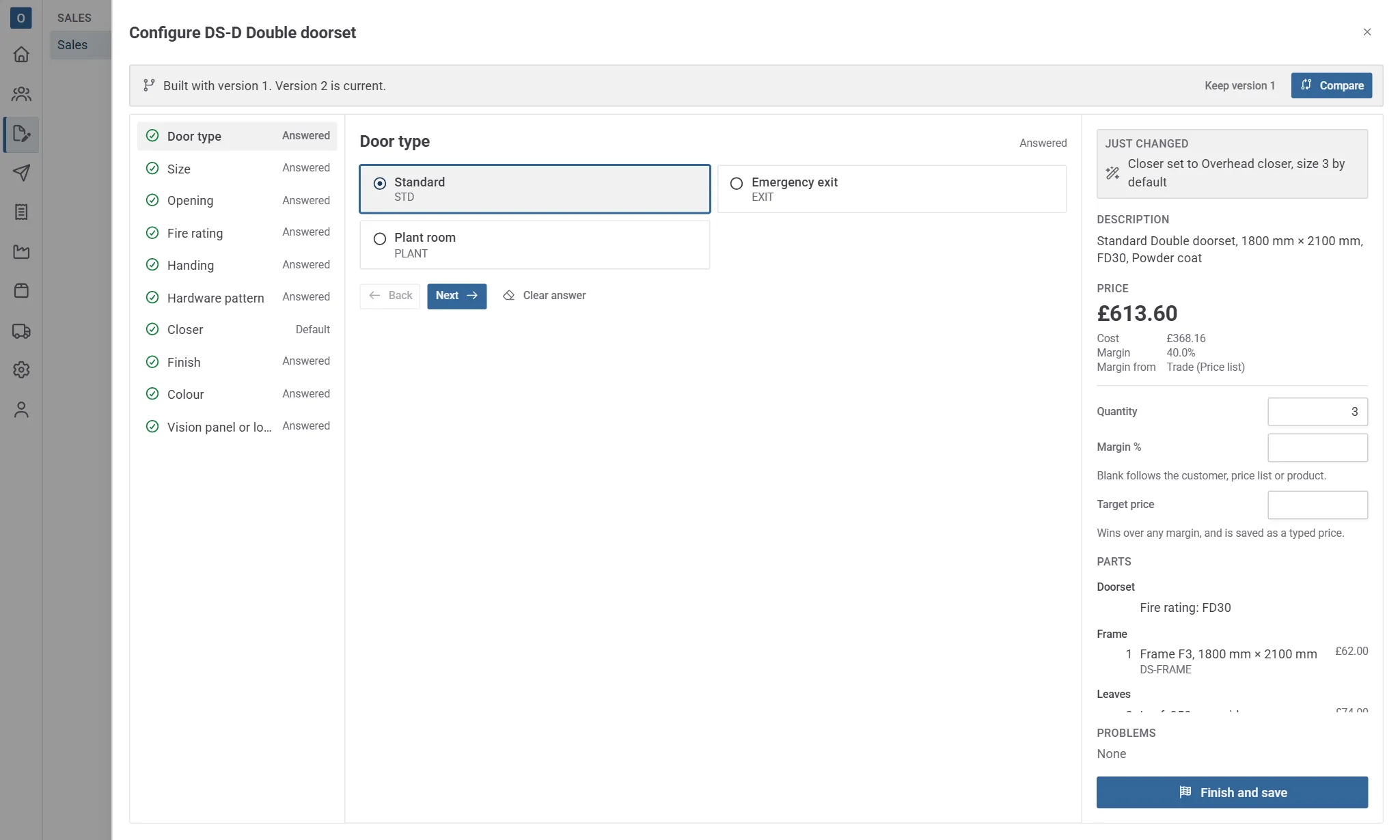
Finish puts the item on the sale and saves the sale straight away, so its parts and price are checked while you’re there. If you had other changes on the sale that weren’t saved, they’re saved too; the wizard says so before you finish.
Warnings
Section titled “Warnings”Some answers raise a warning rather than stopping you, such as a size outside the usual range. Tick Accept this warning under it in the summary to go on. Accepted warnings are kept with the item, so editing it later starts with them accepted.
On the sale
Section titled “On the sale”A configured item shows its code, a Configured item tag and the version of the product it was built with (v1), with the description worked out from your answers. Its price source is Configurator.
Its parts are listed under it, each with what kind of part it is:
| Part | Means |
|---|---|
| Component | A stock item, picked from the warehouse. Shows whether it’s in stock. |
| Made part | Made for this item, with its sizes or other details on one line. It goes on To make, is made on a works order, and is marked made before the item is despatched. |
| Service | Work such as assembly or fitting. |
| Note | A note that goes with the item. |
The parts follow the item: change the item’s quantity and theirs change with it. They can’t be edited on their own. Use the arrow by the code to fold the parts away.
References and schedule fields
Section titled “References and schedule fields”Each configured item whose family is on a schedule can have a reference, such as D01, typed in the box before its code (see Schedules). An item whose family has no schedule keeps any reference and fields it already has, but can’t be given new ones. References are optional, but on a sale each one can only be used once (D01 and d01 count as the same). A reference that’s already used, or that has a tab or line break in it, is outlined in red, and saving says which lines share it: “Lines 4 and 9 both have the reference D04.”
If the item’s schedule has Give new items the next free reference on (under Products → Configurator → Schedules), a new item gets the next number with that schedule’s prefix after the highest one on the sale, so after D01–D03 the next is D04. Each schedule has its own prefix, so a sale can have U01 and R01, but a reference is still only used once on a sale. Numbers aren’t reused, so removing D04 doesn’t make the next item D04 again. A copy takes the prefix and width of the item it copies: copying W-007 gives W-008.
An item’s schedule fields, such as its location (“Level 2, Plant room”), are kept when it’s copied or its configuration is edited. They’re shown and changed on the Schedule tab.
To see and change the references and fields of all the items at once, use the Schedule tab. See Schedules.
Edit, view or copy it
Section titled “Edit, view or copy it”Select the … by the item’s code:
- Edit configuration opens the steps again with your answers and accepted warnings, on the version the item was built with (to move it to a newer one, see Move to the current version). Change what you need and select Finish and save. The item is worked out again, so its description and parts can change. A price you typed on the item stays as you typed it; otherwise the price follows the new configuration.
- View configuration shows the answers without changing anything, with the item’s price on the sale beside the price worked out now. On a phone a configuration can be looked at but not changed.
- Copy adds a copy of the item straight after it, with the same answers and schedule fields, its own margin and the next free reference. A copy is a new item, so it’s built with the product’s current version, and it’s worked out again when the sale is saved, at today’s costs.
While one of its made parts is on a works order that isn’t cancelled, the item also can’t be split or removed, and its quantity can’t go below what the works orders are making. Cancel a works order that hasn’t started (on the order’s Works orders tab) to change the item. The order can’t be cancelled while made parts are still being made; once they’ve been made, cancelling asks first and writes their cost off. See Made parts and works orders.
You can also copy configured items with other ticked lines, using Copy on the ticked lines.
Move to the current version
Section titled “Move to the current version”An item stays on the version of the product it was built with, even after a newer version is published, so its parts and price never change behind your back. When you open Edit configuration on an item built with an older version, a banner says so: “Built with version 1. Version 2 is current.”
-
Select Compare. Customry One works out the answers in the steps on the current version (including any you’ve changed and not saved yet), without saving anything, and compares them with the item as it’s saved on the sale. It shows:
- Answers that change: answers the new version no longer allows are cleared, and anything a rule now sets is listed, with the reason;
- the description before and after;
- the parts that were added, removed or changed in quantity or size, section by section (quantities are per item);
- the price per item on each version, and with costs, the cost and margin.
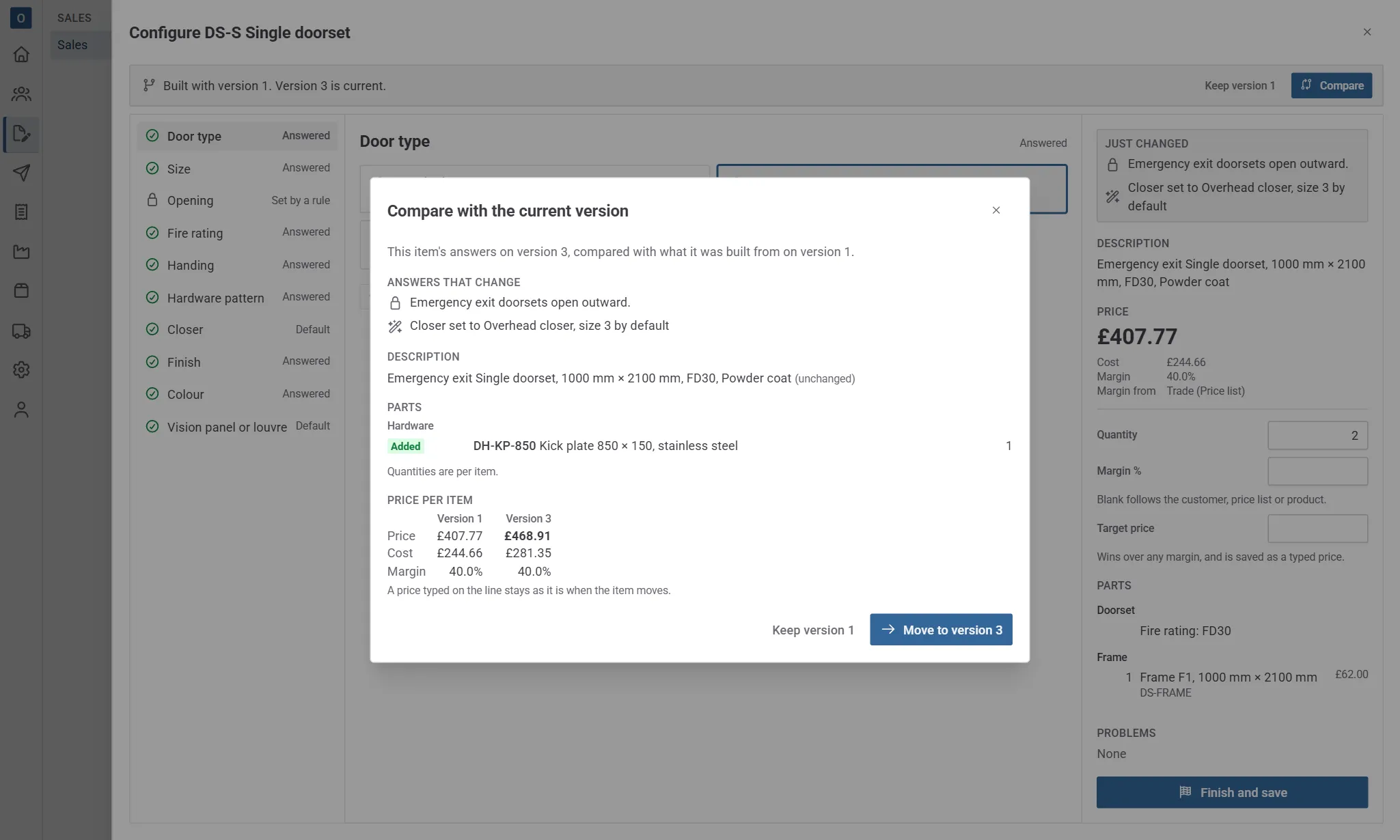
-
Select Move to version 2 to carry on in the steps on the new version. The answers that were cleared show under Just changed; answer anything that’s now needed.
-
Select Finish and save. The item moves to the new version, with its new description, parts and price. A price you typed on the item stays as you typed it.
Keep version 1 leaves the item on its own version and puts the banner away. Closing the steps without finishing also keeps it as it was.
What prints
Section titled “What prints”On quotations, order acknowledgements, proformas, delivery notes, invoices and credit notes, a configured item is one line: its description (and any extended description you added), its quantity and its price.
- Notes that come with the item always print under it.
- Its other parts print under it only when the sale shows components: Show components on customer documents in Administration → Sales settings, or Components on documents on the sale’s Details tab. They print with their quantities and without prices.
- A made part’s sizes and other details don’t print on customer documents.
- Shares of the price never print.
An item’s reference prints in the Reference column, which is left out of documents where no line has one.
Documents keep your template settings, branding and column choices as for any line. See Sending documents.
Printing the schedule
Section titled “Printing the schedule”Quotations and order acknowledgements print a schedule of the configured items, and the schedule can be printed on its own. See Print the schedule.
Invoices and credit notes
Section titled “Invoices and credit notes”A configured item is invoiced as one line, at its price, once it’s despatched; its parts aren’t invoiced on their own. It goes to your accounts package as one sale through its product’s nominal code. See Invoices and credit notes.
When a configured item comes back, credit it and choose to put the goods back into stock. Its picked parts go back, as many as went out with the quantity credited; its made parts and services don’t.
Quantities and prices
Section titled “Quantities and prices”- Quantity: changing it keeps the item’s price per item. The parts’ quantities follow it. To work the price out again at the new quantity, use More → Refresh prices…
- Price: you can type over the price or the discount, as on any line. The configurator’s price stays alongside it, so the discount shows how far you are from it.
- Optional, VAT and required date work as on any line. The parts take the item’s VAT rate.
How the price is worked out
Section titled “How the price is worked out”A configurable product is priced either at cost plus margin or from option prices, as it’s set up.
- Cost plus margin uses the first margin that’s set: the item’s own margin, then the customer’s Margin on configured items, then their price lists’, then the standard price list’s, then the product’s. See Margins for each customer.
- Option prices add up the product’s base price and the prices of the options chosen. A customer’s discount for the product’s category comes off the product’s own prices, but not off parts that are priced from your price lists (they already have the customer’s prices).
- On a sale in another currency, the price is worked out in your own currency and converted at the currency’s exchange rate. Configuring is refused in a currency with no exchange rate: set one in Administration → Currencies.
If you can see costs, the summary also shows the cost, the margin and where the margin came from, and under the price you can set:
- Margin %, the item’s own margin. Leave it blank to follow the customer, price list or product.
- Target price, a price per item. It wins over any margin, and is saved as a typed price.
Minimum margin
Section titled “Minimum margin”A configurable product can have a minimum margin. A price below it, whether worked out or typed, needs permission to price configured items below their minimum margin. Without it the save is refused, and the line keeps its last saved price. With costs the summary flags a price below the minimum before you finish.
Refresh prices
Section titled “Refresh prices”More → Refresh prices… works each configured item out again, with its own answers on the version it was built with, for the sale’s customer and currency. Its costs and price are brought up to date, and its parts keep their costs in step.
It never changes an item’s parts. If the item would now come out with different parts, can’t be finished, or would go below its minimum margin, it’s left as it was and listed: “1 configured item wasn’t re-priced: line 3. Edit its configuration to review it.”
Copying a sale, orders and revisions
Section titled “Copying a sale, orders and revisions”- Copy… copies configured items with their answers and parts. Tick Re-price to work them out again as Refresh prices does. A copy in another currency always works them out again.
- Changing the customer keeps the items as they are unless you re-price; a different currency works them out again, and if one can’t be priced the change is refused, naming the line. Re-pricing lists any item it left as it was, as Refresh prices does.
- A different currency on the sale itself works the items out again too. If an item can’t be priced in it, for example a warning about a part with no price in that currency that wasn’t accepted, the save is refused, naming the line: edit its configuration and accept the warning, or keep the currency.
- Confirming a quote as an order keeps every item exactly as it was quoted.
- Revisions keep each item’s answers and parts, and its reference and schedule fields, and restoring a revision brings them back as they were, without working them out again.
- A copied sale keeps its items’ references, since a new sale has its own numbering.