

Schedules
A sale with many configured items lists them on its Schedule tab, with a reference and fields of your own for each, such as a location (see Schedules on a sale). Products → Configurator → Schedules is where you set up what those schedules hold.
If you sell more than one kind of configured product, each kind can have a schedule of its own. For example, a Unit schedule with Wall type and Drawing, numbered U01, U02 and so on, and a Rack schedule with Rack and Power feed, numbered R01, R02. A family of configurable products links to one schedule, or to none.
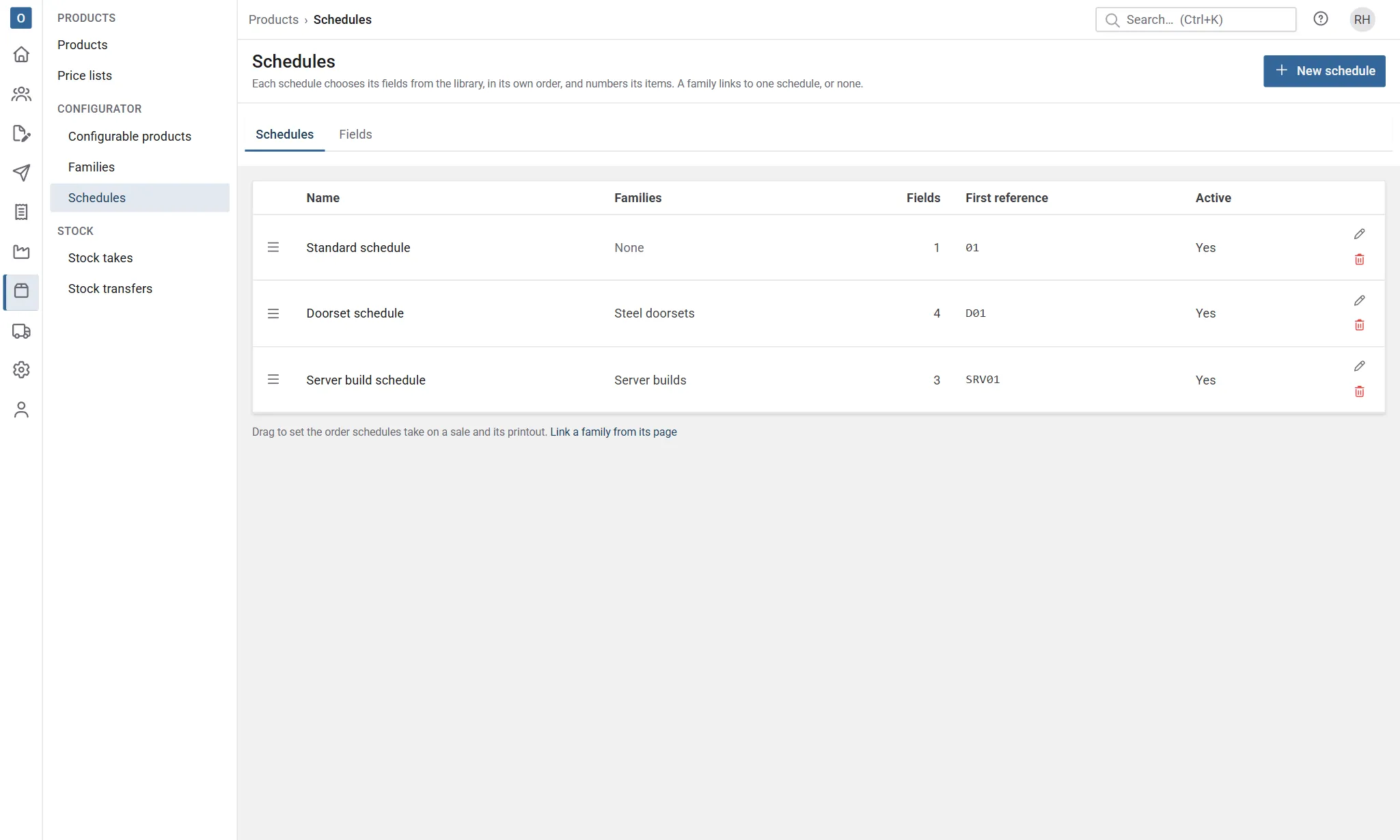
Add a schedule
Section titled “Add a schedule”On the Schedules tab, select New schedule. A panel opens with:
- Name, such as Unit schedule. Two schedules can’t have the same name.
- Give new items the next free reference: a new item on this schedule, or a copy, is numbered for you as soon as it’s added. Turn it off to type references yourself.
- Reference prefix and Digits set how numbers look: prefix U with 2 digits gives U01, U02 and so on. First reference shows the result. The prefix can be blank, but it can’t end in a digit.
- Active: an inactive schedule isn’t offered when you link a family, but families already linked to it keep it.
Select Save. If something needs changing, Save outlines it and says why.
Each schedule numbers its own items, but references stay unique across the whole sale. Two schedules can even share a prefix: the second carries on after the highest number already on the sale, so nothing is ever used twice.
Choose its fields
Section titled “Choose its fields”The schedule’s Fields come from the field library (below). Choose a field from the list and select Add field. Drag fields into the order you want them on the schedule.
Location is a field like any other. It’s first on the Standard schedule, with a wide column, so sales from before keep their Location column where it was and as wide. A schedule that doesn’t need a location can leave it out, or take it off.
Printed decides whether a field prints on this schedule’s part of a quotation, acknowledgement or printed schedule. Untick it for a field that’s only for your own use, such as an internal note. The same field can print on one schedule and not on another.
Select the cross by a field to take it off the schedule. Items that already have a value for it keep the value.
Link families
Section titled “Link families”Families lists the families whose items show on this schedule. Choose them from the list. A family is on one schedule at most: choosing one that’s on another schedule asks first, then moves it here.
You can also link a family from its own page: Products → Families, then the family’s Details tab and its Schedule list. See Configurable products.
Linking needs no publish, and it applies to the family’s items on every sale, old and new.
Print options
Section titled “Print options”- Prices: As the document template uses the template’s choice; Show or Hide overrides it for this schedule.
- Description: As the document template, or Without columns, Always or Never for this schedule.
Landscape pages and starting on a new page are set on the document template. See Documents and branding.
Order and delete
Section titled “Order and delete”Drag schedules into order in the list. A sale’s schedules and their printed parts follow this order.
Delete asks first. A schedule can’t be deleted while any family is linked to it: link those families to another schedule (or to none) first.
The field library
Section titled “The field library”The Fields tab holds your schedule fields, such as Wall type (a choice) or Drawing (text). Select Add field and give it a Name and a Kind: text (with the longest value allowed), a number (with its decimal places), a choice (with its choices), yes or no, or a date. Tick Wide column for a field that holds longer text, such as a location: it gets a wider column on printed schedules and in exported workbooks. A new field isn’t on any schedule until you add it to one. Drag fields into order: that’s the order a field takes when it’s added to a schedule.
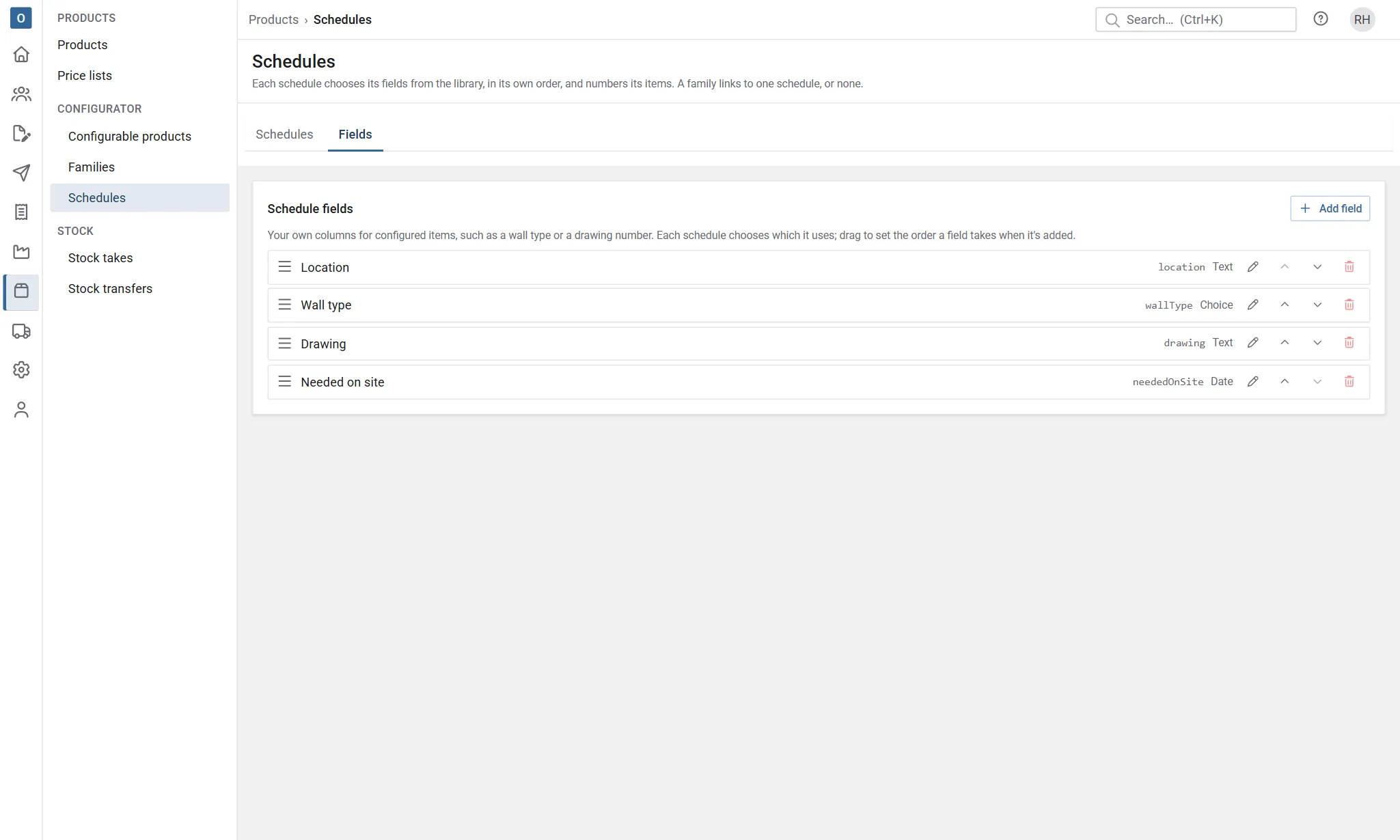
Once any item has a value for a field, its key and kind can’t change and it can’t be deleted; make it Inactive instead. An inactive field keeps its values on the items that have them, but isn’t offered for new ones, and can’t be added to a schedule. A field that’s on a schedule can’t be deleted until it’s taken off.
When a family moves or leaves a schedule
Section titled “When a family moves or leaves a schedule”- A family moves to another schedule. Its items, on every sale, show and print on the new schedule. Their references stay as they are; new items are numbered with the new schedule’s prefix. Values for fields that aren’t on the new schedule are kept on the items, but don’t print.
- A family is linked to no schedule. Its items don’t show on the Schedule tab, the printout or the export, and they can’t be given a new reference or field value. Nothing is lost: what they had stays on the items, and comes back if the family is linked again.