

Rules
Rules make a configurable product react to its answers: offer an option only with certain choices, make a step required, limit a number, or fill in a value. The examples here are from a server build.
There are two places to put a rule:
- Shared rules belong to the family (Products → Families, open the family, Shared rules tab). They apply to every product in the family, so they’re written about attributes and their values, never about one product’s steps.
- A product’s own rules are on the product’s Rules tab (Products → Configurable products, open the product). They can also target the product’s steps and options.
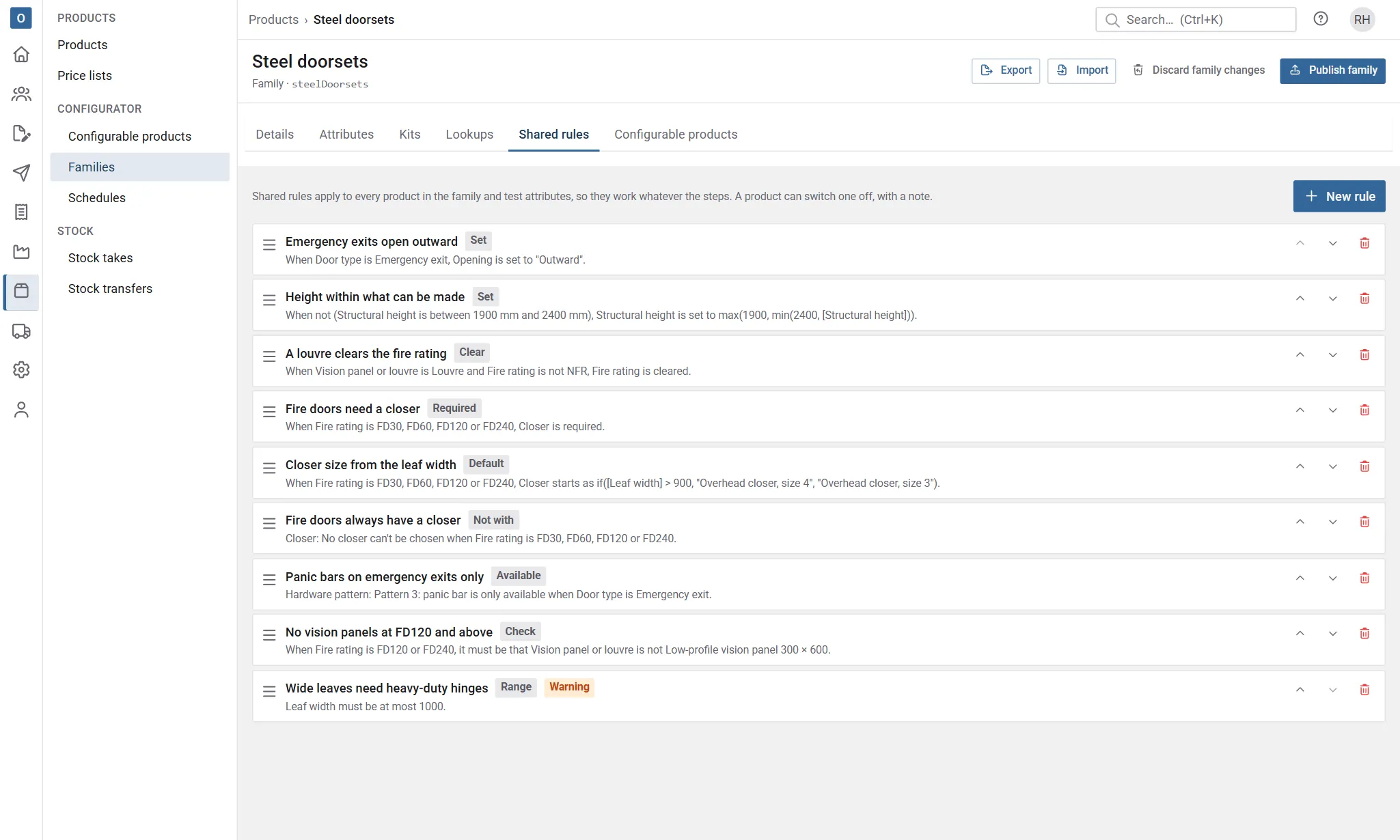
Adding a rule
Section titled “Adding a rule”Select New rule, then fill in the drawer from the top down:
- Name: what the rule is for, such as RAID needed above two drives.
- Type: what the rule does (see the table below). A line under it explains the type.
- Target: what the rule applies to. The list only offers what that type can target.
- When: the condition, built from tests (see Conditions). Leave it empty and the rule always applies.
- The fields for that type: Then this must be true, Minimum and Maximum, or Value.
- Severity (some types) and Message.
At the top of the drawer, This rule says in a sentence what the rule will do, such as When Drives is more than 2, RAID controller is required. It changes as you fill in the drawer.
Select Save. If something’s missing, the fields that need attention are marked and the first one is selected for you. A rule can be saved even if it makes another part of the setup need attention: you’ll see a warning saying what, and the rule check before publishing lists it too.
Rule types
Section titled “Rule types”| Type | Target | What it does | Example |
|---|---|---|---|
| Available | A step, an option or a choice value | Offers the target only while the condition holds. A rule on a value hides every option that gives that value. | Rail kit is only available when Chassis is one of Rack 1U, Rack 2U. |
| Required | A step or an attribute | Makes the target required while the condition holds. | When Drives is more than 2, RAID controller is required. |
| Count | A pick-several step, or a choice that holds several values | How many can be picked: a minimum, a maximum or both. | Pick at most [Memory slots] of Memory modules. |
| Not with | An option or a choice value | The target can’t be chosen while the condition holds. | Tower fans can’t be chosen when Chassis is Rack 1U. |
| Needs | An option or a choice value | The target can only be chosen when the condition holds. | Second processor needs Motherboard is Dual socket. |
| Range | A number attribute | The number must be within a minimum and maximum. | Drives must be between 1 and [Drive bays]. |
| Check | None | Whenever the first condition holds, the second must too. | When Use is Database, it must be that Memory (GB) is at least 64. |
| Set | An attribute | Fixes the value. The step shows it locked, with the message. | When Chassis is Rack 1U, Power supplies is set to 2. |
| Default | An attribute | Fills in a value that can still be changed. | Warranty starts as "3 years". |
| Clear | A step or an attribute | Clears the answer, with the message. | When Chassis is Tower, Rail kit is cleared. |
For Count and Range, the minimum and maximum are numbers or formulas, such as [Drive bays] - 1. Leave one blank for no limit that way.
For Set and Default, the Value is a value of the target: a choice value in quotes ("Rack 2U"), a number, yes or no, or a formula that gives one.
Severity
Section titled “Severity”Not with, Needs, Range and Check have a Severity:
- Error stops the configuration being finished until it’s put right.
- Warning is shown, and the person configuring can accept it and carry on.
Messages
Section titled “Messages”The Message is what people see when the rule acts. Type { to put in an attribute’s answer, such as A database server needs at least 64 GB, not {Memory (GB)}. Check, Set and Clear rules need a message, to tell people why. For the other types, a message is written from the rule if you leave it blank.
Conditions
Section titled “Conditions”A condition is a group of tests:
- All of: every test must hold. Any of: at least one must.
- Tick Not to turn the whole group round.
- Add test adds a test: choose the attribute, how to compare it, and the value.
- Add group puts a group inside the group, for conditions such as Chassis is Rack 2U and (Drives is more than 4 or Use is Database).
The comparisons depend on the attribute:
| Attribute | Comparisons |
|---|---|
| A choice | is, is not, is one of, is not one of. A choice that holds several values: includes, does not include. |
| A number (typed in or worked out) | equals, is not, is less than, is at most, is more than, is at least, is between. Select the arrows button to compare with another number attribute instead of a number. |
| Yes/no | is yes, is no |
| Any attribute | is answered, is not answered |
Text attributes can only be tested for an answer.
Edit as text
Section titled “Edit as text”Select Edit as text to type the condition instead, in the same form as a formula:
[Chassis] = "Rack 2U" and ([Drives] > 4 or [Use] = "Database")The condition is checked as you type, and a mistake is underlined with the reason beneath it. Select Use the builder to go back: the text is turned back into tests. Text with a mistake stays as text until it’s put right, so nothing you’ve typed is lost.
Ordering and deleting
Section titled “Ordering and deleting”Drag a rule by its handle, or use the up and down arrows, to change the order. The trash button deletes a rule; deleting a shared rule removes it from every product in the family.
Switching off a shared rule for one product
Section titled “Switching off a shared rule for one product”A product’s Rules tab lists its own rules first, then the family’s Shared rules, each with a switch.
- Turn the switch off.
- Say why the rule doesn’t apply to this product, such as This model only comes with one drive bay. The note is required.
- Select Switch off.
The rule is marked Switched off, with the note, and no longer applies to this product. Turn the switch back on to apply it again. Shared rules are changed on the family: select Edit shared rules.