

Steps, options and components
A configurable product asks its steps in order. Each answer is an option (or a value typed in), and the options and the product itself bring the components: the parts that are picked, made or done.
Open the product from Products → Configurable products. The examples here are from a server build.
The Steps tab has the steps on the left, in the order they’re asked, and the chosen step on the right.
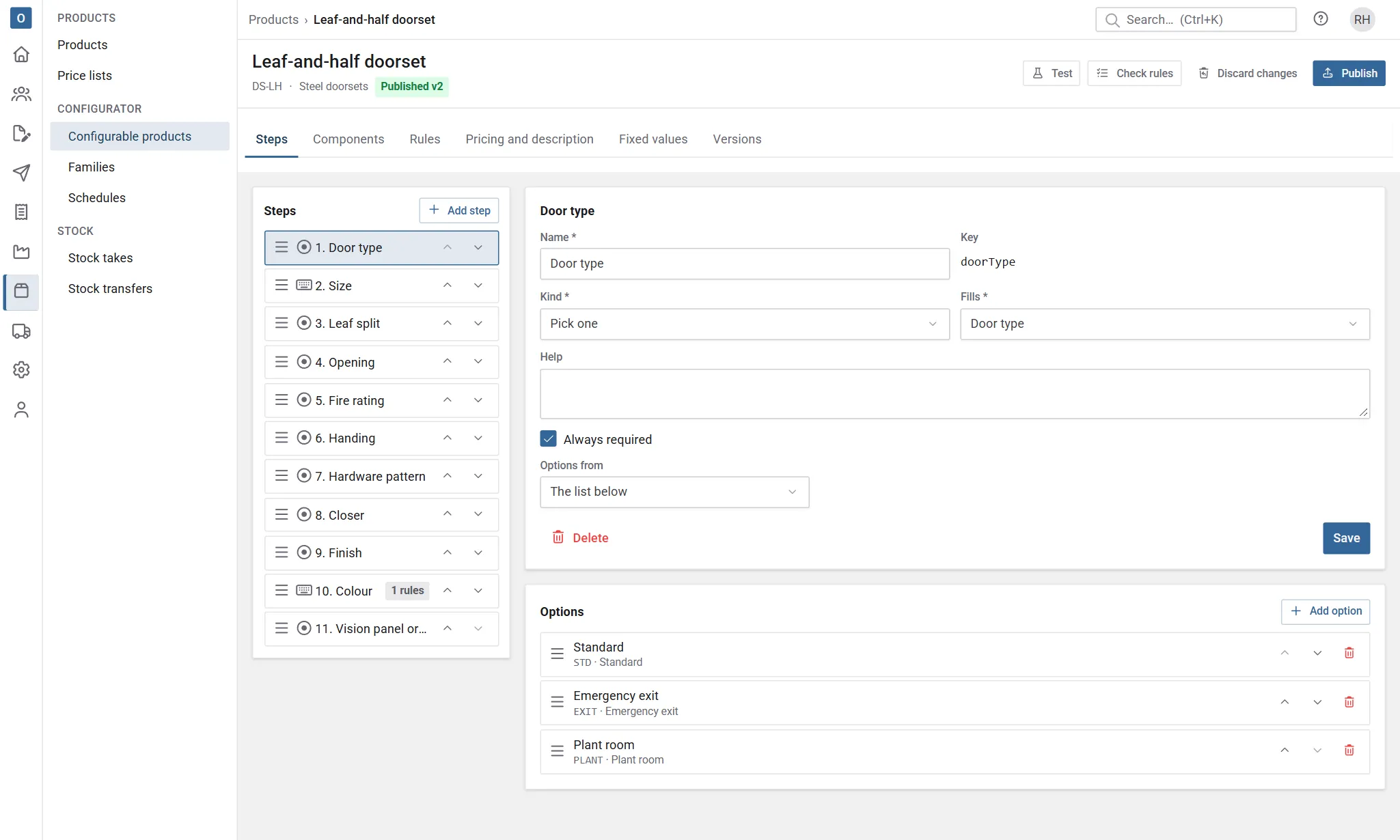
- Select Add step, fill in the step and select Save.
- Select a step to change it. Delete removes it with its options.
- Reorder steps by dragging the handle, or with the up and down arrows (on a phone or with the keyboard). A badge shows how many rules a step has.
Each step has:
| Field | What it does |
|---|---|
| Name | The question as it’s shown, such as Choose the memory. |
| Kind | Pick one, Pick several, Enter values or Information (text only, nothing to answer). |
| Fills | Pick steps only: the choice attribute the answer goes in. Pick several needs a choice that holds several values. |
| Help | Text shown with the step. |
| Always required | The step must be answered. Rules can also make a step required only sometimes. |
| Fewest and Most | Pick several only: how many may be picked. |
| Options from | Pick one only: The list below, or A lookup, whose matching rows become the options. |
| Entries | Enter values only: one row per number or text attribute, with Min, Max, Steps of and a Default. |
Options
Section titled “Options”A pick step’s options are listed under it. Select Add option, or an option to change it. Drag options (or use the arrows) to set their order on the step.
| Field | What it does |
|---|---|
| Name and Code | What’s shown, and the short code used in descriptions and code templates. |
| The step’s attribute | The value the option gives, such as Chassis = Rack 2U. Name an option like one of the values and it’s chosen for you. |
| Chosen by default | The option is picked until someone chooses another. |
| Also sets | Other attributes the option sets, such as Redundant power = Yes. |
| Kits | Kits the option brings in, with all their parts. |
| Price | Only for products priced by Option prices: None, Fixed, a Formula, or From its components (the selling prices of its parts). |
Save the option, then Add component for the parts it brings.
Components
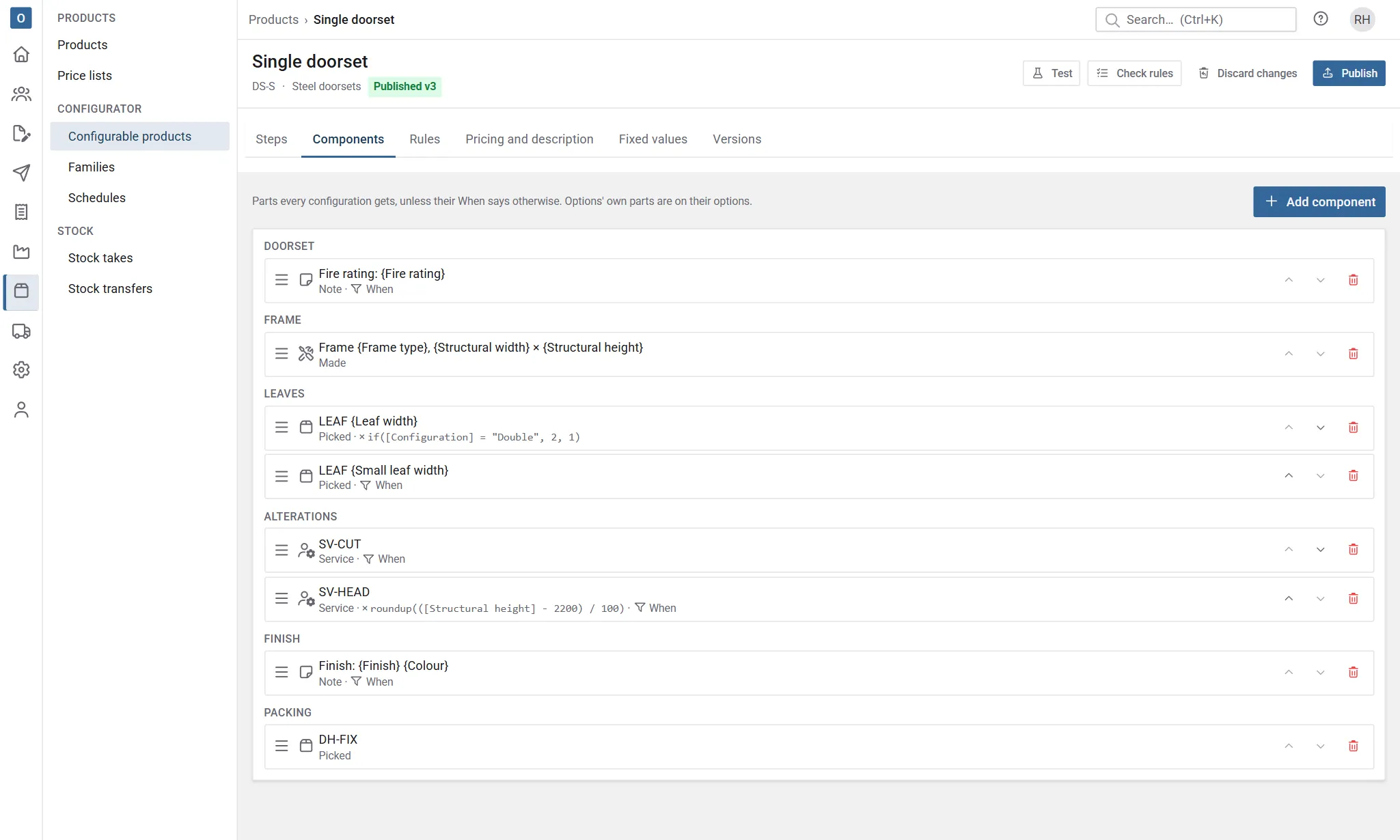
Section titled “Components”A component is one line of what’s made. The product’s own components (on its Components tab) are in every configuration; an option’s and a kit’s are only there when the option is chosen. On the Components tab they’re grouped by section, in the family’s section order, and you can drag them (or use the arrows) within a section.
| Field | What it does |
|---|---|
| Kind | Picked: a stock product. Made: a part that’s made, with a specification. Service: labour or an alteration, either a product or a description with a cost. Note: a printed line with no product or price. |
| Section | The heading it prints under. |
| Product from | A product you choose; A lookup (its product column, for the matching row); A code template that builds the product code from the answers, such as RAIL-{Chassis:code}; or No product. |
| If there is no such product | Code templates only: Show a problem, Use another product, Make it or Treat it as a service. |
| Description | The line’s text, with {Attribute} placeholders. Notes and services without a product need one. |
| Quantity | A formula, 1 if left blank. Decimals are allowed. A quantity of 0 or less leaves the part out. |
| When | A condition, such as [Chassis] in ("Rack 1U", "Rack 2U"). Leave it blank to include the part every time. |
| Made product and Specification | Made parts: a product to cost it by, and the attributes the part carries to whoever makes it. |
| Cost formula | Leave blank to use the product’s own cost. |
| Price formula | Only used with option prices. |
Which products a component can use
Section titled “Which products a component can use”Each kind of component takes the kinds of product that make sense for it:
| Component | Its product (and a fallback product) | Made product |
|---|---|---|
| Picked | A stock item (or an assembly): it’s picked from stock. | – |
| Made | A stock item. | A stock item. |
| Service | A service, or a stock item. | – |
The product pickers only offer what fits. A lookup’s product cells can hold stock items and services; whether a cell’s product fits is checked when a component reads it, and a configuration shows a problem if it doesn’t (for example, a picked part whose product is a service). Check rules reports any part of the wrong kind before you publish. Configurable products can never be parts of another.
Made parts’ materials
Section titled “Made parts’ materials”A Made component has a second tab, Materials: what each made part is made from, worked out from the answers. A frame of a made-to-size panel, say, is cut from bar stock to the panel’s height and width and needs a coating by area. Each row is one of two kinds:
| Kind | What it gives |
|---|---|
| Material | A Quantity per made part, in the product’s own unit: [Width] * [Height] / 1000000 * 0.2 litres of coating. |
| Cut piece | Pieces (a whole number), each of a Length and, for a piece cut from a sheet, a Width, in the cutting unit: 2 pieces of [Height] - 40. |
Each row also has:
- Product from: A product, A lookup (its product column, for the matching row) or A code template, with Show a problem or Use another product if no product has the code. A material’s product holds stock: a stock item or an assembly.
- Name: optional, a template such as
Rail {Finish:code}. A material without one is named by its product. - When: a condition, as on a component. A row whose condition doesn’t hold is left out.
- Note: for whoever makes it.
Add rows with Add cut piece or Add material, drag them into order, and remove one with its bin. A made part can have up to 50 rows, and no more than 1,000 cut pieces for one made part.
A cut piece’s quantity of its product is the pieces × length (× width) over the product’s cut size, plus its waste allowance: two pieces of 2,060 mm from a 6,000 mm bar use 0.6867 of a bar. A product stocked by the metre or square metre is measured in its own unit.
Also use the made product’s bill of materials is on by default: the made product’s bill of materials gives the fixed items (fixings, labels) and these rows the size-driven ones. Off, these rows are the whole list.
Cost: a made part with materials and no Cost formula costs its materials, each at its product’s cost, plus its made product’s rolled-up bill cost when the bill is used too. With a cost formula, or without materials, it’s costed as before.
On the works order: a configured item keeps its made parts’ materials as they were worked out when it was saved, and the made part’s works order takes them, beside its made product’s bill (or instead of it, with the switch off). See Materials from the configuration.
As with formulas elsewhere, an answer still to be given leaves the row waiting, and something that can’t be worked out (pieces that aren’t whole, a length of 0 or less) is a problem naming the part and the row, such as Frame: Side: the length must be above zero. A quantity of 0 or less, or no pieces, leaves the row out.
Fixed values
Section titled “Fixed values”The Fixed values tab lists attributes the product always has, such as Chassis = Rack 2U on a Rack server 2U. They’re set before the first step, and nobody can change them.
Rules, testing and publishing
Section titled “Rules, testing and publishing”The Rules tab holds the product’s own rules and lists the family’s shared rules; see Rules. Test, Check rules and Publish are at the top of the page, and the Versions tab lists what has been published; see Testing and publishing.