

Testing and publishing
A configurable product has a draft, which is what you edit, and published versions, which are what gets sold. Editing the draft never changes a published version, so you can work on the next version while the current one is in use. The examples here are from a server build.
The buttons are at the top of the product’s page (Products → Configurable products, open the product): Test, Check rules, Discard changes and Publish.
Test opens the draft as someone choosing a product would see it, in a panel that fills the screen. Nothing is saved, so try anything.
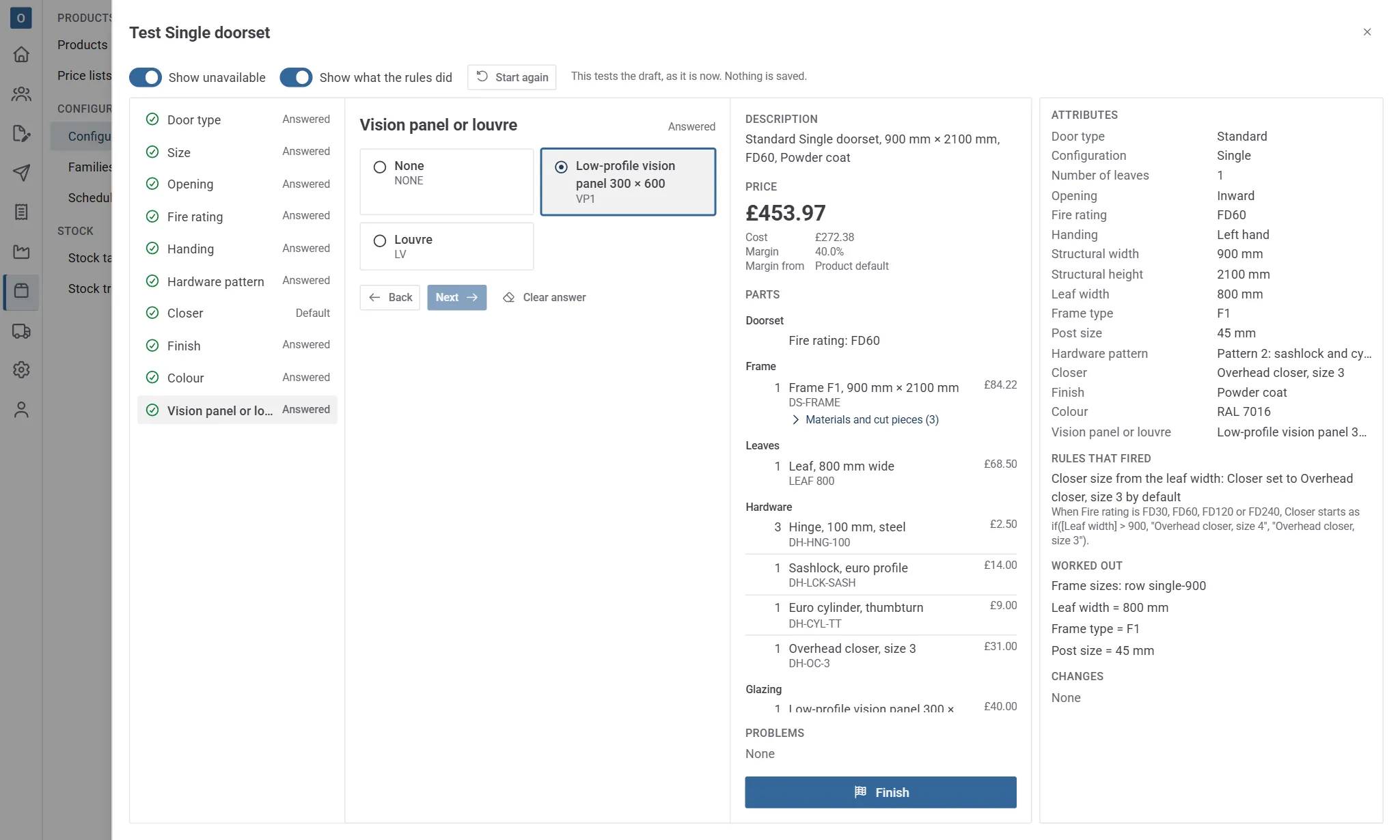
- On the left, the steps. A tick means a step is answered; a warning sign means something about it needs attention. A step that’s Not needed doesn’t apply with the answers so far, and one that’s Waiting depends on a later answer.
- In the middle, the current step: pick an option (or several), or type in the values. Number boxes take numbers only and show their unit and range; a number outside the range is kept, with the reason under the box (see Add a configured item). Picking an option doesn’t move on, so you can change your mind; Next moves to the next step that needs an answer. Clear answer takes your answer away again.
- On the right, the summary: the description, the price (with the cost and margin, if you can see costs), the parts grouped by section, and any problems. A made part with materials opens to show them, per made part: each material’s quantity, and each cut piece’s pieces × length (× width) in the cutting unit, with how much of its product they use.
When a rule changes an answer, Just changed says what happened, such as RAID controller removed: the build has no drives any more.
Problems come in three kinds: errors must be fixed, warnings can be accepted by ticking Accept this warning, and a step that still needs an answer is listed until it has one. Finish shows the result as it would appear on a sale. If anything is in the way, it says what and takes you to the first step that needs attention.
Two switches at the top help when setting up:
- Show unavailable lists options that aren’t allowed with the answers so far, greyed out, with the reason.
- Show what the rules did opens a panel with every attribute and its value, the rules that fired (each written as a sentence), what was worked out, and the changes.
Start again clears every answer.
Check rules
Section titled “Check rules”Check rules looks for mistakes in the setup and lists them as Errors, Warnings and Notes. Select Fix next to one to go to the tab where it’s put right.
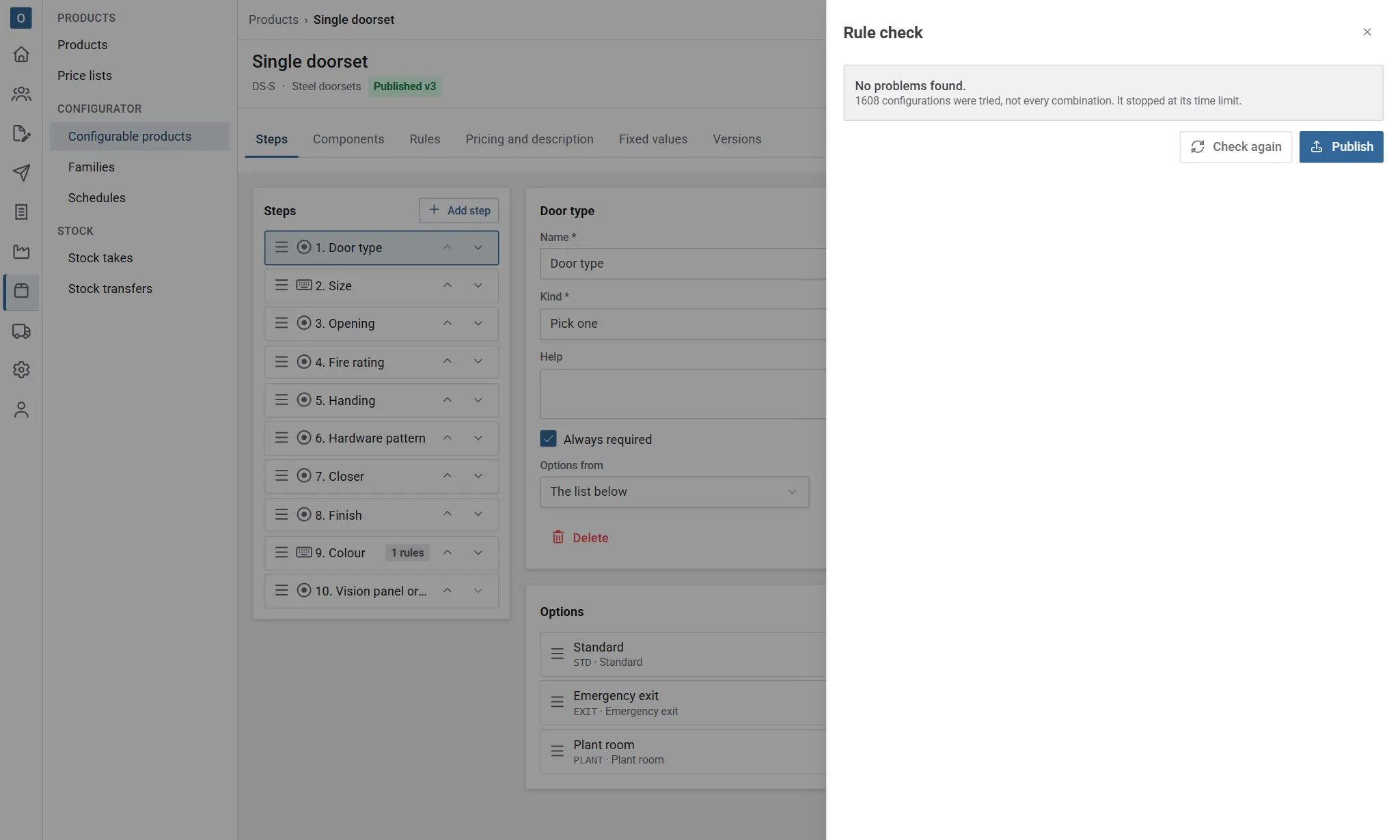
It checks two ways:
- By reading the setup. Formulas and conditions that don’t work, parts with no product (or an inactive one), made parts’ materials with no product, cut pieces from a product with no cut size, steps with no options, a pick-several step that needs more than it allows, the same option code twice in a step, rules about something this product never asks, rules that make a step wait for a later one, lookup rows that overlap, leave gaps, or don’t cover a step’s whole range, and lookups with more than one default row where only the first can be used.
- By trying answers. It works through the steps, trying every option and each number at its limits and around the values the rules compare it with. It looks for dead ends (a step that’s needed but has nothing allowed), answers that are always cleared again, and minimums that end up above maximums. Each one it finds says which answers lead to it, such as With Chassis 1U rack and Storage 8 × HDD, Drive count must be at least 2 and at most 1, which can’t both hold.
When there aren’t too many combinations it tries them all, and says so. Otherwise it tries a few thousand, or for a few seconds. A step or option it never reached then reads wasn’t available in 2,000 tries and is marked Not certain: it may still be reachable with answers it didn’t try.
Publish
Section titled “Publish”Publish runs the rule check first.
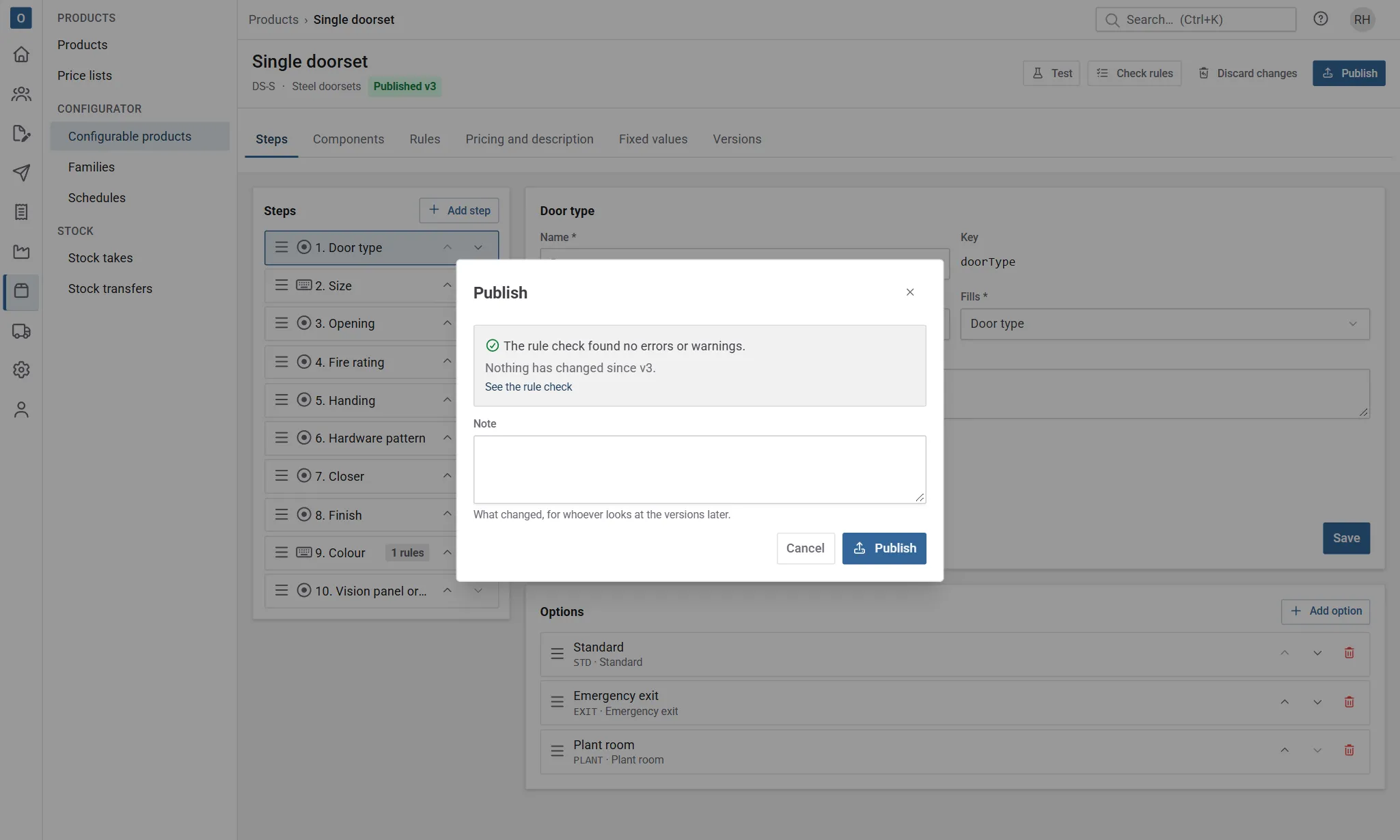
- Errors stop it. Fix them and try again.
- Warnings don’t stop it, but you have to tick Publish with these warnings and say why in the Note.
- With no changes since the last version, there’s nothing to publish.
Publishing freezes the draft as the next version (v1, v2…), with your name, the time and the note. It includes the family’s attributes, lookups and shared rules as they are at that moment, so later changes to the family don’t change it. The product’s page then shows Published v2.
Draft has changes shows on the product, and in the list of configurable products, when the draft differs from the published version. A change to the family shows on every product in it.
Publishing a whole family
Section titled “Publishing a whole family”After changing a family, open it (Products → Families) and select Publish family. Every product whose rule check has no errors, and whose draft has changes, is published together. Products with warnings are only included if you tick Publish products whose rule check has warnings too and add a note. Afterwards it lists what was published and what was skipped, and why.
Versions
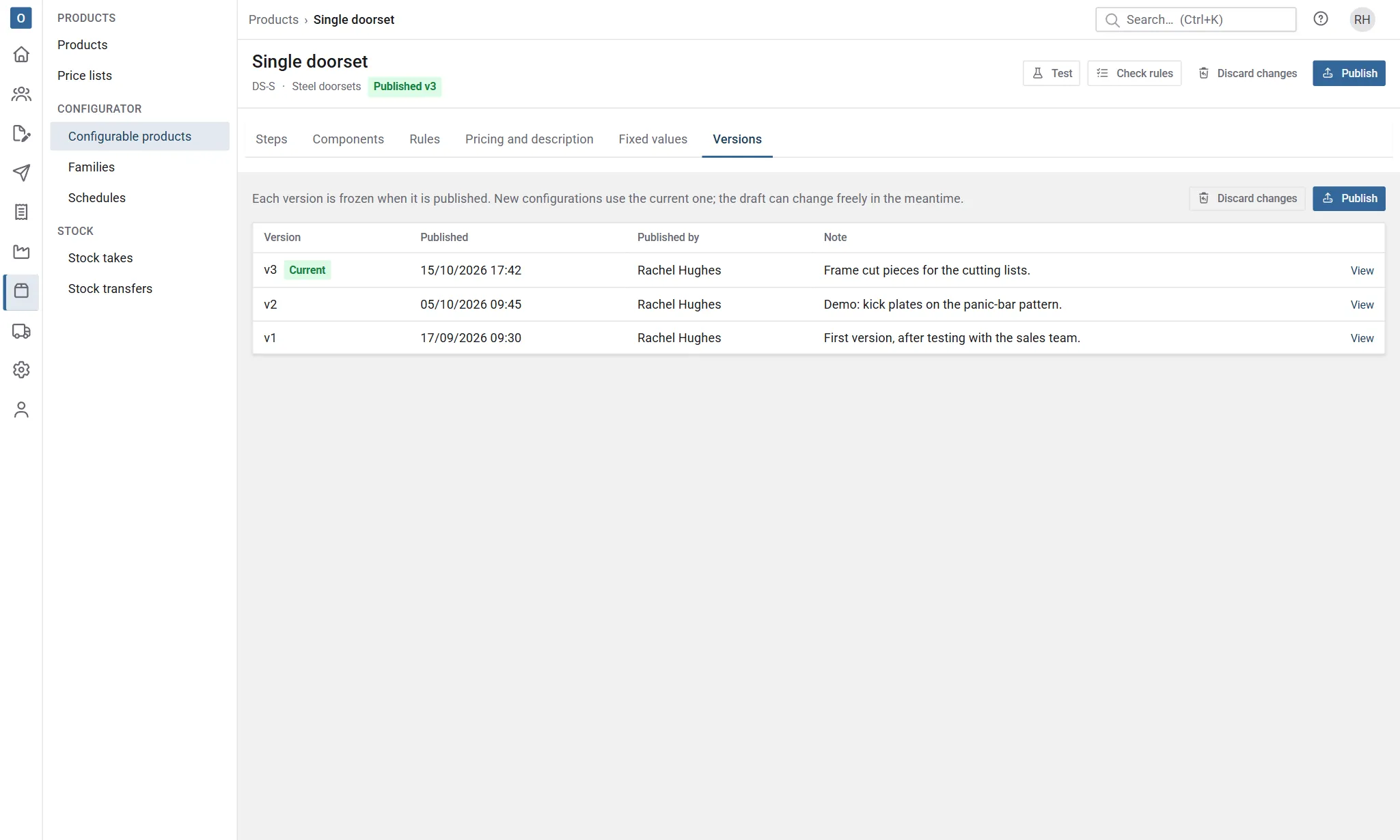
Section titled “Versions”The product’s Versions tab lists every published version, newest first, with who published it, when, and the note. Current marks the one in use. View shows what a version holds (how many steps, options, parts and rules) and, for whoever supports the setup, the version exactly as it’s stored.
Discard changes
Section titled “Discard changes”Discard changes puts the product’s draft back to its current published version. Before anything happens, it lists what will be lost: steps, options, parts, made parts’ materials and rules added, changed or removed since, the pricing and description, and shared rules switched on or off. Select Discard changes again to go ahead.
- It can’t be used until the product has been published.
- It only undoes the product’s own changes. The family’s changes stay; discard them on the family.
- If the published version uses an attribute, kit or lookup the family no longer has, discard the family’s changes first.
On a family, Discard family changes puts its attributes, values, sections, kits, lookups and shared rules back as they were in the newest published version of any of its products. If a product’s draft still uses something that would be removed, it says which, so you can discard that product’s changes first.
Discarding can’t be undone, but the change history keeps every earlier state of the draft.