

Users and permissions
Staff and users
Section titled “Staff and users”Staff are the people in your company: salespeople, pickers, buyers. A staff member becomes a user when they’re invited to sign in. Not every staff member has to be a user; a salesperson can be named on orders without ever signing in.
Give someone access
Section titled “Give someone access”- In Administration → Staff, open or add the person.
- Add their email address and save. Their email is their username.
- Select Invite to sign in.
They get an email with a link to choose their password. Resend invite sends it again; Unlink sign-in removes their access but keeps them as staff.
Lines picked in a day
Section titled “Lines picked in a day”For people who pick: their own daily limit on the pickers board, in stock lines. Leave it empty to use the company default from Despatch settings.
If your company measures pickers’ days in minutes, this is Minutes picked in a day instead: the limit in estimated minutes (420 is 7 hours). The record shows only the one your company uses; the other is kept. See Lines or minutes.
Picks at
Section titled “Picks at”For people who pick, at a company with more than one site: the site they work at, so the pickers board’s Share out gives them that site’s work. Leave it empty for someone who picks anywhere. See Sites.
Purchasing limit
Section titled “Purchasing limit”A staff member’s purchasing limit decides how much they can buy without approval, and how much they can approve for others. Leave it as No limit if it shouldn’t apply.
A role is a set of permissions, such as Sales, Warehouse or Accounts. Give people roles rather than setting permissions person by person.
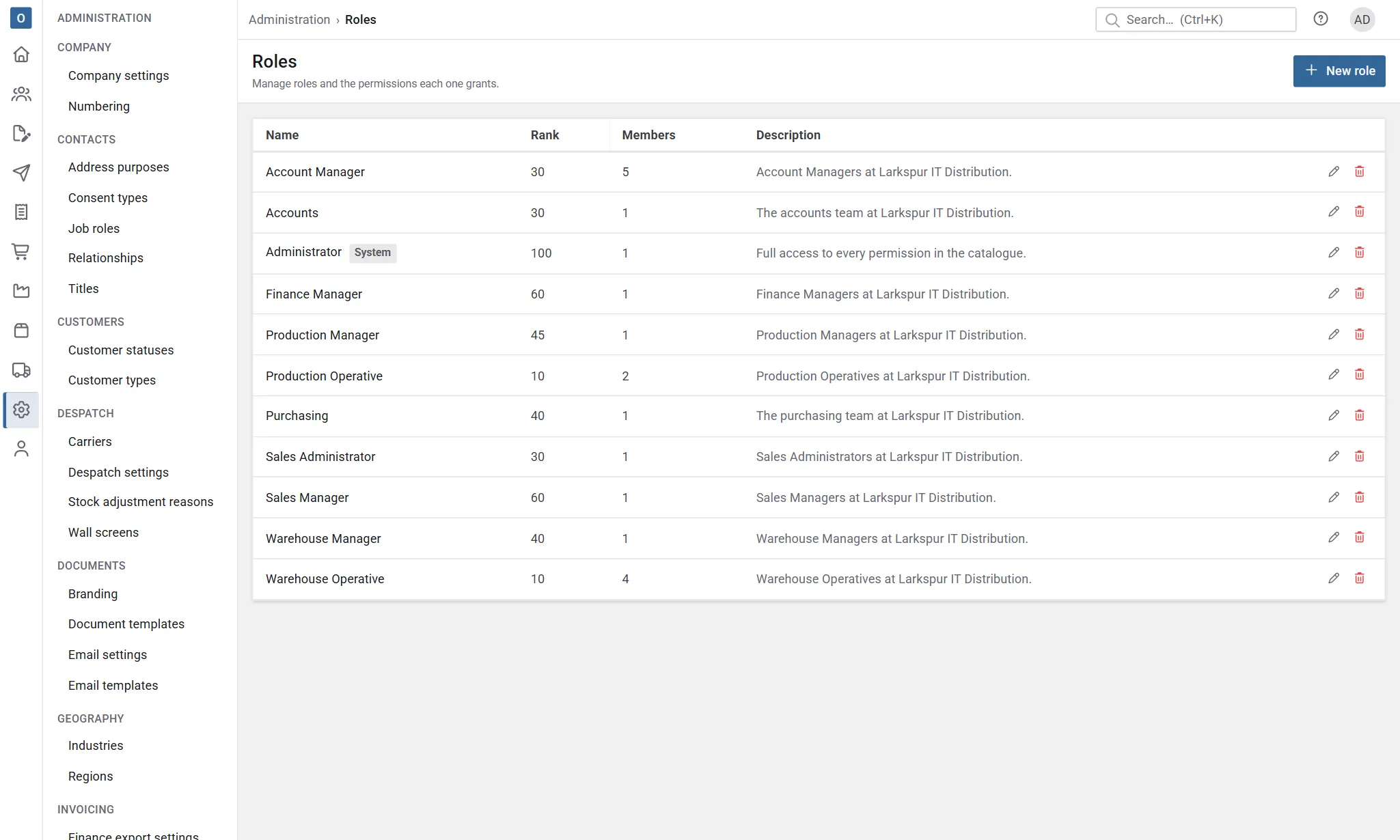
In Administration → Roles, open a role to choose its Permissions and its Members.
Permissions cover each area and action separately. For example:
- seeing sales versus changing them,
- seeing cost and margin,
- picking, managing despatch, issuing invoices, recording payments,
- approving requisitions or purchase orders,
- managing settings, documents, users and roles.
User groups
Section titled “User groups”User groups organise people, for example by branch or team. A group can sit inside another group. Add members with the search box.
Administration → Users lists everyone who can sign in. From there you can set someone’s password directly; their other sessions are signed out. To let them choose their own instead, send a password reset email.
The Two-step column shows how each person gets their two-step verification codes, Authenticator app or Email, or Off if they don’t use it.
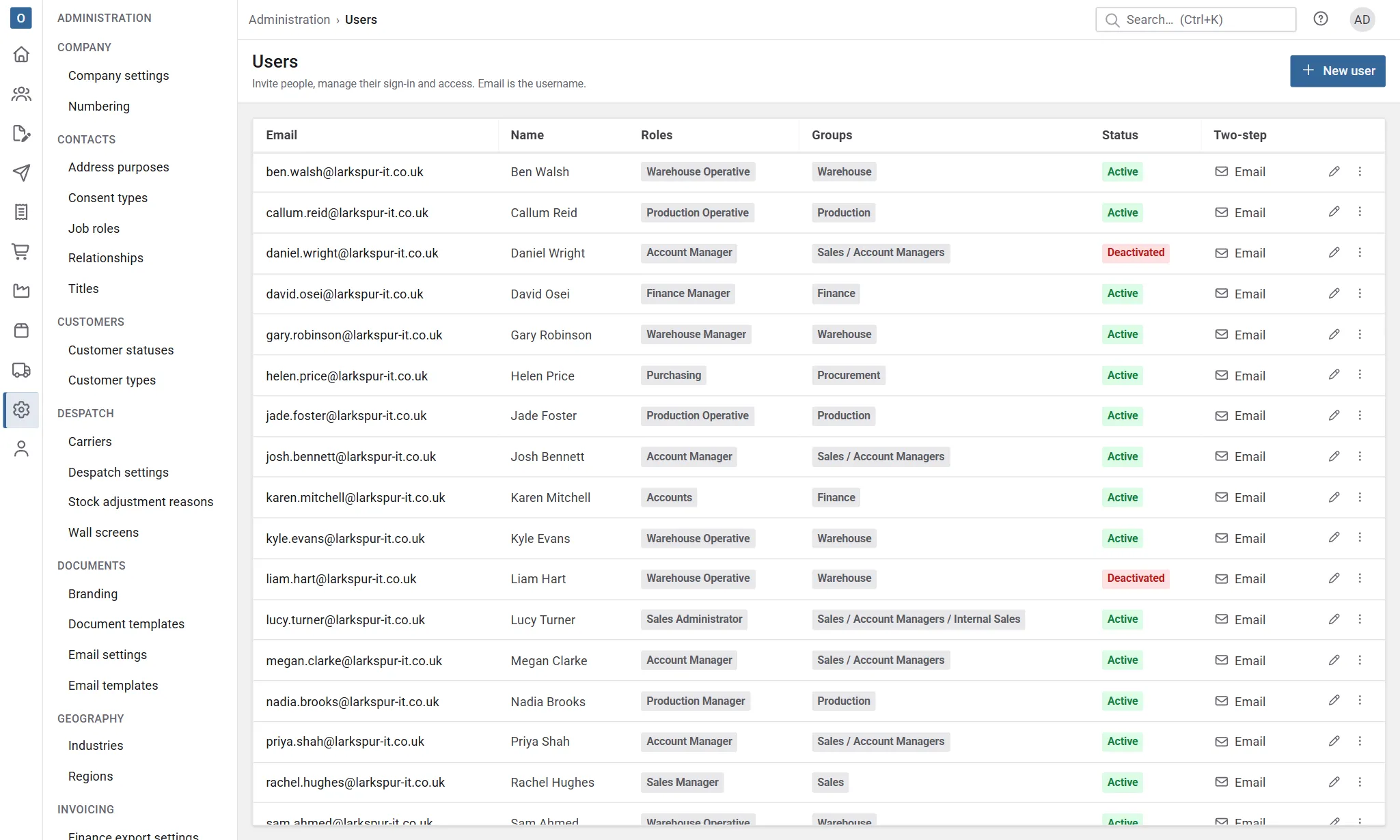
Reset someone’s two-step verification
Section titled “Reset someone’s two-step verification”When someone has lost their phone and has no recovery codes left, reset their two-step verification so they can sign in again:
- In Administration → Users, open the ⋮ menu on their row and select Reset two-step verification….
- Type the Reason, for example “Lost their phone, confirmed by phone call”. It’s kept in the audit log.
- Select Reset two-step verification.
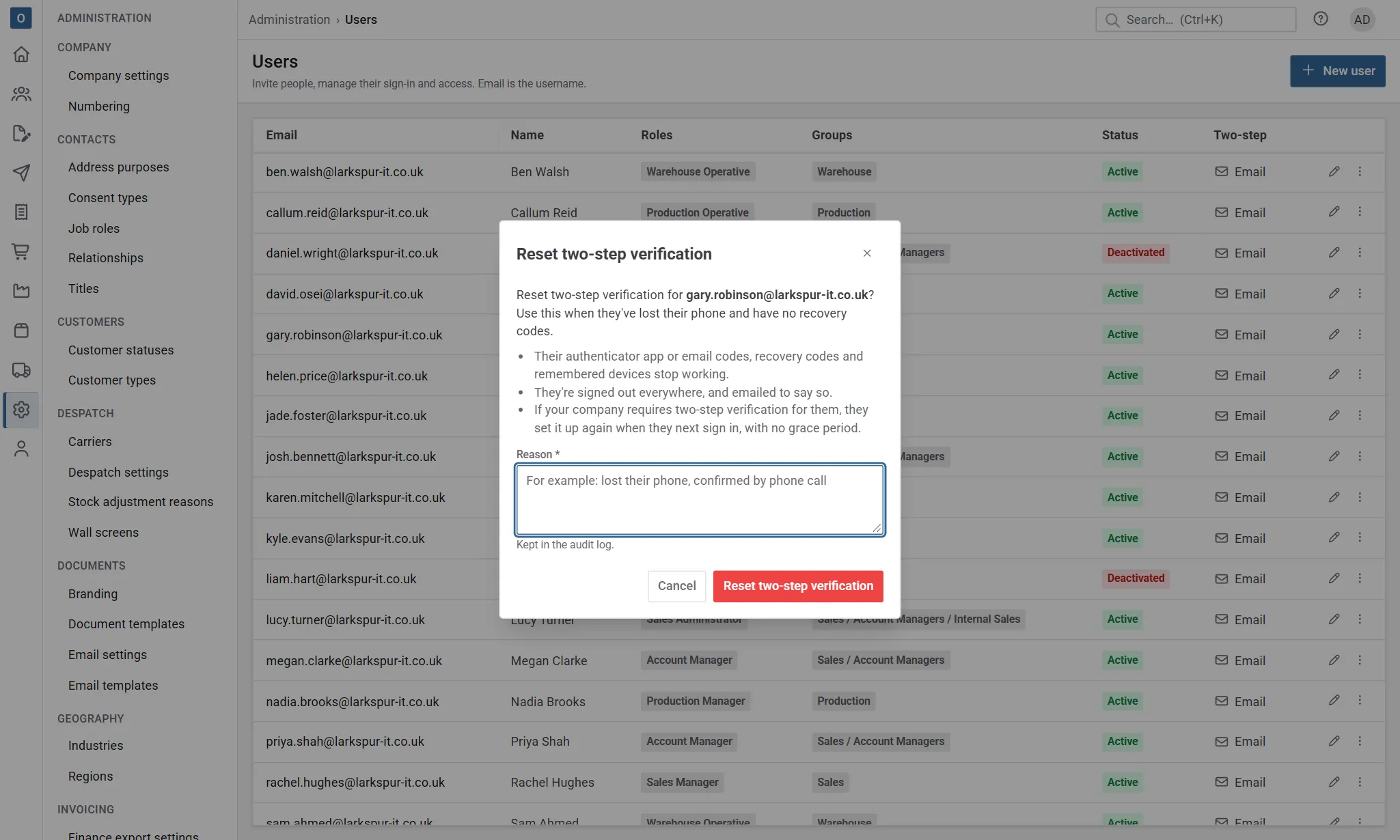
Their authenticator app or email codes, recovery codes and remembered devices stop working, they’re signed out everywhere, and they get an email to say so. If your company requires two-step verification for them, they set it up again when they next sign in, with no grace period; otherwise they can turn it on again when they like.
You can’t reset your own, and you can only reset people whose roles rank no higher than yours. Only a Customry superuser can reset a superuser’s. To change your own, use My Account → Two-step verification.
Audit log
Section titled “Audit log”Administration → Audit log records sign-ins and changes, with the time, the person, and their IP address. Filter it, and Export CSV to keep a copy.
Each record also has a History tab showing what changed on it, when and by whom.
Permissions (super user only)
Section titled “Permissions (super user only)”Administration → Permissions lists every permission in Customry One. The super user can rename a permission or change its description to suit your company, and reset it to the default.