

To despatch
Goods leave on deliveries. One order can go in one delivery or several. Each delivery has one number and moves through four stages:
Planned → Picking → Despatched → Delivered
Stock is booked out when the delivery is despatched, not before.
What’s waiting to go
Section titled “What’s waiting to go”Despatch → To despatch lists confirmed orders with goods still to send, soonest due first. Each shows when it’s due, and whether anything is short.
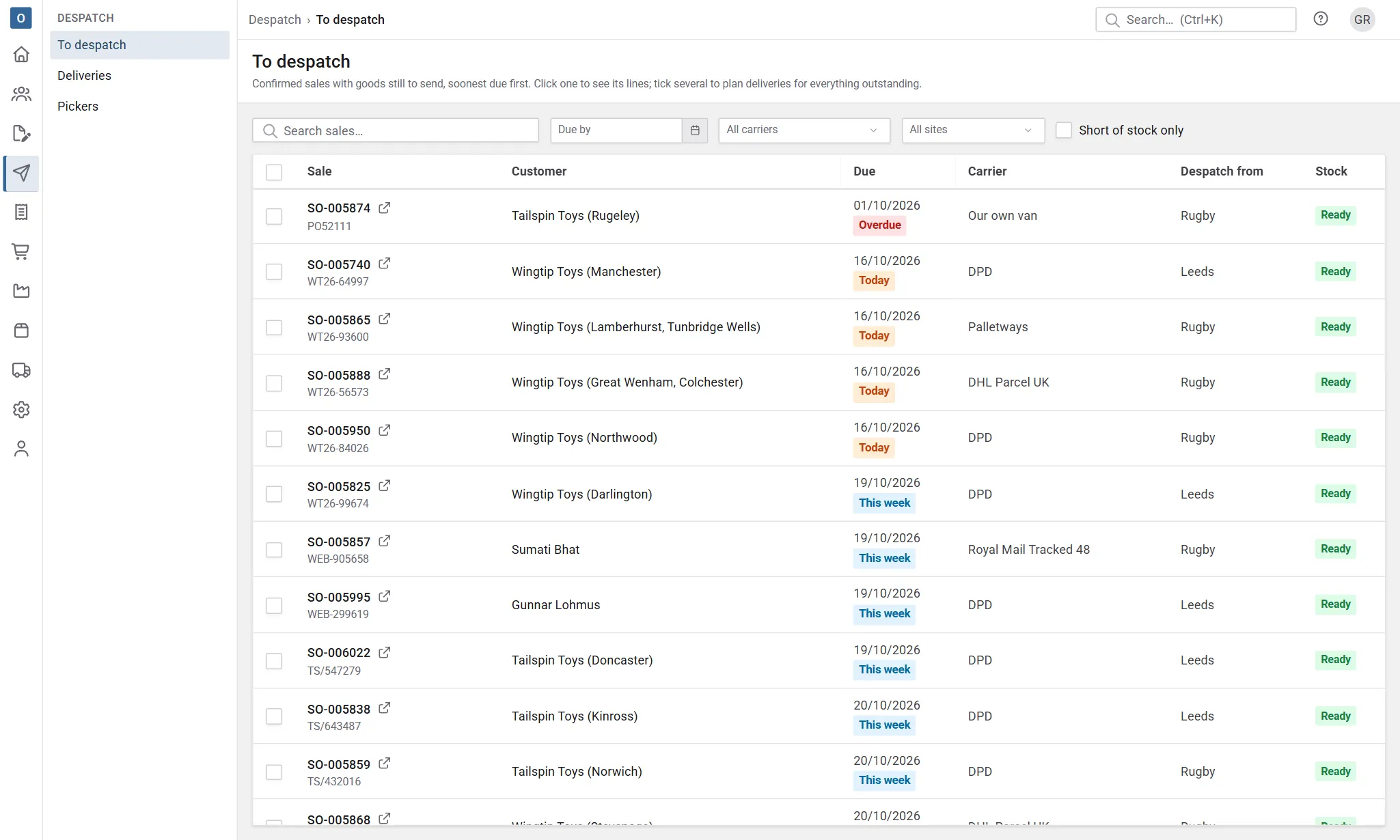
New orders appear here as soon as they’re confirmed. If the list is empty, there’s nothing waiting.
Services on an order go with its goods: they’re on the delivery but never picked, and don’t count as short. An order of services only has nothing to deliver, so it doesn’t appear here; it goes straight to To invoice.
An order with made parts still to send shows how many are made, for example Made parts: 1 of 4 made. With made parts coming from works orders, what their works orders have made and not yet sent counts as made. Select it to open To make.
With more than one site, Despatch from shows where each order’s delivery will go out from, and you can show one site at a time. See Sites.
Stock works orders need
Section titled “Stock works orders need”A released works order still needs the materials it hasn’t used yet. Stock works orders still need in Administration → Despatch Settings says whether deliveries can take them:
- Allow: despatch works from the stock on hand and ignores works orders. Companies set up before the setting start here.
- Warn (the default for new companies): Free stock is as before, and a line that would take stock a works order needs says so in amber, for example “4 of this is needed by WO-000012”. Hover over it for what’s free after works orders. Planning or despatching it asks first, naming the works orders; Plan anyway or Despatch anyway goes ahead.
- Stop: what works orders need comes off Free stock, so the line shows as part or short, with how much is “kept back for” which works orders. Planning or despatching it is refused, naming the works orders: plan less, or wait for more stock.
Only stock that’s there counts: an order wanting more than is on hand is short, not taking anything from a works order. Buy for this order works out what’s short from the free stock after works orders, unless the setting is Allow.
Plan a delivery
Section titled “Plan a delivery”You can plan a delivery from To despatch, or from the Deliveries tab on the sale.
On the sale:
- Open the Deliveries tab and start a new delivery.
- Everything still to follow is ticked. Leave it as it is to send the lot.
- Save.
The delivery appears in Despatch → Deliveries as Planned.
Part deliveries
Section titled “Part deliveries”To send only some of an order now, untick lines or lower the quantities when you plan the delivery. Whatever you leave stays to follow on the order, ready for another delivery later.
The sale shows, line by line, how much has been delivered and how much is still to follow.
Before it goes
Section titled “Before it goes”On the delivery you can:
- choose the delivery address, or add a one-off address used on this order only,
- pick the carrier and add a note for the driver,
- check stock: lines without enough stock are flagged before anyone starts picking.
If you change one of the customer’s saved addresses here, the change applies everywhere that address is used. Untick the option to keep it as a one-off for this delivery.
- Picking: getting the goods off the shelves.
- Despatching: booking it out and sending the delivery note.