Product properties
Properties describe a product beyond its code and name: a colour, a width, a fire rating, the date it was certified, whether it’s recyclable. You decide which properties your company uses, and each product gets values for the ones that apply to it.
Set up your properties
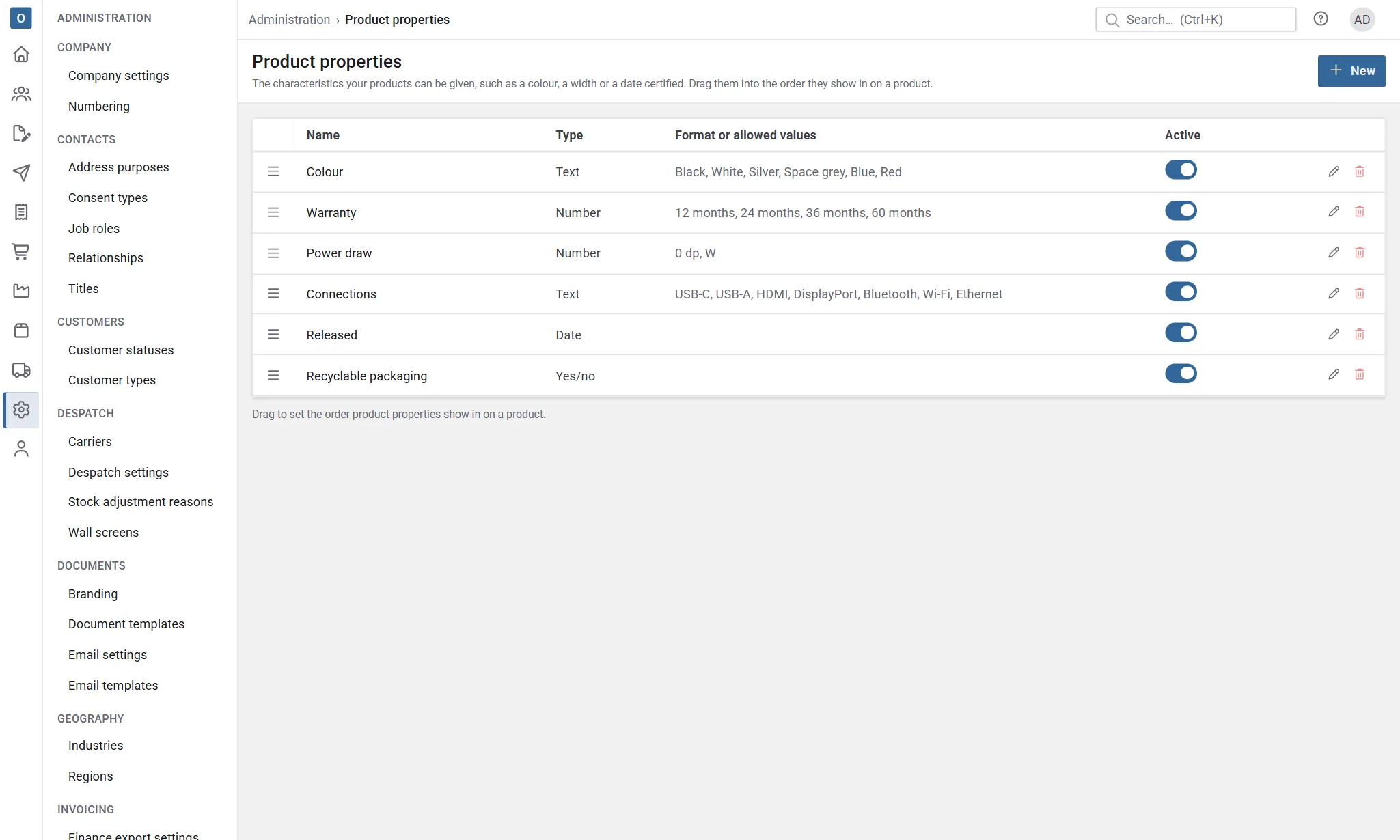
Section titled “Set up your properties”Properties are kept in Administration → Product properties. Select New and fill in:
- Name: what the property is called, such as Colour or Width. Each property needs a different name.
- Type: what kind of value it takes.
- Text: words, up to 500 characters.
- Number: a number, with its Decimal places (0 to 6) and an optional Unit shown after it, such as mm or kg.
- Date: a date.
- Yes/no: yes or no.
- Pick from a list (Text and Number only): the value has to be one of the property’s allowed values, which you list underneath. Add a row for each value, and use the arrows to put them in order. Tick Allow several values if a product can have more than one, such as a range that comes in Red and Blue.
- Description: an optional hint, shown when someone enters the property on a product.
- Active: switch it off to stop offering the property for products. Products that already have it keep their values.
Drag properties up and down the list to set the order they’re shown in on a product.
Once any product has a value for a property, its Type and Pick from a list can’t be changed. Allow several values can’t be switched off while a product has more than one value. The name, decimal places, unit, description and allowed values can still change. An allowed value that’s in use can’t be removed: switch it off instead, so it isn’t offered any more. A property in use can’t be deleted: make it inactive instead.
Give a product its properties
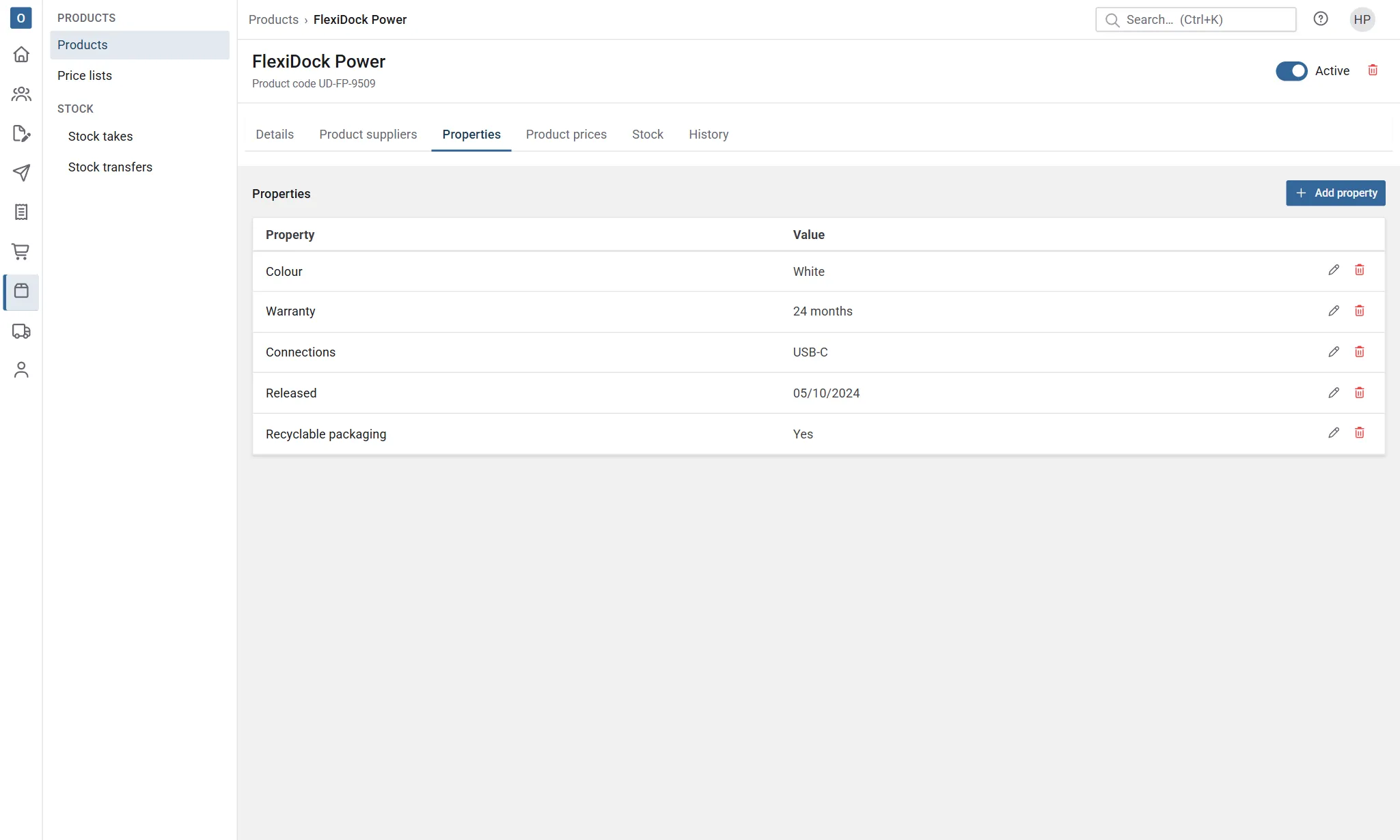
Section titled “Give a product its properties”- Open the product and go to its Properties tab.
- Select Add property.
- Choose the Property. Only active properties the product doesn’t have yet are offered.
- Enter its value: type text or a number, pick a date, choose Yes or No, or pick from the allowed values (one or several, as the property allows).
- Select Save.
Select a property on the tab to change its value, or the bin to take it off the product.