

Picking
Picking is getting the goods for one or more deliveries off the shelves. Customry One tells the picker which stock location to take each item from.
Start picking
Section titled “Start picking”- In Despatch → To despatch or Despatch → Deliveries, tick the deliveries to pick.
- Choose how to pick:
- Start picking moves them to Picking and gives you a pick list to print.
- Pick on screen opens the pick list to work through on a tablet or phone, ticking items as you go.
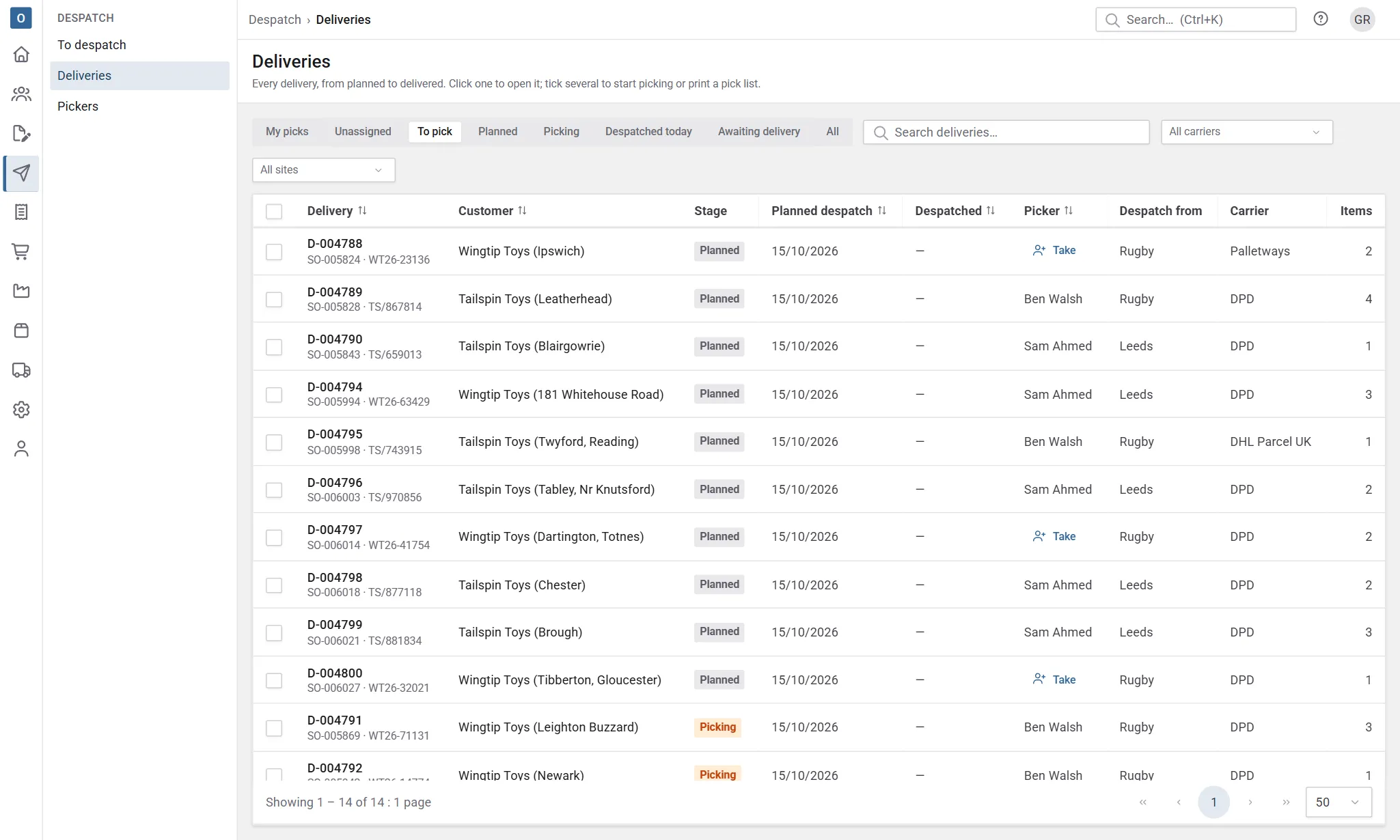
The pick list is grouped by stock location, so the picker walks the warehouse once. A kit’s stock components are on it as items of their own.
Pick on screen
Section titled “Pick on screen”Tick each item as you pick it. The list shows how many are picked out of the total. When everything is picked, despatch straight from the list.
Use Clear ticks to start again.
Change where stock comes from
Section titled “Change where stock comes from”On the delivery, Change picks… lets you take stock from a different location, or split a line across locations. Select Save picks when you’re done.
Pickers
Section titled “Pickers”If your company assigns picking to people:
- Managers give deliveries to pickers from the Deliveries list or the delivery itself.
- A picker can select Take to pick up a delivery nobody has been given yet.
- Pickers see their own work in the My picks view and on their Home board.
Whether pickers can take work themselves is set in Administration → Despatch Settings.
The pickers board
Section titled “The pickers board”Despatch → Pickers shows every picker’s work for the day side by side, so a despatch manager can see who’s busy and even the work out. Only despatch managers see it.
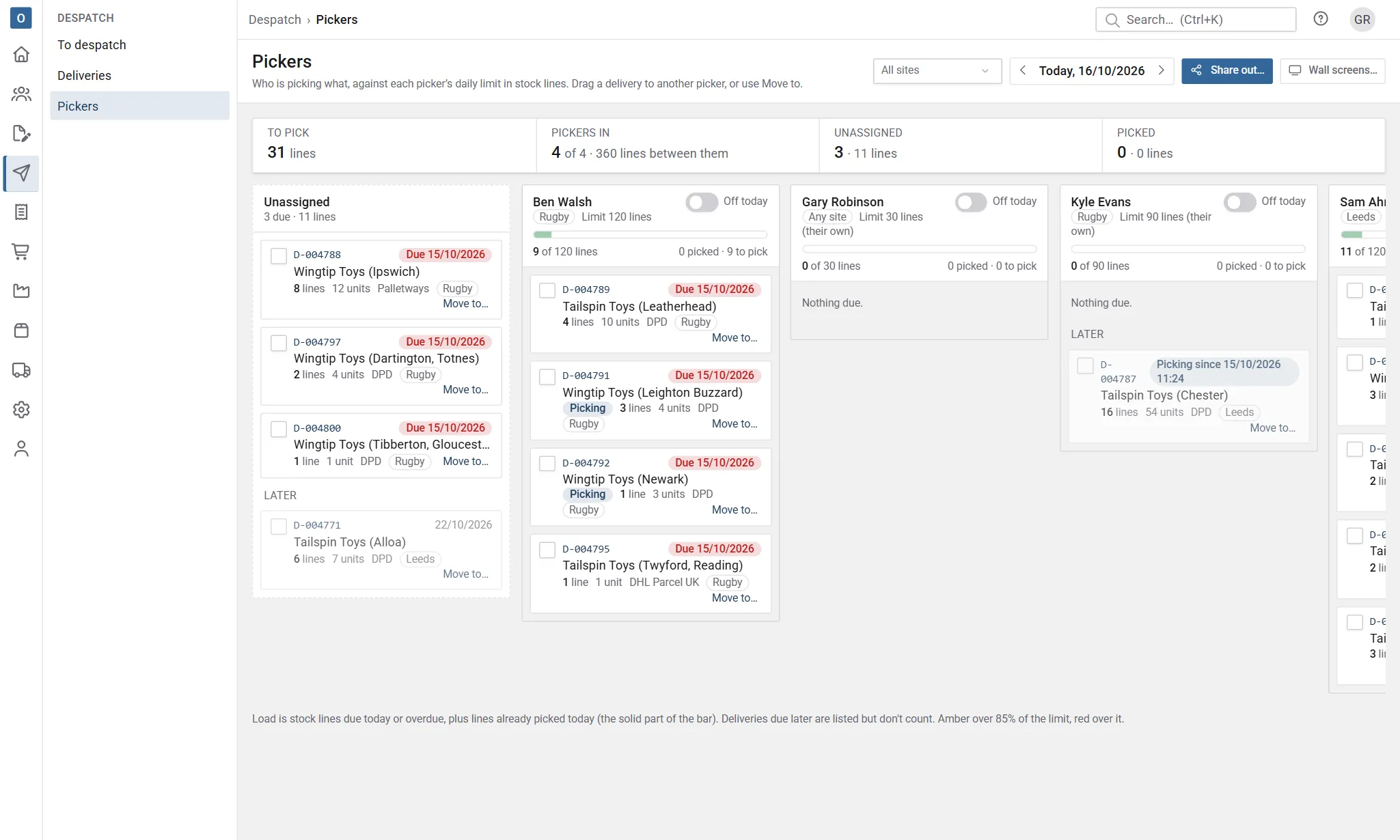
- A column per picker who’s in, with their deliveries soonest due first. Overdue ones are marked, and so are ones already being picked. Deliveries due on a later day are listed under Later and don’t count towards today.
- Unassigned holds planned deliveries nobody has yet.
- The load bar is the picker’s day in stock lines (or in minutes; see Lines or minutes): lines picked today (solid) plus lines still to pick, against their limit. It turns amber over 85% and red over the limit. Going over is allowed; you’re warned.
- Off today takes a picker out of the columns. Anything due that’s still theirs is flagged, with Put back in Unassigned to hand it on.
- Use the arrows by the date to plan another day.
- If you have more than one site, choose one at the top to see just its pickers (and anyone who picks anywhere) and its work. The board remembers your choice; the first time, it opens on the site you pick at (Picks at on your staff record), if you have one. See Sites.
- To show the board on a screen in the warehouse, select Wall screens…. See Wall screens.
Move work between pickers
Section titled “Move work between pickers”- Drag a delivery to another column, or use Move to… on it (easiest on a phone).
- Tick several and use Move to… in the bar that appears to move them together.
- A delivery that’s already being picked asks before it moves, because the first picker may have the goods in hand.
- Moving work to someone at another site is allowed (they may be lending a hand), but you’re warned, whether you move one delivery or several ticked ones.
Share out
Section titled “Share out”Share out… gives the unassigned deliveries due today to the pickers who are in. Overdue ones go first, and each goes to whoever has the most room left that it fits. You see the plan before anything changes; select Apply to make it so. A delivery that fits nobody stays unassigned, with the reason.
Share out keeps to sites: a delivery goes to someone who picks at its site first, and to someone who picks anywhere only when nobody there has room. With a site chosen, it shares out that site’s work only.
Daily limits
Section titled “Daily limits”A picker’s limit is in stock lines, since that’s most of the walking and reaching; quantity doesn’t count. The company default is in Administration → Despatch Settings, and anyone can have their own on their staff record (Lines picked in a day), for example someone part-time.
If your company measures in minutes, the limit is in minutes instead: Minutes a picker picks in a day in Despatch settings (420, which is 7 hours, unless you change it), and Minutes picked in a day on the staff record.
Lines or minutes
Section titled “Lines or minutes”Every delivery has a walk to the bay, a pack and a label, however many lines it has. So a picker with lots of small deliveries is busier than their line count says. If that matters to you, measure pickers’ days in minutes instead of lines.
In Administration → Despatch Settings, set Measure pickers’ days in to Minutes. Lines is the default, and nothing changes until you switch.
The estimate. Each delivery’s estimate is the Minutes per delivery plus the Minutes per line for each stock line, rounded up to a whole minute. With 5 minutes per delivery and 1.5 per line, a 12-line delivery is estimated at 23 minutes.
Suggested values. Despatch settings suggests both figures from the deliveries despatched in the last 90 days, from when picking started to when they were despatched. It says how many deliveries it used and how close the estimate usually is. Select Use these to fill them in, then save; nothing changes until you do. It needs at least 20 picked deliveries to make a suggestion. Deliveries that took under a minute or over four hours are left out, since those were usually started and finished at the desk, or left open overnight.
On the board, in minutes:
- Each delivery shows its estimate (such as ~23 min) beside its lines. The delivery itself shows it too while it’s planned or being picked, for example 12 stock lines · Picking estimate ~23 min.
- A picker’s load is the estimate for what they’ve picked today plus the estimate for what’s still to pick. Work already picked counts at its estimate, not the time it actually took, so a slow delivery doesn’t make the bar jump and the figures add up.
- Limits, the amber and red colours, and Share out all use minutes. Times of an hour or more show as hours and minutes, such as 6 h 10 m.
Line limits and minute limits are kept separately, so you can switch back and forth without losing either.
If you have more than one site (each is a stock location, such as Rugby and Leeds):
- Each delivery goes out from a site, shown as Despatch from on the delivery and on the Deliveries and To despatch lists. It comes from the customer’s Despatch from (on their details), otherwise your default location in Despatch settings. You can change it while the delivery is planned; once picking has started it’s fixed, so take it back to planned first.
- Picking takes stock from the delivery’s site first, and only from another site for what it doesn’t have. Anything picked at another site is marked: in amber on the delivery, with a note to get it to the delivery’s site before it’s despatched, and as Goes out from … on the pick list, printed or on screen.
- Each picker can have a site, Picks at on their staff record. Leave it empty for someone who picks anywhere.
Made parts
Section titled “Made parts”A configured item’s made parts aren’t picked from stock, but they go with the goods. The pick list (on screen and printed) lists them after the stock in a section of their own, Made parts (not picked), with the item each is for (its reference first when it has one, as in “D01 · Single unit…”), its specification and whether it’s made (ticked, or with made parts coming from works orders, recorded on them), so whoever packs knows what to collect.
A delivery of made parts only still has a pick list, with just that section.
Without picking
Section titled “Without picking”Some companies skip picking. If that’s set up for you, you despatch a planned delivery straight from Planned, and stock is taken from the suggested locations. A delivery with nothing from stock (services, for example) always skips picking. Service lines on a delivery show Not picked, and they don’t count towards a picker’s lines or minutes.