

Your account
Your own settings are under My Account. Open it from the account menu at the top right.
Profile
Section titled “Profile”Your name and contact details as your colleagues see them. Select Save when you’ve made changes.
Change your password
Section titled “Change your password”On your profile, select Change password. Enter your current password, then your new one twice. A password needs at least 6 characters, with an uppercase letter, a number and a symbol.
Appearance
Section titled “Appearance”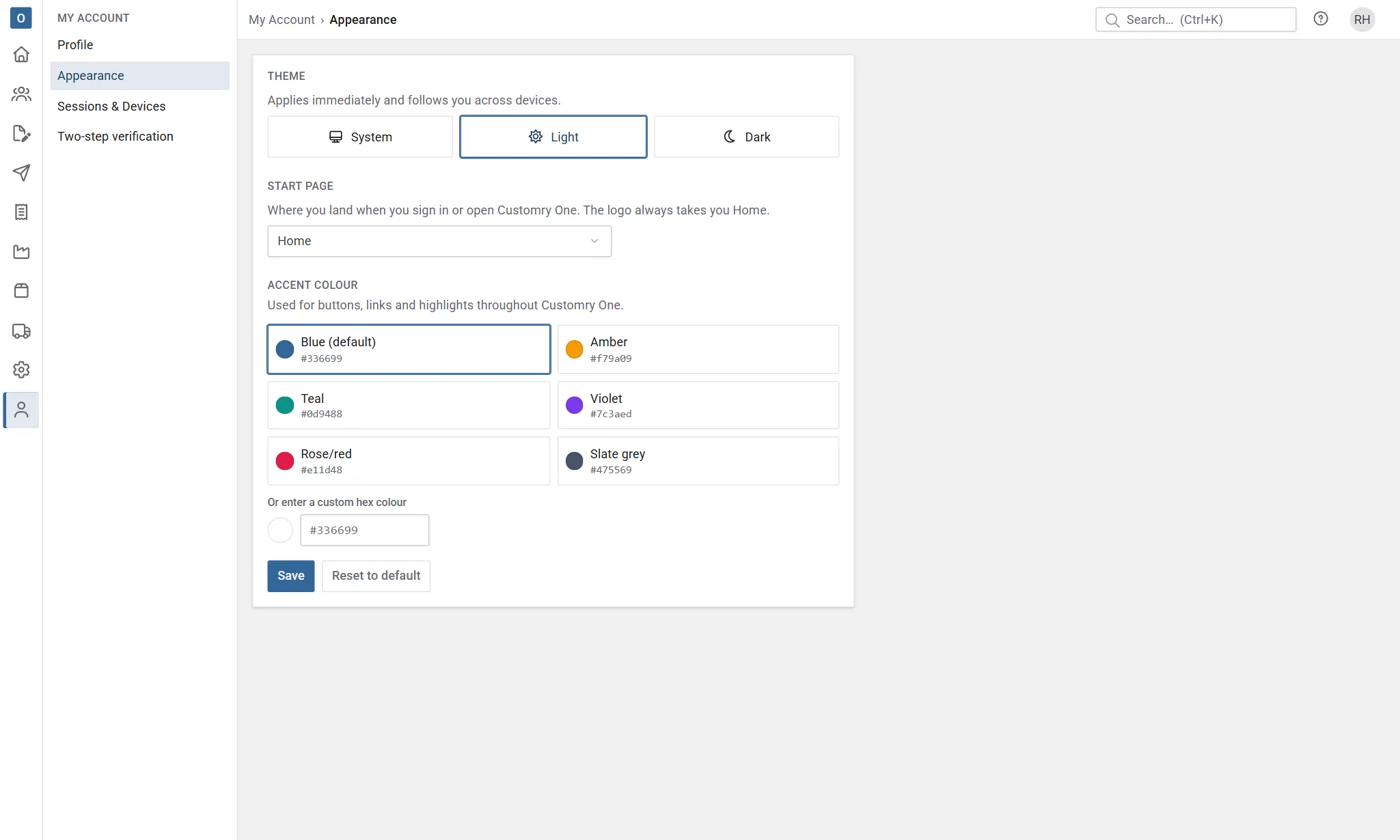
Choose light, dark, or to follow your device’s setting. It applies straight away and follows you to any device you sign in on.
Start page
Section titled “Start page”Where you land when you sign in. Leave it on Home, or pick the page you use most.
Accent colour
Section titled “Accent colour”The colour used for buttons, links and highlights. It’s your own choice and only changes how Customry One looks for you. Pick one of the colours shown or type your own (for example #336699), then select Save. Reset to default puts it back.
Two-step verification
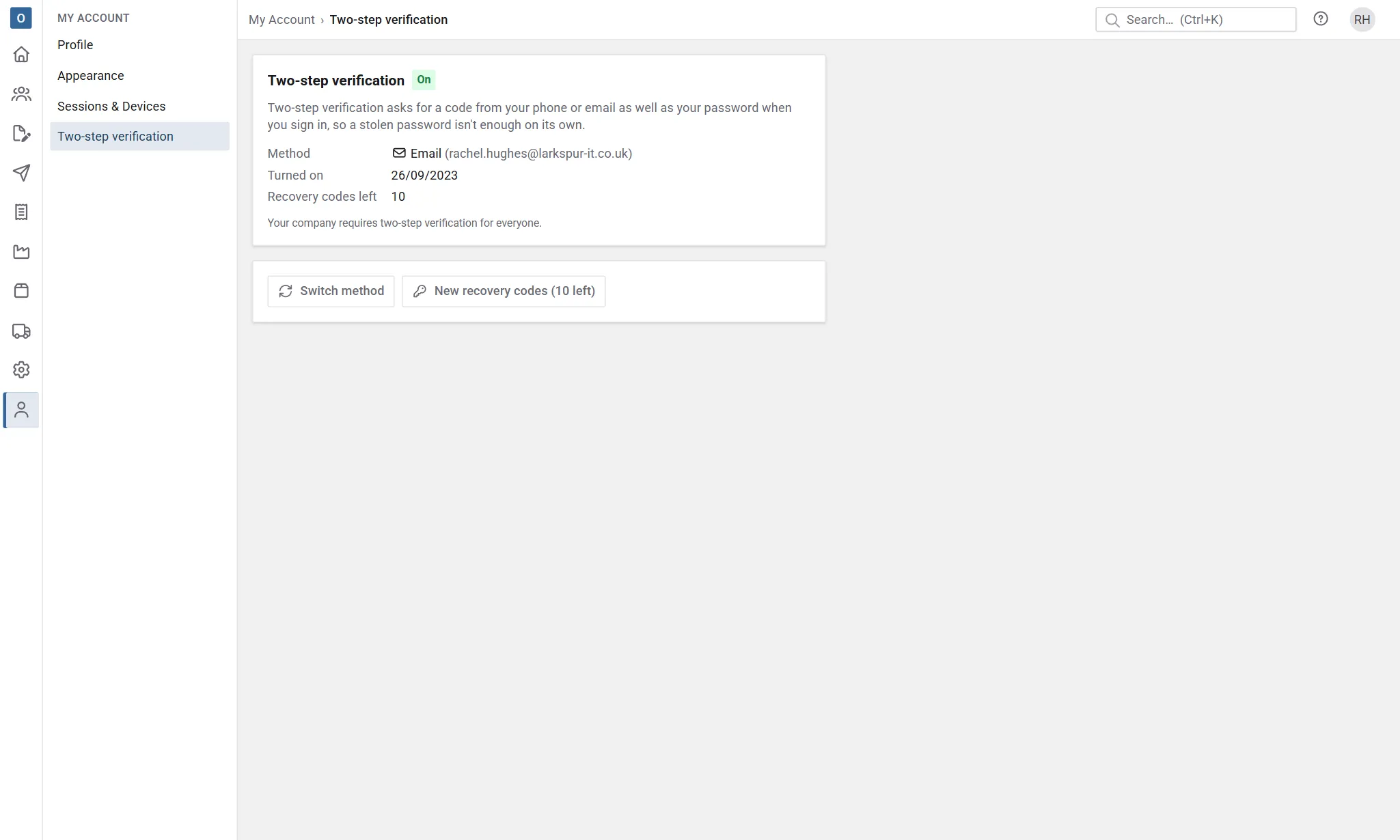
Section titled “Two-step verification”Two-step verification asks for a 6-digit code as well as your password when you sign in, so someone who learns your password still can’t sign in as you. Set it up under My Account → Two-step verification. The page says whether it’s on, which way your codes come, and, if your company requires it, the date to set it up by.
Turn it on
Section titled “Turn it on”Choose how you’d like to get your codes:
-
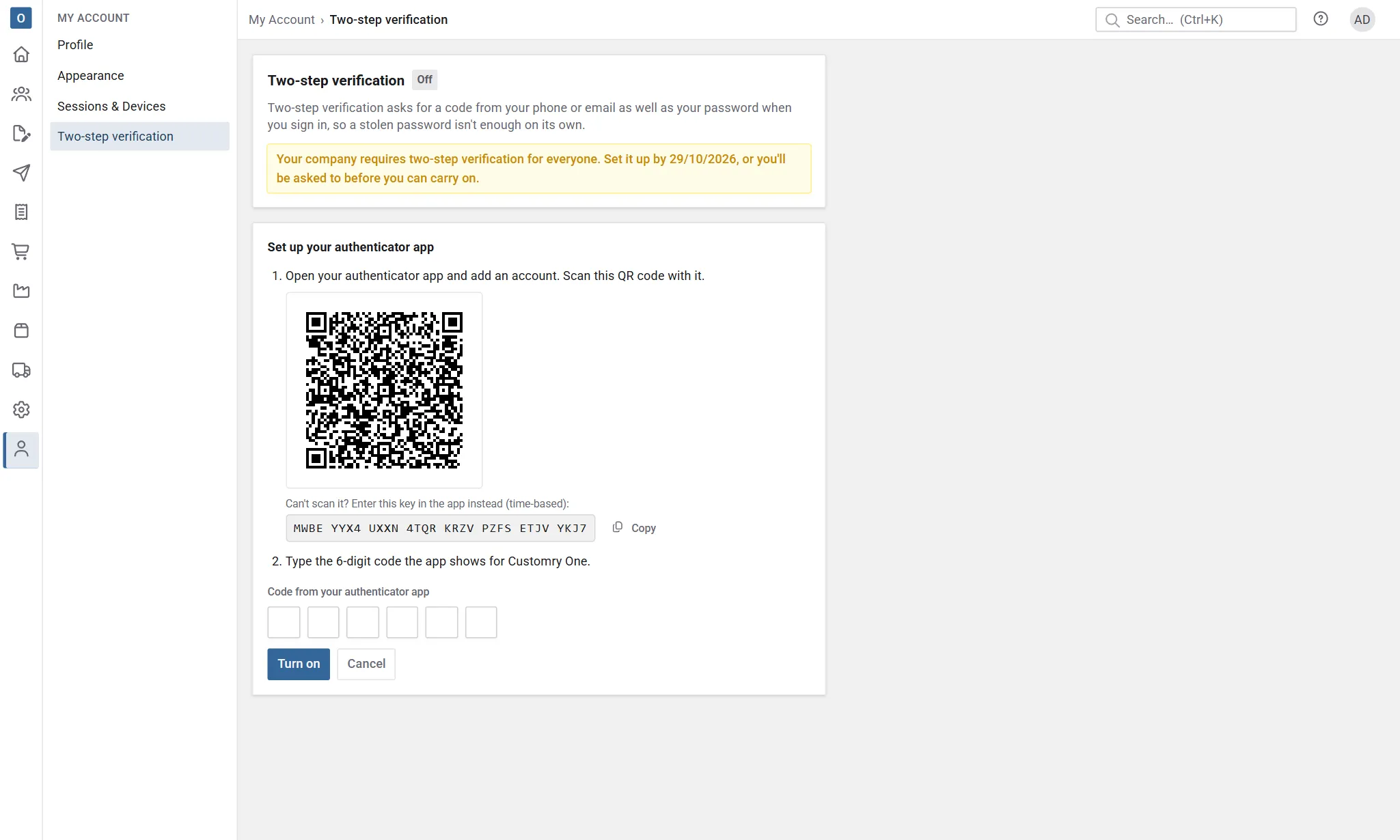
Authenticator app (recommended). An app on your phone, such as Microsoft Authenticator, Google Authenticator or 1Password, shows a new code every 30 seconds, and works without signal.
- Select Authenticator app.
- In the app, add an account and scan the QR code on the screen. If you can’t scan it (on the phone you’re using, say), select Can’t scan it? Enter this key and type the key into the app as a time-based key. The copy button next to it copies it.
- Type the 6-digit code the app shows for Customry One, then select Turn on.
-
Email. A code is sent to your email address each time you sign in. Your company may not offer this, and it needs your email address to be confirmed.
- Select Email, then Send code.
- Type the 6-digit code from the email, then select Turn on. Each code works once, for 10 minutes. Send a new code sends another if it doesn’t arrive.
Turning it on signs out your other devices, and you get an email to say it’s on.
Your recovery codes
Section titled “Your recovery codes”When you turn it on you’re shown 10 recovery codes. Each one signs you in once, in place of a code, if you lose your phone or can’t get a code. They’re only shown this once, so keep them before you carry on:
- Download saves them as
customry-one-recovery-codes.txt. - Print prints just the codes.
- Copy copies them, to paste into a password manager.
Select I’ve saved these when you have. Keep them somewhere safe, away from your phone.
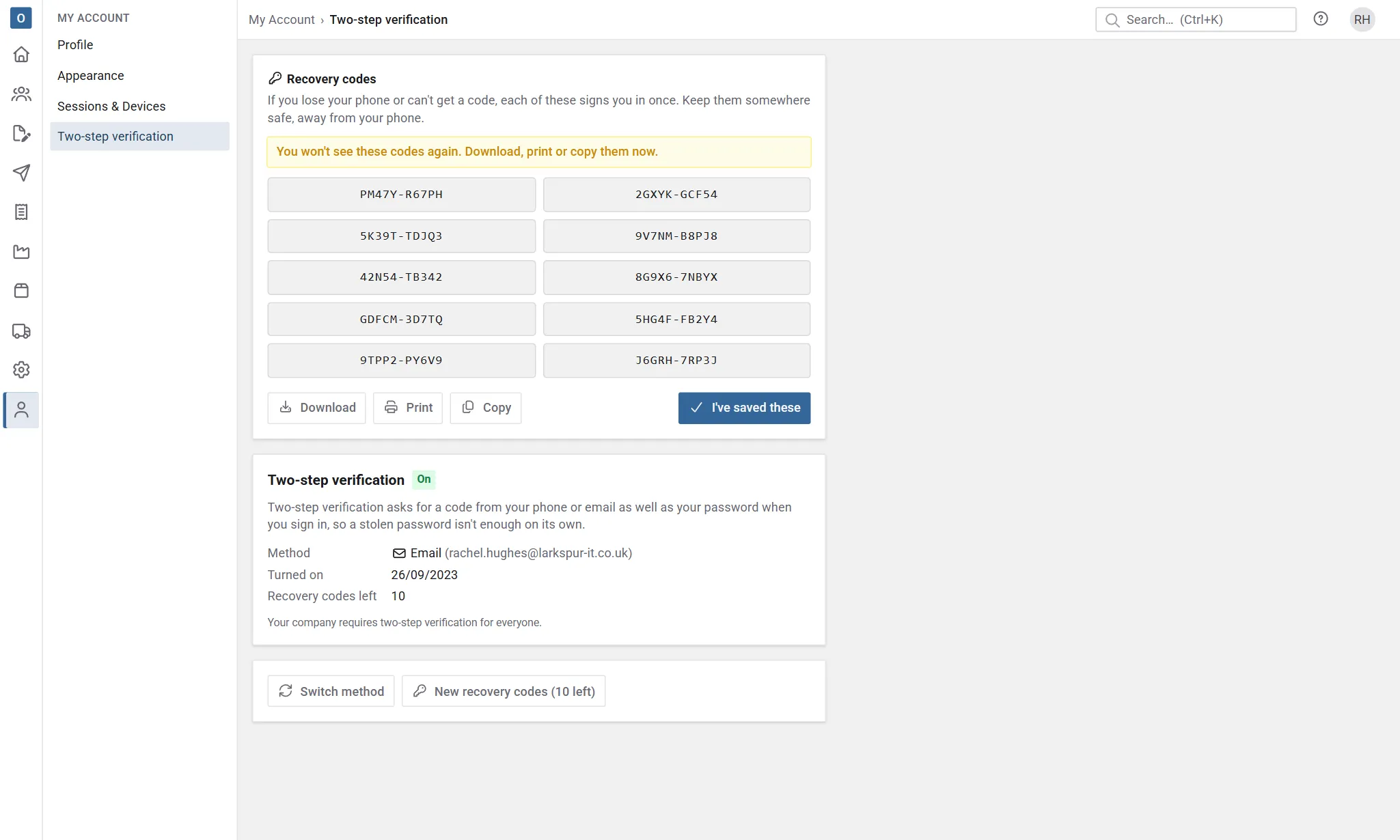
The page shows how many you have left. When it’s 3 or fewer, a reminder appears at the top of every page. To make a new set, select New recovery codes and enter a code to confirm it’s you. The new set replaces the old one, which stops working.
Switch method or phone
Section titled “Switch method or phone”To move to email codes, or to an authenticator app on a new phone, select Switch method, choose how you’d like your codes, and enter a code from the way you use now to confirm it’s you. Then set the new one up as above. Your old way keeps working until the new one is confirmed, so nothing stops working if you’re interrupted.
If you use email codes, select Email me a code in the box that asks for your code. If you’ve lost your phone, select Use a recovery code instead and type one of your recovery codes; it’s then used up.
If you signed in with a recovery code, a reminder at the top of the page offers to set your authenticator app up again.
Turn it off
Section titled “Turn it off”Select Turn off and enter a code to confirm it’s you. Signing in then needs only your password, your recovery codes stop working, and your other devices are signed out. Turn off isn’t there when your company requires two-step verification.
Sessions & Devices
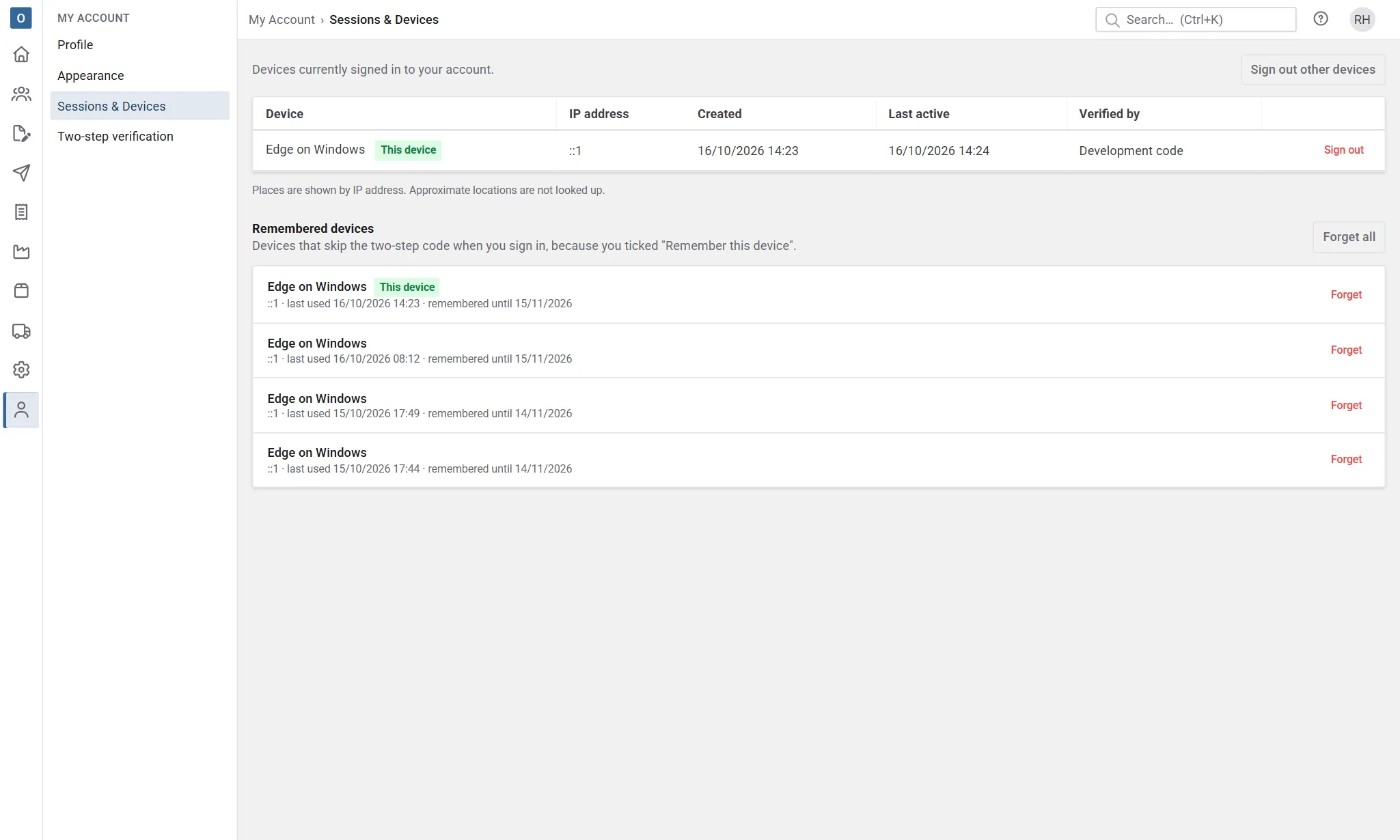
Section titled “Sessions & Devices”Lists the devices currently signed in to your account. Places are shown by their internet (IP) address, and Verified by shows how each one signed in: password only, an authenticator app, an email code, a recovery code or a remembered device.
- Sign out next to a device ends that session.
- Sign out other devices ends every session except the one you’re using.
Remembered devices
Section titled “Remembered devices”The devices where you ticked Remember this device at sign-in, which skip the code until the date shown.
- Forget next to a device means it’s asked for a code next time.
- Forget all forgets every device, this one too.
Any change to your two-step verification, or to your password, forgets them all.