

Stock transfers
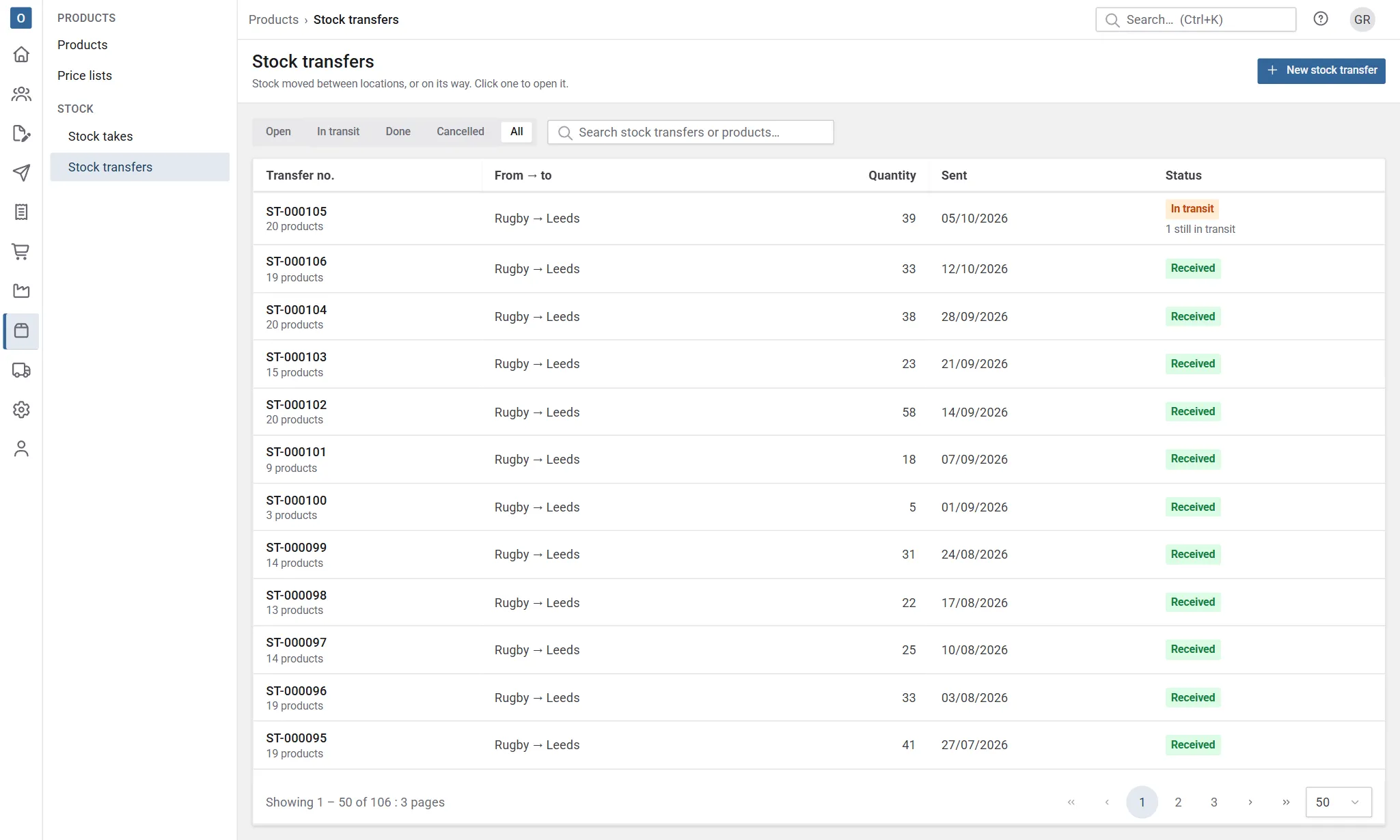
A stock transfer moves stock from one location to another. Find them in Products → Stock transfers; each has a reference such as ST-000012. You need permission to move stock between locations to create or change one; anyone can look.
There are two ways to use one:
- Move now, for a move within a site, such as stock taken to the despatch bay. It leaves one location and arrives at the other together.
- Send, then Receive, for a move between sites. The stock leaves when it’s sent and is in transit until the other end receives it, which can be days later, and can be short.
To move one product at once, use Move stock… on its Stock tab instead (see below).
Make a transfer
Section titled “Make a transfer”- In Products → Stock transfers, select New stock transfer.
- Choose From and To: two different locations.
- Add the products and how many of each. A new empty line appears for the next one. Needed by and Notes are optional; notes are a good place for the van or the courier’s reference.
- Select Save draft to come back to it, Move now, or Send.
A draft moves nothing and can be changed freely. Under each line it shows how many are at each location. If some of a product at the from location are picked for deliveries and moving it would leave those picks short, the line says so; you can still go ahead.
Moving or sending follows Allow stock to go below zero in Stock settings: with it off, taking more than a location has is refused, listing what’s short; with it on, you’re asked first.
Stock in transit
Section titled “Stock in transit”Once sent, the stock has left the from location but hasn’t reached the other one. It’s in transit:
- it isn’t at any location, so it can’t be picked or used on a works order;
- it still counts in the product’s On hand, Available and on the reorder worksheets, so nothing is bought again because it’s on a van;
- the product’s Stock tab shows it under Locations, and On hand says how much of it is in transit.
Stock transfers shows what’s on its way under In transit.
Receive a transfer
Section titled “Receive a transfer”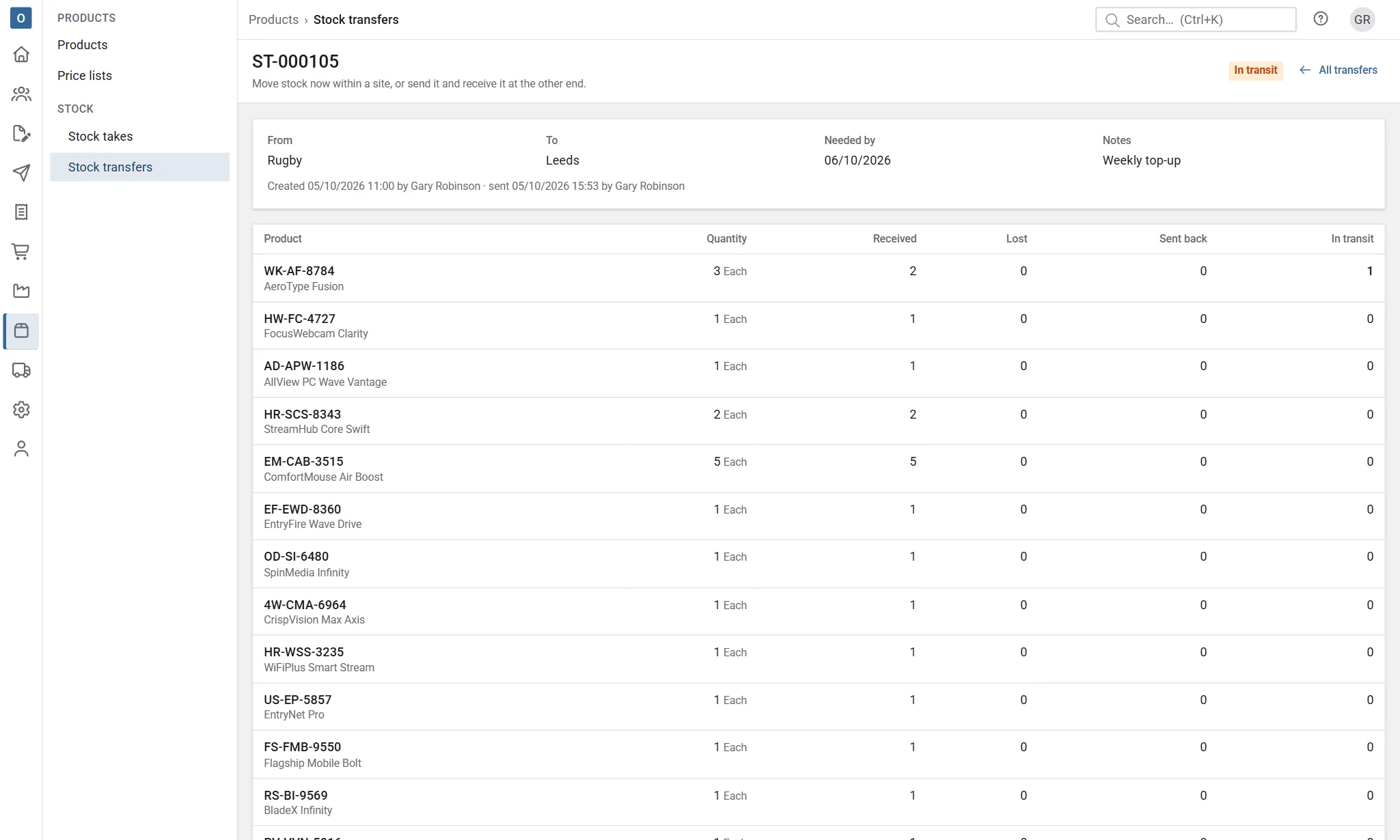
Open the transfer and select Receive. Each line starts with everything that’s in transit as received. Change it to what arrived, then select Record receipt:
- Received goes into the to location.
- Lost is written off: it was sent and never arrived, so it leaves the stock. The line shows it was written off with the reason Lost in transit (from Administration → Stock Adjustment Reasons, where it can be renamed but is kept for this).
- Sent back goes back into the from location.
Whatever you leave on a line stays in transit, to receive later. Once everything is accounted for, the transfer is Received.
Cancel a transfer
Section titled “Cancel a transfer”A draft can be cancelled, and nothing has moved. Cancelling a sent transfer sends back everything still in transit to where it came from. A transfer that’s been moved or received can’t be cancelled: make another one the other way.
Move one product from its Stock tab
Section titled “Move one product from its Stock tab”On a product’s Stock tab, select Move stock…, choose From and To, the Quantity, and an optional note, then Move. It moves at once, on a transfer of its own, which you can open from the Stock movements.
In the stock movements
Section titled “In the stock movements”Each transfer writes Transfer out at the from location and Transfer in at the to location (or back at the from location for what’s sent back). Select the transfer’s reference in Details to open it.