

Price lists
A price list is a set of selling prices: one price for each product, currency and quantity. You might have a Trade list, a Distributor list and a Key Accounts list, each giving those customers their own prices.
One list is your standard price list. It holds the list price for every customer, and it’s what other prices are measured against: a sale line shows the list price beside its own price when they differ.
Prices are kept for stock items, assemblies, kits and services. Configured products aren’t on price lists: the configurator works out their prices. See Margins for each customer.
See your price lists
Section titled “See your price lists”Go to Products → Price lists. Each list shows how many products and prices it has, and how many customers are on it. The standard list is tagged Standard. Switch on Show inactive to see lists you’ve stopped using.
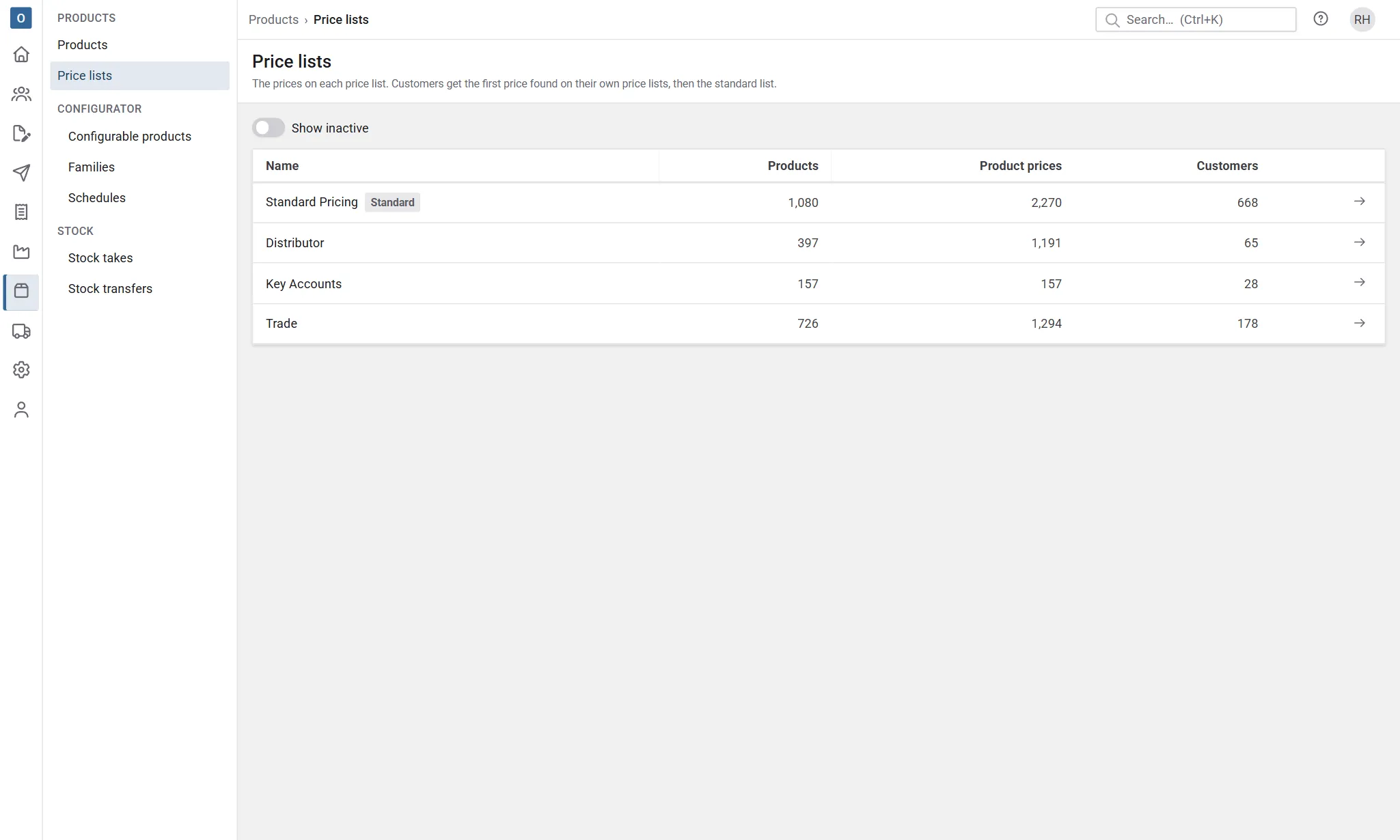
Select a list to open its prices.
Create a price list or choose the standard one
Section titled “Create a price list or choose the standard one”Price lists are named and switched on and off in Administration → Price lists. Products → Price lists links there with Rename or add price lists, if you’re allowed.
- Select New, or the list’s name to change it.
- Type the Name.
- Tick Is system default to make this the standard price list. There’s always exactly one standard list: ticking it here takes it off the list that had it. To change which list is the standard, tick it on the new one; you can’t untick it on the current one.
- Leave Active ticked.
- Select Save.
If you can see costs, there’s also a Margin on configured items, used to price configurable products for customers on this list. See Margins for each customer.
Switch Active off to stop using a list. An inactive list is skipped when pricing, and new prices can’t be added to it. A list that’s in use can’t be deleted; the message says what uses it.
The standard list can’t be switched off or deleted: it’s the price to fall back on, so without it products with no other price would come up with No price found. Make another list the standard first.
Add and change prices
Section titled “Add and change prices”Open the list from Products → Price lists. Its prices are listed with the product code, name, category, currency, From qty, price and dates. Search by product, or sort and filter by any column.
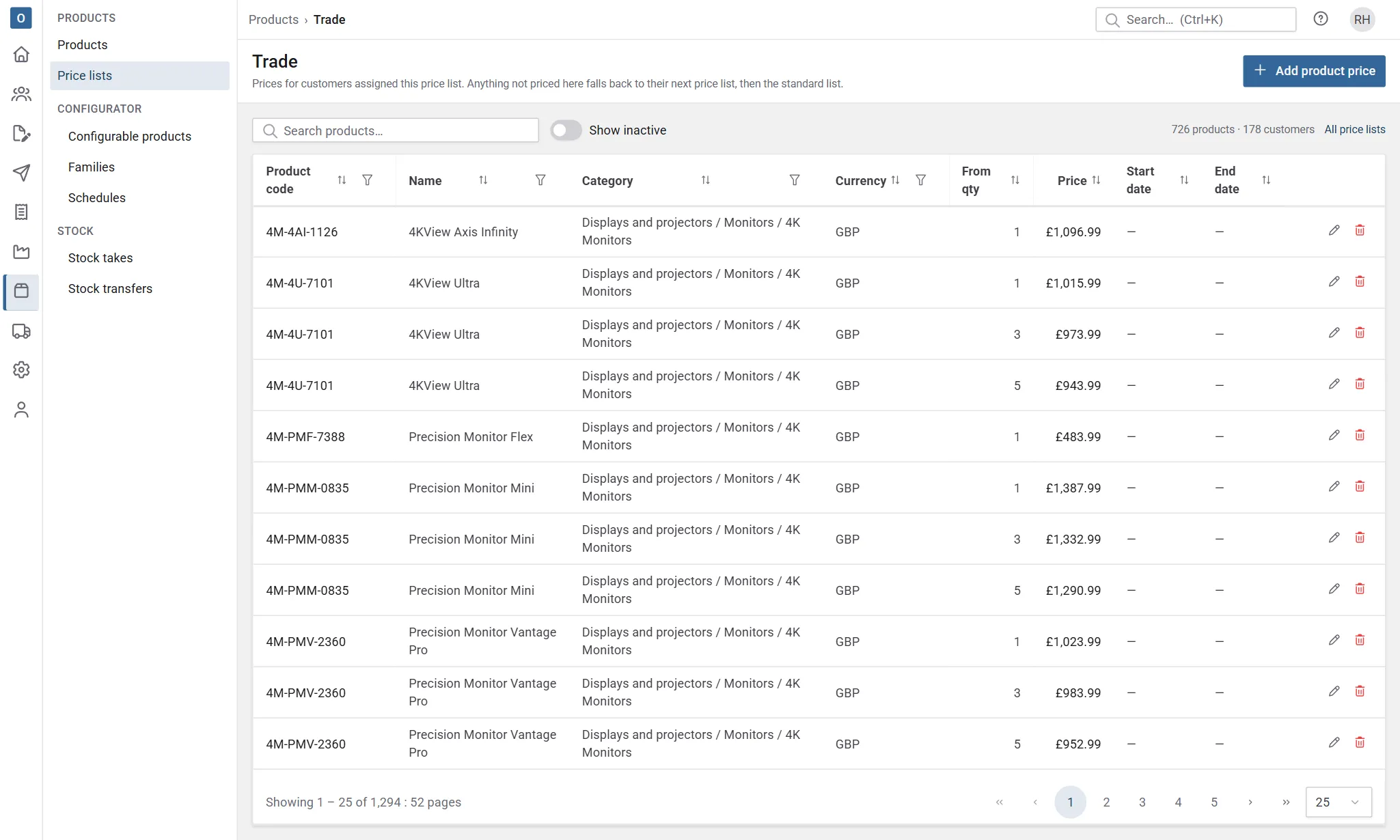
To add a price:
- Select Add product price.
- Choose the Product.
- Check the Currency. It starts as your company’s currency.
- Set From qty: the price applies from this quantity upwards. Use 1 for the ordinary price.
- Type the Price.
- Set a Start date and End date if the price only applies for a time. Leave them empty for a price that’s always in force.
- Select Save.
To change a price, select it, or the pencil next to it. You can change everything except the product: to move a price to another product, remove it and add a new one. The bin removes a price.
You can also add and change a product’s prices on every list at once from the product’s Product prices tab, where they’re grouped by list.
Quantity breaks
Section titled “Quantity breaks”Give a product several prices with different From qty values to sell larger quantities cheaper. For example, 1 at £12.00, 10 at £11.00 and 50 at £10.00. A line for 25 gets £11.00: the highest break at or below the quantity ordered.
Price changes on a date
Section titled “Price changes on a date”To change a price from a future date, add a second price for the same product, currency and quantity with a Start date. Until then the old price applies; from that date the new one takes over. You can’t have two prices with the same product, currency, quantity and start date on one list.
Prices that aren’t in force today are greyed out and tagged:
| Tag | Means |
|---|---|
| Scheduled | Its start date is still to come. |
| Expired | Its end date has passed. |
| Inactive | It’s been switched off with Active. Inactive prices are hidden unless Show inactive is on. |
Currencies
Section titled “Currencies”A price is in one currency. A sale in euros only uses euro prices; prices in other currencies aren’t converted. If a list has no price in the sale’s currency, the next list is tried.
Give customers their price lists
Section titled “Give customers their price lists”Open the customer and go to the Price lists tab.
- Select Assign price list.
- Choose the Price list.
- Set the Priority: 1 is tried first, then 2, and so on. Each list needs its own number.
- Select Save.
A customer doesn’t need the standard price list on this tab: anything their own lists don’t price comes from it anyway. New customers start with no lists here.
See Customers.
Special prices and discounts
Section titled “Special prices and discounts”These are set on the customer, not on a price list.
- Special prices (the customer’s Special prices tab) are this customer’s own price for a product, from a quantity, with optional start and end dates. A special price beats every price list. The Price is in your company’s currency; for a customer who buys in another currency, set Currency and Currency price too. You can also save a price you’ve typed on a sale as a special price (see below).
- Discounts (the customer’s Discounts tab) take a percentage off everything in a product category and its sub-categories, with optional dates. A discount applies to prices from price lists, including the standard list. It never applies to a special price. If two discounts for the same category are in force, the bigger one is used. A discount on a nearer category beats one further up: see Discounts.
How a sale line is priced
Section titled “How a sale line is priced”A product line is priced when you add it and whenever you change its quantity, in this order:
- A special price for this customer.
- The customer’s price lists, in priority order. The first list with a price that fits is used, even if a later list is cheaper.
- Your standard price list.
At each step, a price only fits if it’s active, in the sale’s currency, in force on the sale’s Quote date (or its order date, for an order raised straight away), and its From qty is no more than the line’s quantity. If a list has several that fit, the highest quantity break wins.
If the price came from a price list and the customer has a discount for the product’s category or a category above it, the discount is taken off.
Under the line you’ll see where the price came from: Special price, or the name of the price list. Manual means someone typed it, and No price found means nothing fitted. If the price differs from the standard list’s, the list price is shown too.
You can type over any price. Typed prices aren’t changed when you change the quantity.
Check a price
Section titled “Check a price”The Price check panel shows what a product would cost without starting a sale. It’s on a product’s Product prices tab (choose a customer, or leave it for the standard price) and on a customer’s Special prices tab (choose a product). Set the Quantity, Currency and On date, and it shows the Unit price, where it came from, any discount, and the list price. If you can see costs, it also shows the unit cost and margin.
Keep a typed price for next time
Section titled “Keep a typed price for next time”On a line with a typed price, select Save as special price. Check the Price, From quantity and dates, and select Save. The customer gets that price on every new sale, ahead of their price lists.
Bring a sale up to date
Section titled “Bring a sale up to date”Prices on a sale don’t change when you change a price list. To re-price an open sale, use More → Refresh prices… The sale is saved, then each product line is priced again from the current special prices and price lists, at the sale’s quote date. If some prices were typed in, choose Replace typed prices or Keep typed prices. Configured items are worked out again; any whose parts would change keep their price.
When you change a sale’s customer, tick Re-price every line to use the new customer’s prices. See Quotes and orders.