

To make
Some configured items have made parts: parts made for that item, to its sizes or other details, rather than taken from stock. A made part isn’t picked. It’s made on a works order, and someone marks it made on its delivery when it’s ready: a delivery can’t be despatched until every made part on it is marked made.
Manufacturing → To make lists every made part still to send, so whoever plans the workshop knows what still needs a works order, whoever makes them knows what’s due, and whoever despatches knows what’s ready. It used to be Despatch → Production list; links to the old page come here. Despatch and sales users can still see it.
The list
Section titled “The list”It lists the made parts on confirmed orders that haven’t all gone yet, soonest due first, grouped by order. It shows 50 rows a page: use the page buttons at the foot to see more.
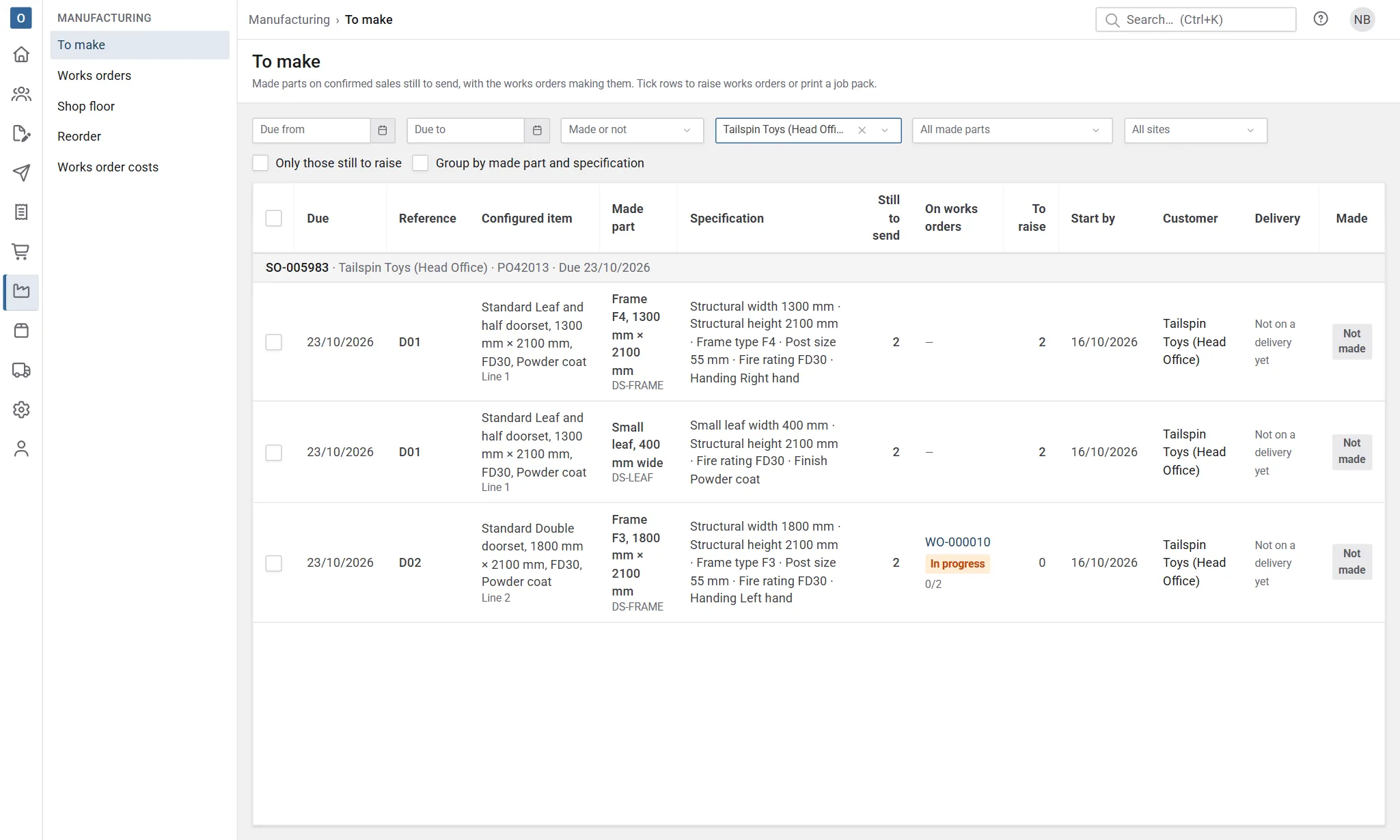
| Column | What it shows |
|---|---|
| Due | The line’s required date, else the order’s promised despatch date, else the order’s required date. |
| Reference | The configured item’s reference, such as D01. The column shows when an item on the page has one. |
| Configured item | The item the part is for, and its line number on the order. |
| Made part | What to make, with its code if it has one. |
| Specification | Its sizes and other details on one line, for example “Width 926 mm · Height 2040 mm · Rating FD60”. |
| Still to send | What’s ordered less what’s already been despatched. A part split across deliveries counts each one once. |
| On works orders | The works orders making it, each with its stage and how many it has made so far. |
| To raise | What still needs a works order. A part marked made before it had a works order (for example ticked before Made parts come from works orders was switched on) has been made, so it isn’t counted. Late means something is still to raise and its Start by date has passed. |
| Start by | The due date less the made part’s lead time in working days: its made product’s lead time, else its family’s Production days. |
| Customer | Who it’s for. |
| Delivery | The planned or picking deliveries it’s on, or Not on a delivery yet. |
| Made | Made, Part made (only some of what’s still to send is made) or Not made. With made parts coming from works orders, what they’ve made and not yet sent counts as made. |
A part drops off the list once all of it has been despatched.
Filter the list
Section titled “Filter the list”Narrow the list by Due from and Due to, by Made or Not made, by customer, by made part, (with more than one site) by the site it goes out from, and with Only those still to raise to the parts that still need a works order.
Choose one made part and its specification spreads into a column per detail (width, height and so on), which is easier to work from when making a batch of the same thing.
Rows that can share a works order
Section titled “Rows that can share a works order”Rows with something to raise that make the same thing (the same made part with an identical specification, and with no made product the same description) are tagged Can batch; hover over the tag to see how many on the page. Tick Group by made part and specification to put them together, under a heading with the made part, its specification and how many rows. Grouping works on the page you’re looking at.
Raise works orders
Section titled “Raise works orders”Tick the rows to make and select Raise works orders. Ticks stay when you move between pages, so you can tick rows on several pages and raise them together. Each ticked made part gets one works order for what it still needs, with its specification and its item’s reference and details copied onto it. A row with nothing left to raise (it’s on works orders, or was marked made before it had one) is skipped and named. See Made parts and works orders.
You can also raise them from the order itself (its Works orders tab), or have them raised when the order is confirmed (a manufacturing setting).
Raise as one works order
Section titled “Raise as one works order”To make the same thing for several items on one works order, tick their rows and select Raise as one works order. The rows can be on different orders, for different customers. The works order:
- makes what each still needs, added together;
- is due with the earliest of them, and starts that many working days earlier as the made part’s lead time;
- keeps each item’s own order, reference, details and due date, listed earliest due first. The works orders list, the job pack and the printed works order show it under its earliest-due item.
Every ticked row with something to raise must make the same thing. If one doesn’t, nothing is raised: the rows that differ are highlighted and the first difference is named, for example:
D03’s Finish is RAL 9010; D01’s is RAL 7016.
Rows with nothing left to raise are left out. See Works orders for several items.
Add to a works order
Section titled “Add to a works order”A row with something to raise shows Add to WO-… when an open works order makes the same thing and hasn’t started (a draft, or released with nothing issued, made or booked). Select it to put the row on that works order: its quantity goes up by what the row still needs, its materials and operations follow, and a released one’s planned cost is worked out again. When several works orders would do, Add to… lists them.
Manufacturing settings can also do this for you when made parts are raised. Works orders already raised separately for the same thing can be made one afterwards with Combine on the works orders list (see Combine works orders).
Print a job pack
Section titled “Print a job pack”Tick the rows and select Job pack for their works orders in one PDF, grouped by order and item so everything for one item travels together. Each works order prints its specification and materials. See Print a job pack.
Print or export the list
Section titled “Print or export the list”- Print makes a PDF of the list as filtered (every page of it), a heading per order, with your company’s branding and the On works orders and To raise columns.
- Export downloads it as a CSV file to open in a spreadsheet. The works order columns come last, after the configured item’s Reference, so spreadsheets that read the old production list’s export keep working.
Both take at most the first 5,000 rows, soonest due first. When the filtered list is longer, a note above it says so: narrow the filters (a due date range, say) to take the rest.
Mark a part made
Section titled “Mark a part made”People who pick or manage despatch can mark parts made, unless Made parts come from works orders is switched on in Manufacturing settings: then there are no ticks here, and recording what’s made on the works orders makes them ready. See Despatch waits for works orders. Otherwise you can do it in two places:
- On To make, tick Made on the row. This works when the part is on exactly one planned or picking delivery. To mark several at once, tick the rows on the left and select Mark made (or Mark not made).
- On the delivery, each made part has a Made tick, with its specification under its description. Once ticked, it shows who marked it made and when.
A part that isn’t on a delivery yet can’t be marked made: plan its delivery first. A part split across more than one open delivery is marked on each delivery.
Despatch with made parts
Section titled “Despatch with made parts”When you select Despatch… on a delivery with made parts that aren’t all marked made, the despatch is stopped and the parts are named, for example:
2 made parts on D-000040 aren’t marked made: Leaf (line 3), Frame (line 3).
Mark them made, then despatch again. A configured item always goes complete, so its picked parts, made parts and services leave together. See Despatching.
Made parts are also on the pick list, in their own Made parts (not picked) section with their specification, so whoever packs knows to collect them. See Picking.