

Lookups
A lookup is a table in a family. Its key columns are matched against the answers, and the first row that matches gives its outputs: a size, a cost, a code, or a product to use. The examples here are from a server build.
Lookups are used:
- in formulas, such as
lookup("Power supplies", "Watts"); - as a component’s product source (Product from → A lookup), through a column that gives a product;
- as a step’s options (Options from → A lookup): the matching rows become the options.
Finding and adding lookups
Section titled “Finding and adding lookups”Open the family (Products → Families) and go to the Lookups tab. It lists each lookup with its columns, its rows and what happens when nothing matches. Select a lookup’s name to open it, or New lookup to add one.
At the top of a lookup are its Name, its Key (made from the name if left blank, and fixed once saved), and When nothing matches:
| Choice | What happens when no row matches and there’s no default row |
|---|---|
| Error | The configuration can’t be finished, with a message saying so. |
| Warning | A warning is shown, which can be accepted. |
| Leave blank | Nothing is shown; the outputs have no value. |
Select Save to save the whole lookup: its columns and every row together.
Columns
Section titled “Columns”Select Add key column or Add output column. Select a column to change or remove it, and drag columns (or use the arrows) to set their order.
Key columns match an attribute:
| Attribute | Match |
|---|---|
| A choice, yes/no or text | Equals: the answer must equal the cell. |
| A number | Exact: the answer must equal the cell. Band: each row has a from and a to, both included; leave one blank for no limit that way. |
A blank key cell matches anything.
Snap (number keys matched exactly) moves the answer before matching:
| Snap | What it does | Example |
|---|---|---|
| None | Matches the answer as it is. | |
| Round to a step | Rounds to a Step, Up, Down or to the Nearest. | 812 mm with a step of 10, nearest, matches the 810 row. |
| Next row up | Takes the smallest row at or above the answer. | 430 watts matches the 500 watt row. |
| Nearest row | Takes the nearest row; halfway goes up. |
Output columns have a name and what they Give: a Number, Money, Text, a Choice value or a Product. An output can also name an attribute: when the lookup gives a step’s options, choosing a row sets that attribute from the cell.
The cells show their values. Click a cell to change it (or move to it with Tab), and it opens the control for its column:
| Column | How you fill it in |
|---|---|
| A key column for a choice, or an output that gives a choice value | Pick a value from the list. Long lists have a search box. |
| A key column for a yes/no | Pick Yes or No. |
| A number key (exact or band), and Number and Money outputs | Type a number. A band has two cells: from and to. |
| A Product output | Type a product code or name and pick from the suggestions, or type the code. |
| A text key or a Text output, and the Row key | Type the text. |
A blank key cell shows Any: it matches anything. To make a key cell blank again, select the cross in its list, or empty its box. In a band, leave from or to blank for no limit that way.
Enter moves down a column, as in a spreadsheet, opening the next row’s cell, and adds a row at the bottom. Shift+Enter moves up, and in a number or text box the up and down arrows move between rows. Esc closes the cell, keeping what you typed; the arrows then move from cell to cell, onto the next page when needed. Numbers show the way your company writes them, such as 12,5.
- Add row adds a row at the end.
- Tick Default to make a row a default row, and untick it to clear it. Each row’s tick is separate, so more than one row can be a default (see Default rows).
- Drag a row by its handle, or use the up and down arrows, to change the order. The first row that matches wins, so put the specific rows above the general ones.
- The cross removes a row.
- Each row has a Row key, filled in for you. When the lookup gives a step’s options, it’s the option’s key.
Long lookups show 100 rows at a time, with pages beneath (50, or 25, when there are many columns).
Default rows
Section titled “Default rows”What a default row does depends on how the lookup is used:
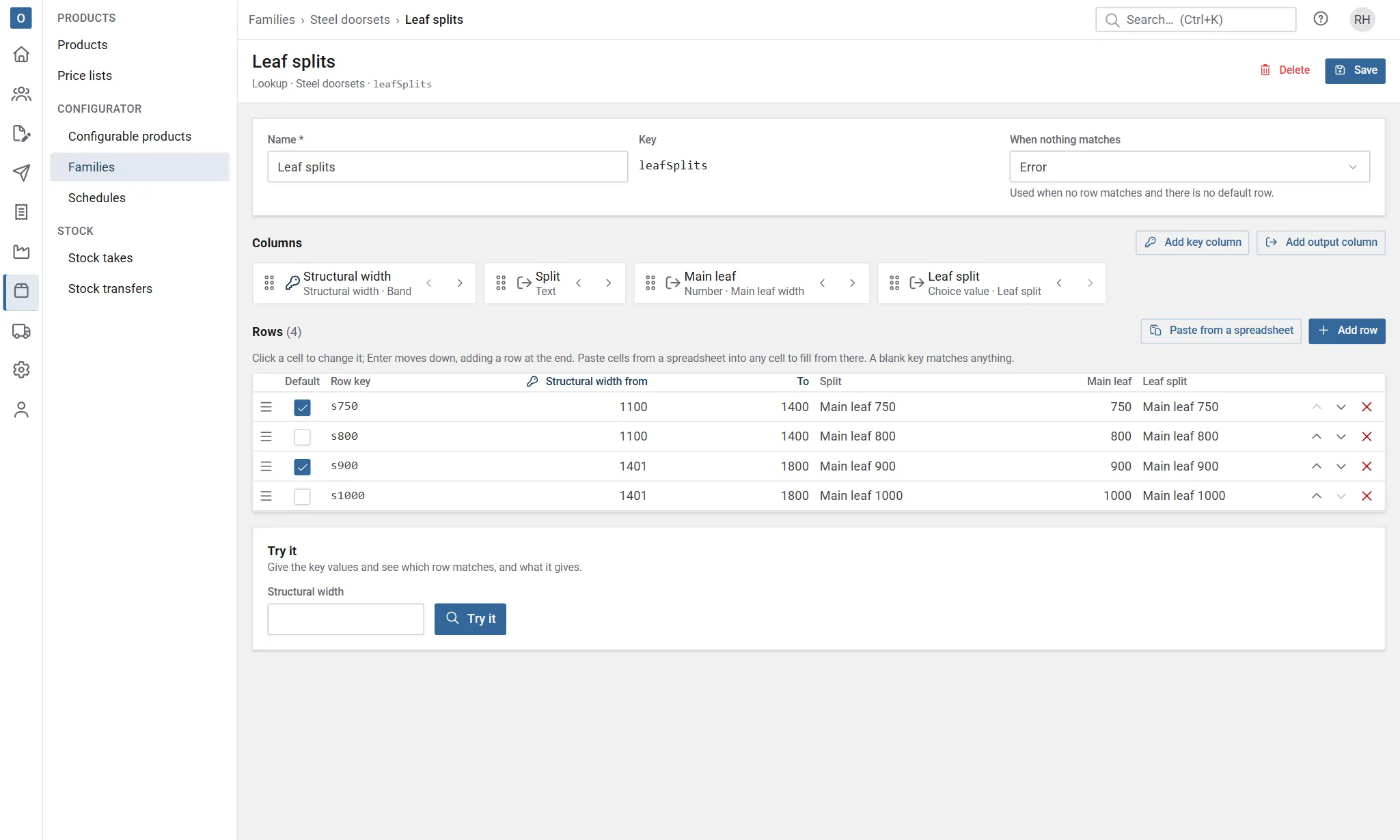
- A lookup that gives a step’s options (Options from → A lookup): every matching row that’s a default is pre-selected as the step’s answer (a pick-one step takes the first one that’s allowed). So one default in each band or group is normal: for example, one preferred split for widths 1100 to 1400 and another for 1401 to 1800. If no row matches at all, the first default row is offered instead.
- Any other lookup (in formulas, or as a component’s product source): one row is matched, so a default row is the fallback, used when no other row matches. If more than one row is a default, only the first one (highest in the list) is ever used. The page then shows a warning, More than one row is a default. When nothing matches, the first default row is used., and the rule check warns too. Neither stops you saving.
A lookup can be both: a step’s options in one product, and read in a formula or by a component (in the same product or another). Its page then shows no warning, as several defaults are normal for the options, but the rule check of each product that reads it for one row still warns, because there only the first default is used. Clearing the extra defaults would lose the options’ default for each band, so if the two uses need different defaults, use a separate lookup for each.
Pasting from a spreadsheet
Section titled “Pasting from a spreadsheet”Copy cells in your spreadsheet, select the cell to fill from (or click into it), and paste. The cells fill to the right and down from there, and rows are added as needed. Pasting one value into a cell puts it there and opens the cell. Numbers are read the way your company writes them. A band column takes two cells: from, then to.
To add or replace many rows at once, select Paste from a spreadsheet, paste the rows into the box, and choose Add them after the last row or Replace all the rows. The box shows the order the cells go in. A first row of column headings is left out.
When you save, every cell is checked. Cells that need attention are outlined in red, with the reason when you point at them (such as Give a number. or No product with the code PSU-900.), and the first one is opened for you.
Try it
Section titled “Try it”Try it at the bottom of the page shows which row a set of answers matches. Give a value for each key attribute and select Try it: the matching row lights up, and its outputs are listed. It says if the default row was used, or what happens when nothing matches.
Try it uses the saved lookup, so save your changes first.