

Made parts and works orders
A configured item’s made parts (a panel, a frame) are made for that item, to its sizes. Once the order is confirmed, each made part is made on a works order of its own: Panel ×4 for D05 and Frame ×4 for D05 are two works orders, both showing D05. The job pack prints an item’s works orders together.
Raise them
Section titled “Raise them”A made part’s works order can be raised in three ways:
- From To make: tick the rows and select Raise works orders. See To make.
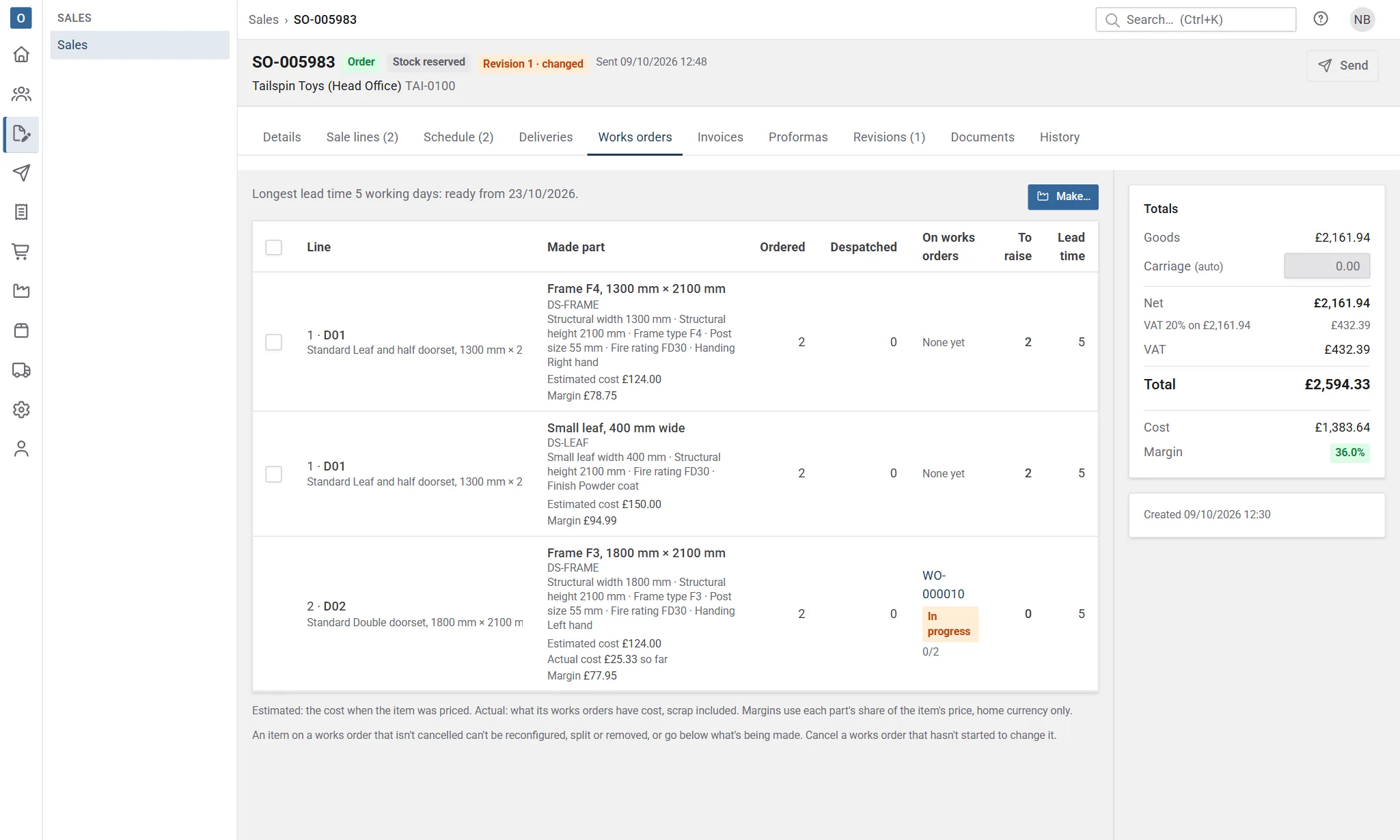
- From the order: its Works orders tab lists each made part with its works orders and what’s still to raise. Select Make… to raise every one still to raise, or tick some and select Make ticked.
- When the order is confirmed, with the setting Raise works orders for made parts: When the order is confirmed in Manufacturing settings. By hand is the default. Only the made parts on the order when it’s confirmed are raised, and a notice lists the works orders (and any made part that couldn’t be raised). A configured item added later is raised by hand.
Each works order:
- makes what the made part still needs: its quantity on the order, less what other works orders are making (or made, once they’re finished), less anything sent before the line had a works order;
- is due on the line’s required date, else the order’s promised despatch date, else its required date, and starts that many working days earlier as the made part’s lead time: its made product’s lead time, else its family’s Production days (on the family’s Details tab in the configurator);
- copies the made part’s specification (each detail and its value), and the item’s description, reference and schedule details such as its location, so the workshop’s copy never changes under it;
- takes its materials from the made product’s bill of materials when the made product is an assembly, and the made part’s own materials and cut pieces from its configuration, if it has any; otherwise it starts with none;
- takes its operations from the made product’s Operations tab, with the same minutes for every size (time worked out from the part’s sizes is still to come).
Its Details tab shows what it’s for: the order and customer, the item, its details and the specification.
Works orders for several items
Section titled “Works orders for several items”One works order can make the same made part for several items, from one order or several: Raise as one works order and Add to WO-… on To make, Combine on the works orders list for works orders raised separately (Combine works orders), or the Combine made parts when raising setting. They must make the same thing: the same made part with an identical specification (each detail with the same value) and the same materials from its configuration. Sizes, finishes and so on are never mixed on one works order. When they don’t match, the message names the first difference, such as D02’s Side is 2 × 800 of RAIL-1; D01’s is 2 × 760 of RAIL-1.
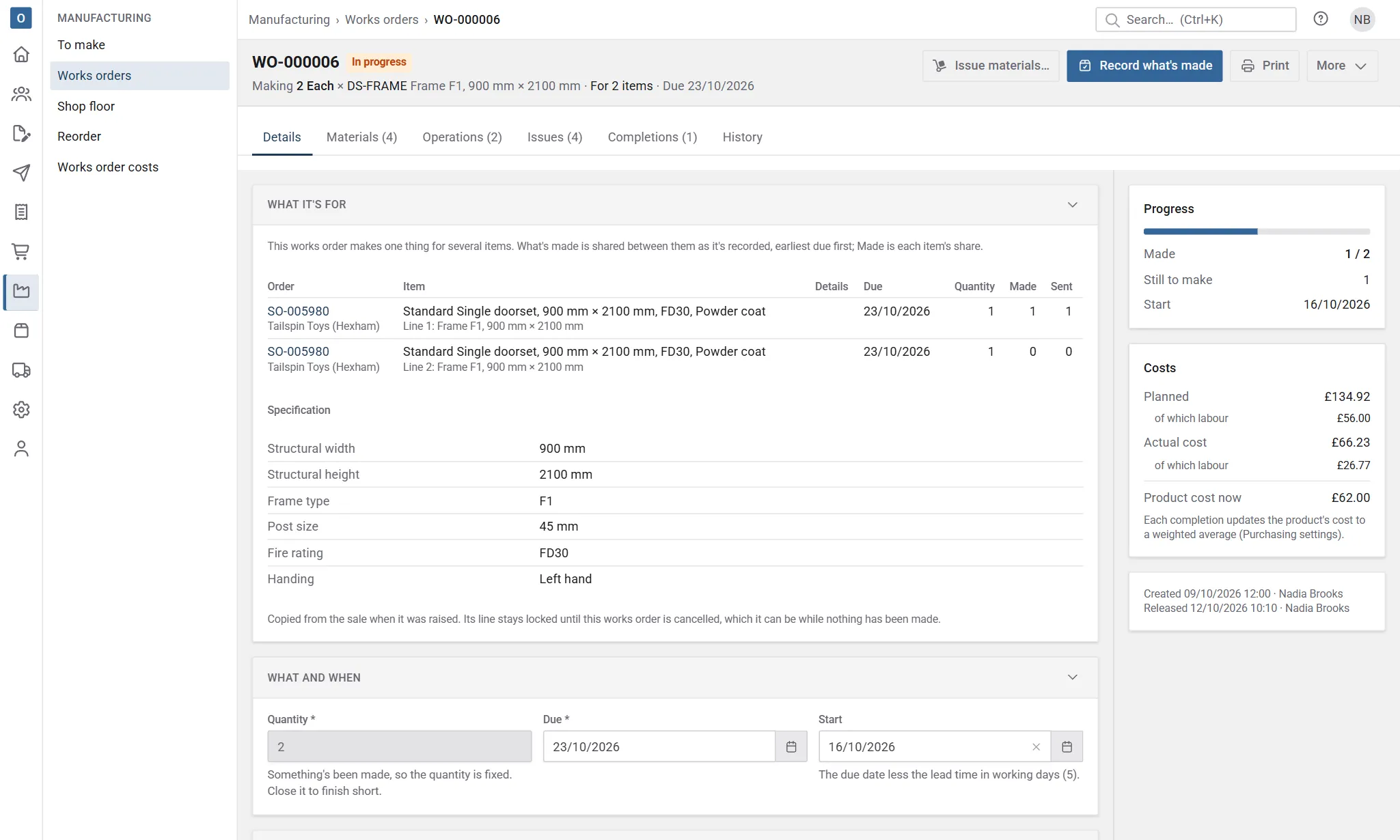
Its Details tab lists the items in a table, earliest due first: the order and customer, the item and its reference, its details, when it’s due, how many it makes for that item, how many of them have been made for it and how many have been sent. The heading says For 3 items, and the works orders list shows D01 + 2 more, with every item on hover. The printed works order has a For table of the items (the customer only when the setting prints it) instead of one item’s order, item and details, and prints the specification once.
Take an item off, or change its quantity
Section titled “Take an item off, or change its quantity”While nothing has been issued, made or booked on it, an item can come off a shared works order: select Take off on its row, on the works order or on the order’s Works orders tab. The works order’s quantity drops by that item’s, its materials and operations follow, and the item is back on To make to raise. The last item can’t be taken off: cancel the works order instead.
A shared works order’s own quantity is the total of its items. To change it, select Change quantity… on an item’s row (while nothing is booked): it can go down to anything above 0, the rest going back on To make, and up to what the item’s line still needs. The works order’s quantity, materials and times follow.
Record what’s made on a shared works order
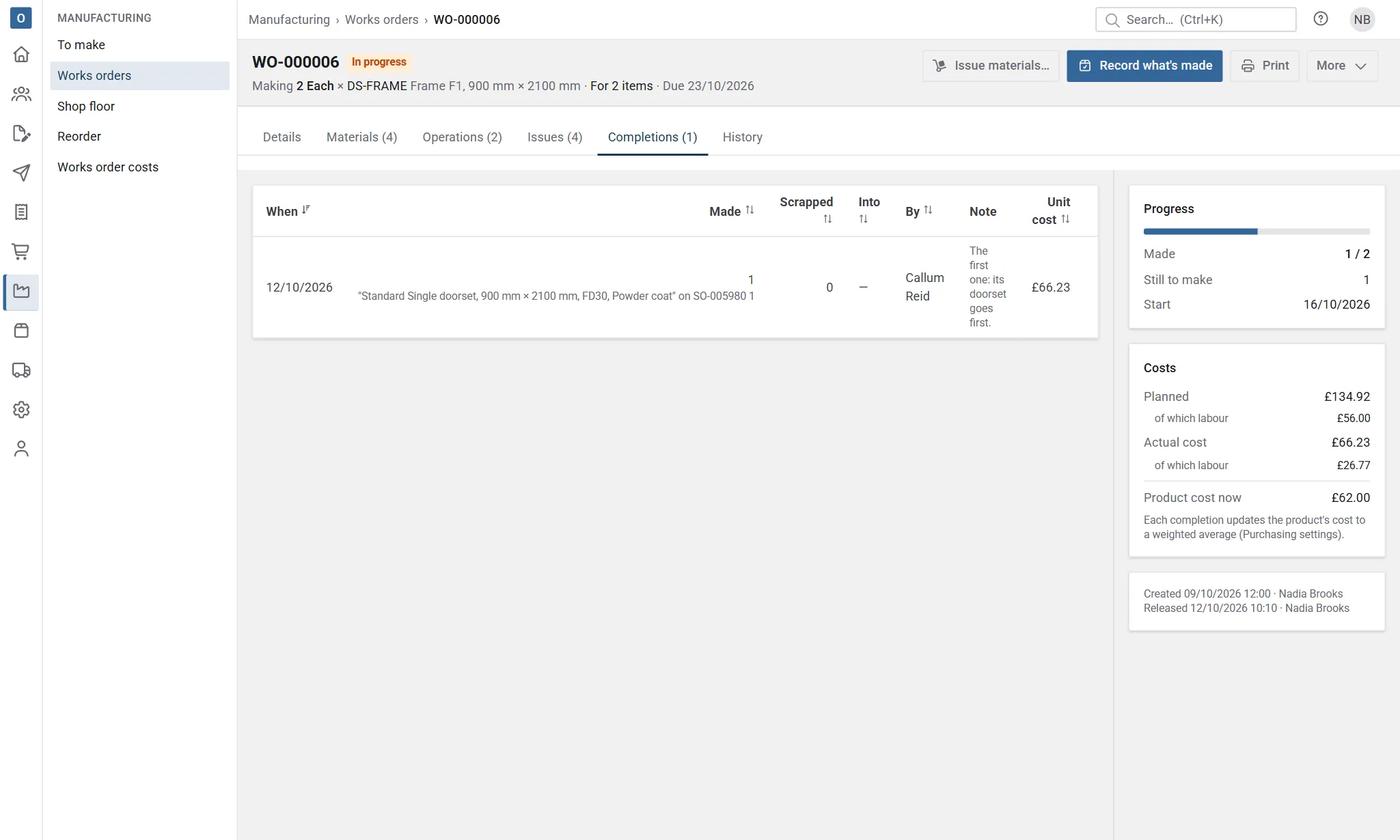
Section titled “Record what’s made on a shared works order”Record as on any works order, in parts and with scrap. Each time, what’s made is shared between the items, earliest due first (then by order and item line): the first item gets what it still needs, then the next, and so on. Scrap isn’t shared. The item’s Made on the Details tab is its share, and the Completions tab shows each completion’s shares under what it made (D01 2 · D02 1).
In Record what’s made, the Allocate section shows how what you’re recording will be shared. Open it to share it differently, for example to give the next 3 to D05 because its lorry goes first: the shares must add up to what’s made, and no item can have more than it still needs. Back to earliest due first puts the usual split back. The Shop floor always uses the usual split.
Re-allocate…
Section titled “Re-allocate…”A completion’s shares can be moved later, while what they made hasn’t been despatched: on the Completions tab select Re-allocate…, and give each item its new share. They must add up to what the completion made for the items, an item can’t have more than it still needs, and an item keeps at least what’s been despatched of its share. The history has a Re-allocated entry. This needs permission to manage works orders.
The order’s Works orders tab shows a shared works order with Shared with 2 other items, and each made part’s share: what it makes and has made of it, and (with permission to see costs) its share of the actual cost. While the works order is open that’s by quantity: a works order for 5 that has cost £100 so far charges £40 to an item it makes 2 for. Once it’s finished, it’s by what was made for each item: if it made 4, 3 of them for D01, D01 is charged £75.
A shared works order that finishes with nothing made lets go of its items, and with Made parts’ works orders that made nothing set to charge the order, each order is charged its share of the cost by quantity.
Cancelling an order on a shared works order
Section titled “Cancelling an order on a shared works order”Cancelling an order (or taking it back to a quote) whose made parts are on a works order shared with another order’s items asks first, naming the works order, and then takes the order’s items off it while it carries on for the others:
- Not started: the item comes off, as with Take off; the works order’s quantity drops.
- Started or finished: what was made for the item goes to the other items that still need it. What no other item needs stays with the cancelled order’s item and its cost is written off there: the item’s row shows Written off, its history has an Item written off entry, and its costs against plan take that cost out of what was carried. What wasn’t made yet for the item comes off the works order’s quantity, and if nothing more is needed it’s completed.
A completion part of which was written off this way can’t be reversed or re-allocated. This needs permission to manage works orders as well as sales.
Materials from the configuration
Section titled “Materials from the configuration”A made part whose Made component has materials keeps what its configuration worked out for one made part when the item is saved: each material’s quantity, and each cut piece’s pieces, length and width. Its works order then takes:
- the made product’s bill of materials first, unless the component’s Also use the made product’s bill of materials is off;
- one material for each product the configuration uses, per one made, adding up the rows that use the same product (two pieces of a side and one of a top, all from the same bar, are one line for the bar);
- each cut piece, with its name, pieces per one made, length, width and note, and the item it’s for. A works order for several items has each item’s own cut pieces.
On the Materials tab these are tagged From the configuration, and the bill’s Bill of materials. They’re issued, backflushed, returned, reserved and costed like any other material. They come from the item as it was configured, so releasing the works order takes the bill of materials as it is then but leaves them as they are, and they can’t be changed or removed on the works order: change the item’s configuration instead (before its works order is raised). Taking an item off a shared works order takes its cut pieces off too.
The materials are kept with the order’s revisions and copied when the order is copied. They never print on the customer’s documents.
Materials added by hand
Section titled “Materials added by hand”On any works order that hasn’t started (a draft, or released with nothing made), the Materials tab has Add material: choose a stock item, an assembly or a service, how many per one made, and a note. Select a material added by hand to change or remove it. Materials from the bill of materials change on the bill: releasing takes the bill as it is then, and keeps those added by hand and from the configuration. One added after release is costed then, and the planned cost follows.
Record what’s made
Section titled “Record what’s made”Record what’s made works as for any works order, but a made part doesn’t go into stock: it goes straight to its order, so there’s no location to choose and no stock movement for the made part. Its materials’ shares are still taken out of stock (backflushed). The order’s Works orders tab shows how many each works order has made. Materials can also be issued and returned by hand, and scrap recorded, as on any works order.
Actual cost against the estimate
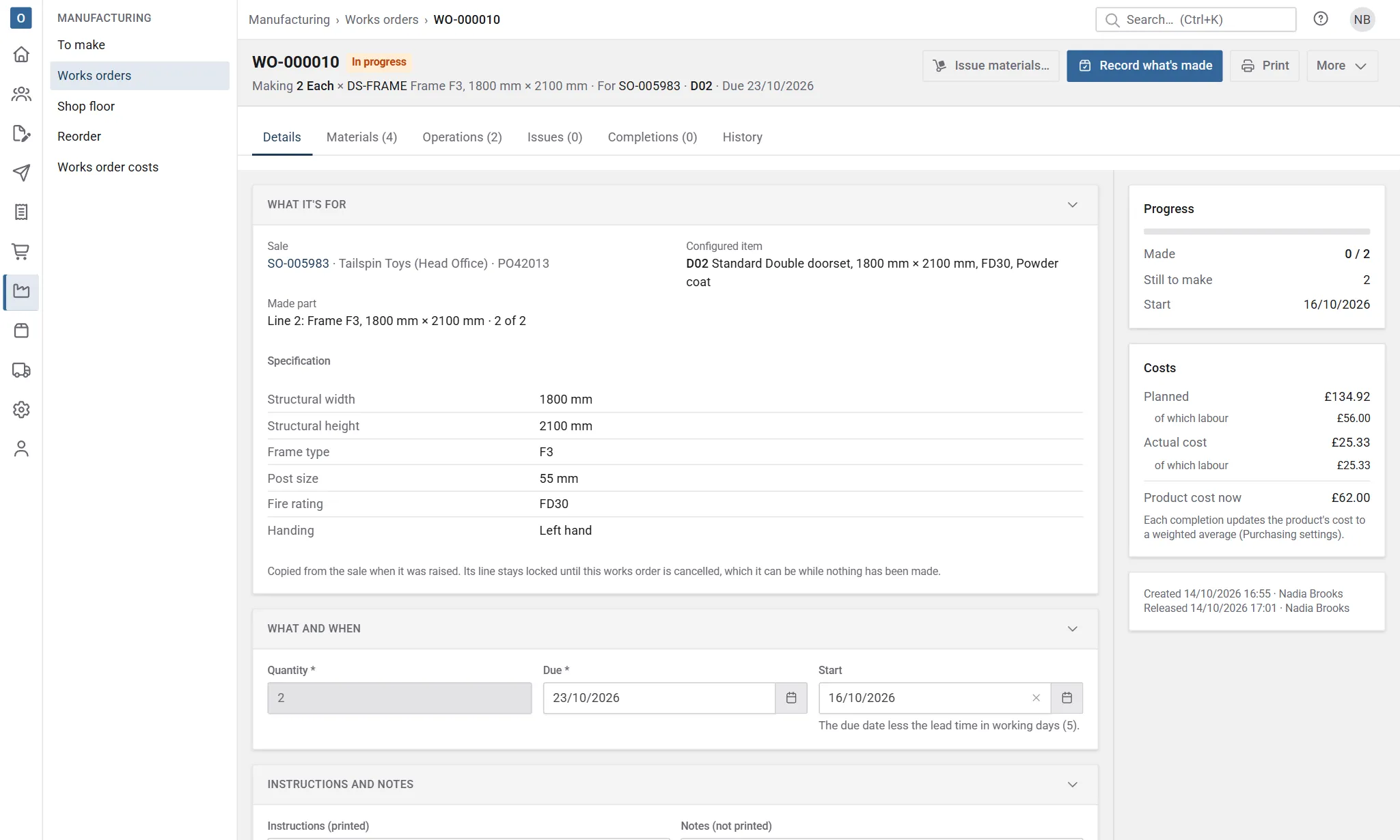
Section titled “Actual cost against the estimate”With permission to see costs, the order’s Works orders tab shows for each made part:
- Estimated cost: its cost when the item was priced, for the quantity on the order, and for each one;
- Actual cost: what its works orders have cost so far (materials, services and time, scrap included), and for each made. It says so far until every works order for it is finished;
- Margin: its share of the item’s price less the estimated cost, and, once every works order for it is finished, on actual: its share of the price less the actual cost of each one made times the quantity. Margins show only on orders in your company’s own currency (its default currency), not on orders in another currency.
- Cost incomplete: something it used had no cost, or time was booked at a work centre with no hourly rate, so the actual cost leaves it out.
The actual cost is what each works order has used and booked so far; once it’s finished it doesn’t change. Costs never print.
Works orders that made nothing
Section titled “Works orders that made nothing”A works order that finishes with nothing made (everything scrapped, or closed before any was made) lets go of its line, so the made part is to raise again. With Made parts’ works orders that made nothing set to Charge their cost to the order in Manufacturing settings (the default), it still shows under the made part’s works orders, tagged Made nothing with cost charged to this order, and its cost is in the made part’s Actual cost, which says including how much came from works orders that made nothing. Until another works order makes some, there’s no cost each and no margin on actual; once it does, the ones made carry the whole cost. For example, a works order scrapping both of 2 at £96.92, then another making 2 at £96.92: actual cost £193.84, £96.92 each made.
Set to Leave it as production variance, the order leaves it out and doesn’t show it, and its cost is only on Works order costs.
Reversing what’s made
Section titled “Reversing what’s made”A made part’s completion can be reversed (on the Completions tab) unless what’s been despatched of its lines needs it. If a despatch took its made parts from that completion, the message names the delivery: reverse the despatch first, or reverse another completion that nothing was sent from. Anything sent before the line had a works order doesn’t count against it. On a shared works order only the items the completion was shared to are checked, each for its share. Its materials go back into stock, and what it made comes off the works order and its items.
Despatch waits for works orders
Section titled “Despatch waits for works orders”With Made parts come from works orders switched on in Manufacturing settings, recording what’s made on a made part’s works order is what makes it ready to despatch. Nobody ticks it on the delivery.
- A delivery’s Made column shows each made part’s works orders, with their stage and how many they’ve made (WO-000123 · In progress · 2/4). While it’s waiting it says Made 2 of 4: what the works orders have made and not yet sent, against what the delivery needs. A made part with no works order says No works order, linking to To make.
- The delivery can’t be despatched until every made part on it is made, with the same message as an unticked one.
- Made parts can be sent in parts: a delivery can go as soon as what’s been made and not sent covers it. Each delivery takes what’s made in the order it’s despatched, so a second delivery waits for more to be made once the first has gone.
- On a shared works order, each item takes only what was made for it: D01’s units are never sent for D02, even on the same delivery.
- When it’s despatched, each made part is stamped made with when and by whom its works order recorded it, and the delivery shows the works orders it was Made on. Reversing the despatch takes that back, and the made parts are free for the next delivery.
- To despatch, the pick list and To make show the same made state.
- Despatching a delivery and reversing (or re-allocating) one of its works orders’ completions can’t both happen at the same moment: whichever comes second sees what the first did.
Switching the setting off again
Section titled “Switching the setting off again”Switching Made parts come from works orders off goes back to ticking:
- a planned or picking delivery whose made parts were made by their works orders shows them not made again until someone ticks them;
- a delivery that’s already been despatched keeps its stamp and the works orders it was Made on;
- if a despatch made from works orders is reversed while the setting is off, its made parts need ticking before it goes again.
What’s still to raise on To make and the order’s Works orders tab counts what each despatch took from works orders, so a made part that’s been made and sent is never raised again.
An assembly made for an order with Make for this order stays a stock works order: its goods go into stock. Its order line can’t be removed while the works order is open, but it doesn’t lock the order otherwise.
What a works order locks on the order
Section titled “What a works order locks on the order”While a made part is on a works order that isn’t cancelled, its configured item is locked, like an item on a delivery or a purchase order:
- it can’t be reconfigured, split or removed. The message names the works order, for example “Line 3 is on works order WO-000123, so its configuration can’t change.”;
- its quantity can go up: the extra shows on To make to raise;
- its quantity can’t go below what the works orders are making (or have made, once they’re finished), for example “WO-000123 is making 4 of line 3’s Panel, so it can’t go below 4.”
A works order that finishes with nothing made (everything scrapped, or closed before any was made) lets go of its line, as a cancelled one does.
To change the item, cancel the works order first. On the order’s Works orders tab, a works order with nothing made has Cancel: confirm, and the item is free to change. To make then shows its made parts to raise again. A works order that’s started can’t be cancelled: close it, and what it made stays.
Cancelling the order
Section titled “Cancelling the order”- While a made part’s works order is still being made (draft, released or in progress), the order can’t be cancelled or taken back to a quote: the message names the works orders. Cancel them (or close those that have started) first. A works order shared with another order’s items is the exception: the order’s items come off it (Cancelling an order on a shared works order).
- Once the made parts have been made, they can’t be used elsewhere, so cancelling the order (or taking it back to a quote) asks first, naming the items: “The made parts for D01 and D02 have been made and can’t be used elsewhere. Cancel the order anyway?” Select Cancel anyway and the order is cancelled; the works orders stay completed or closed, and their cost is written off (their costs against plan are recorded again, with the cost written off rather than carried by the made parts). Each works order says so, with the cost written off when you can see costs, and its history has a Written off entry. A written-off works order can’t change any more: no reversing, issuing, returning or changing its materials.
- Writing made parts off needs the permission to manage works orders as well as sales; without it the order says who can do it.
- Taking an order back to a quote asks the same way (Back to a quote anyway).
- If a cancelled order is reopened, its written-off made parts can’t be used again: To make shows them to raise afresh.
A made part’s works order can be made smaller before it starts, and bigger only up to what its line still needs.
Lead times
Section titled “Lead times”Lead times are advice only: promised dates are never changed.
- To make and the works orders list mark one Late once its start date has passed.
- The order’s Works orders tab says when its made parts can be ready at the earliest (today plus the longest lead time, in working days), and warns when the promised date is before that.
- When you confirm an order, a warning shows if the promised despatch date (else the required date) is before the made parts can be ready. You can still confirm. The warning can be switched off in Manufacturing settings.
Print a job pack
Section titled “Print a job pack”Tick works orders on Manufacturing → Works orders or rows on To make and select Job pack: their works orders in one PDF, grouped by order and item. Each made part’s works order prints what it’s for (order, item and its details), its Specification, its materials and the instructions. The customer prints only with the setting Print the customer on works orders. Costs never print.
The layout, including the Specification section and the Item, Details and Customer fields, is set in Administration → Document templates → Works order.