

Works orders
A works order is an instruction to make a quantity of one assembly by a date, for stock, or one of a configured item’s made parts for its order. It lists the materials it uses, taken from the assembly’s bill of materials. Releasing it reserves those materials. They leave stock when they’re issued by hand or backflushed when you record what’s made, as your Manufacturing settings say, and the made assemblies go into stock.
Works orders are raised by hand, from the reorder worksheet’s Make view, or from an order that’s short of an assembly (Buy for this order lists it under Make for this order). Both can also add to a works order for the same assembly that hasn’t started, rather than raising another (see Add to an open works order).
Manufacturing → Works orders lists them. The views are Open (draft, released and in progress), Draft, Released, In progress, Late, Finished (completed or closed), Cancelled and All. Select a column heading to sort, type in the search box to find one by its number, code, name, location, order, item reference or customer, and select a works order to open it. For shows the order and item a made part’s works order is for (or Stock). The Made column shows how many of the quantity have been made so far. Tick works orders and select Job pack to print them together (see Print a job pack), or Combine to make them one (see Combine works orders).
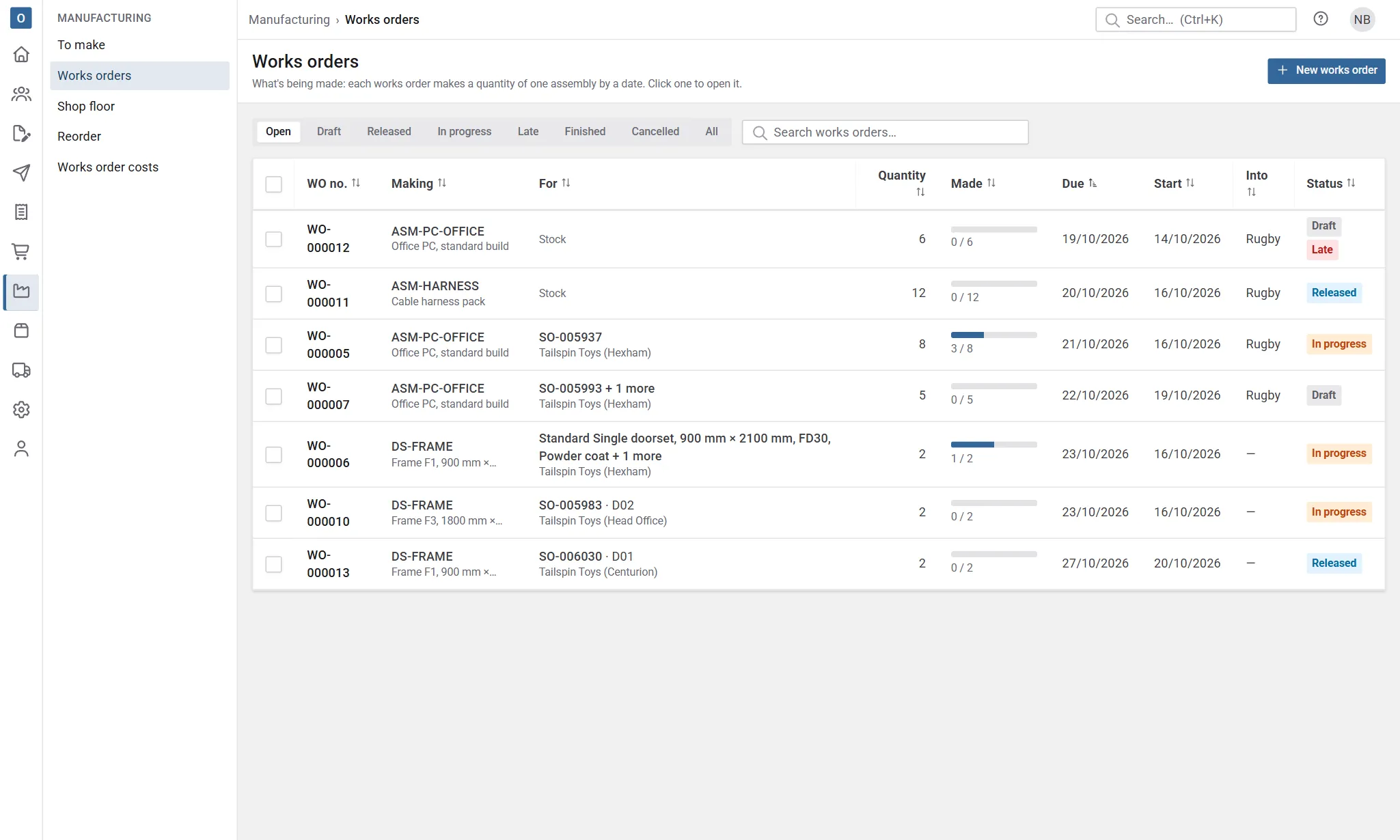
A works order is Late when it’s past its due date, or when it hasn’t been started and it’s past its planned start.
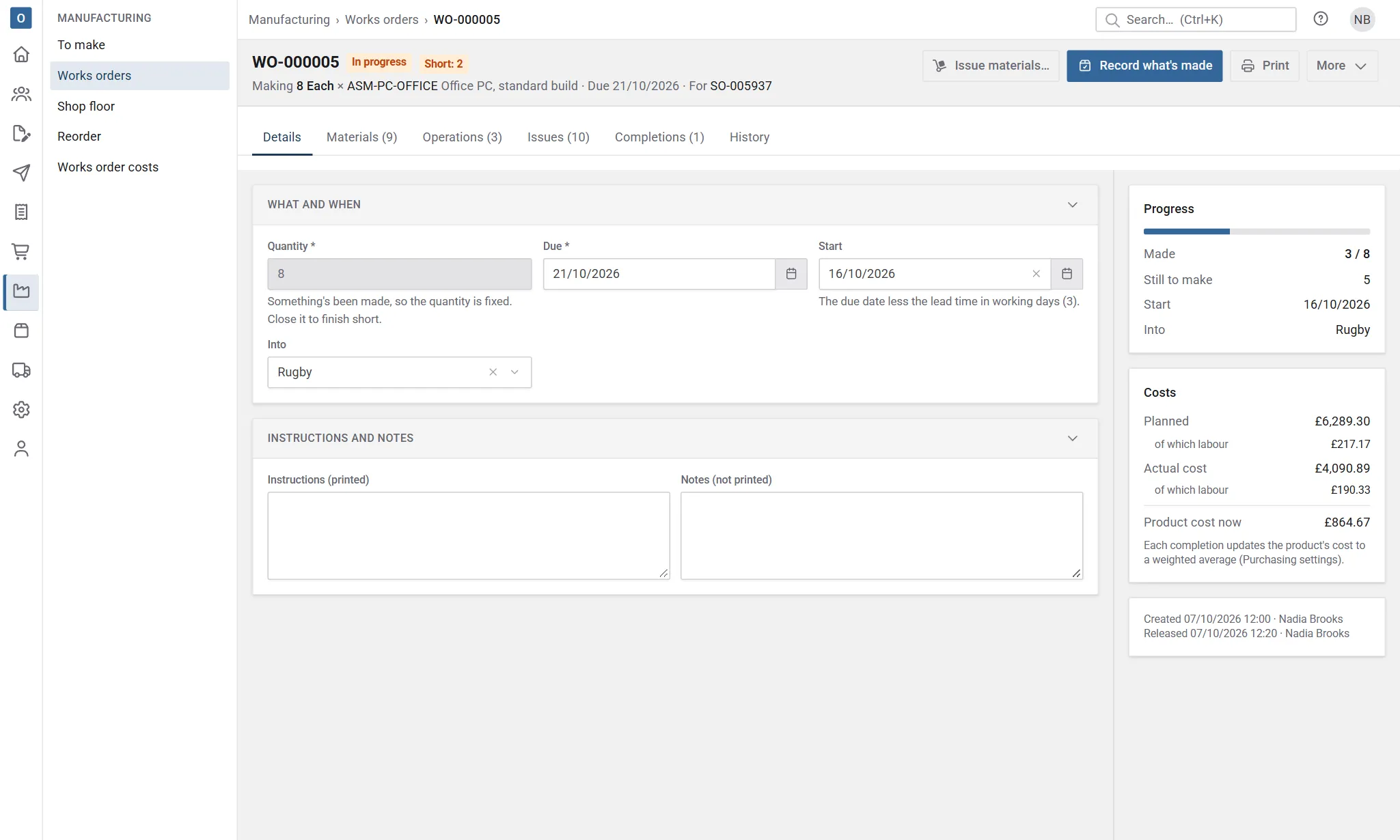
Raise a works order
Section titled “Raise a works order”- Select New works order.
- Choose the assembly to make. Only assemblies are made on works orders.
- Enter the Quantity and when it’s Due.
- Into is where the made assemblies go. Leave it blank to use the usual place from Manufacturing settings.
- Add Instructions for the workshop if needed. They’re printed.
- Select Create.
The works order is created as a Draft, numbered (WO-000123), with its materials from the assembly’s bill of materials times the quantity. Its Start is the due date less the assembly’s lead time in working days (Monday to Friday). You can change it; clear it to work it out again.
If you select Create with something missing, it’s highlighted and the cursor goes to it.
Add to an open works order
Section titled “Add to an open works order”When the reorder worksheet’s Make view or Make for this order has a line for an assembly that already has a works order which hasn’t started (a draft, or released with nothing issued, made or booked), the line offers a choice under its quantity: A new works order, or Add to WO-… for each one that would do. Choose one to add to and select Raise works orders:
- its quantity goes up by the line’s, and its materials and operations follow; a released one’s planned cost is worked out again and it reserves the extra materials;
- from an order, the order’s line is linked to it (each order’s line keeps its own link), and it’s due by the earlier of the two dates;
- its History says what was added: Item added from an order, Quantity added from the reorder worksheet.
The dialog that follows says which works orders were raised and which were added to.
Combine works orders
Section titled “Combine works orders”Works orders raised separately for the same thing can be made one. Tick them on the Works orders list and select Combine, then confirm.
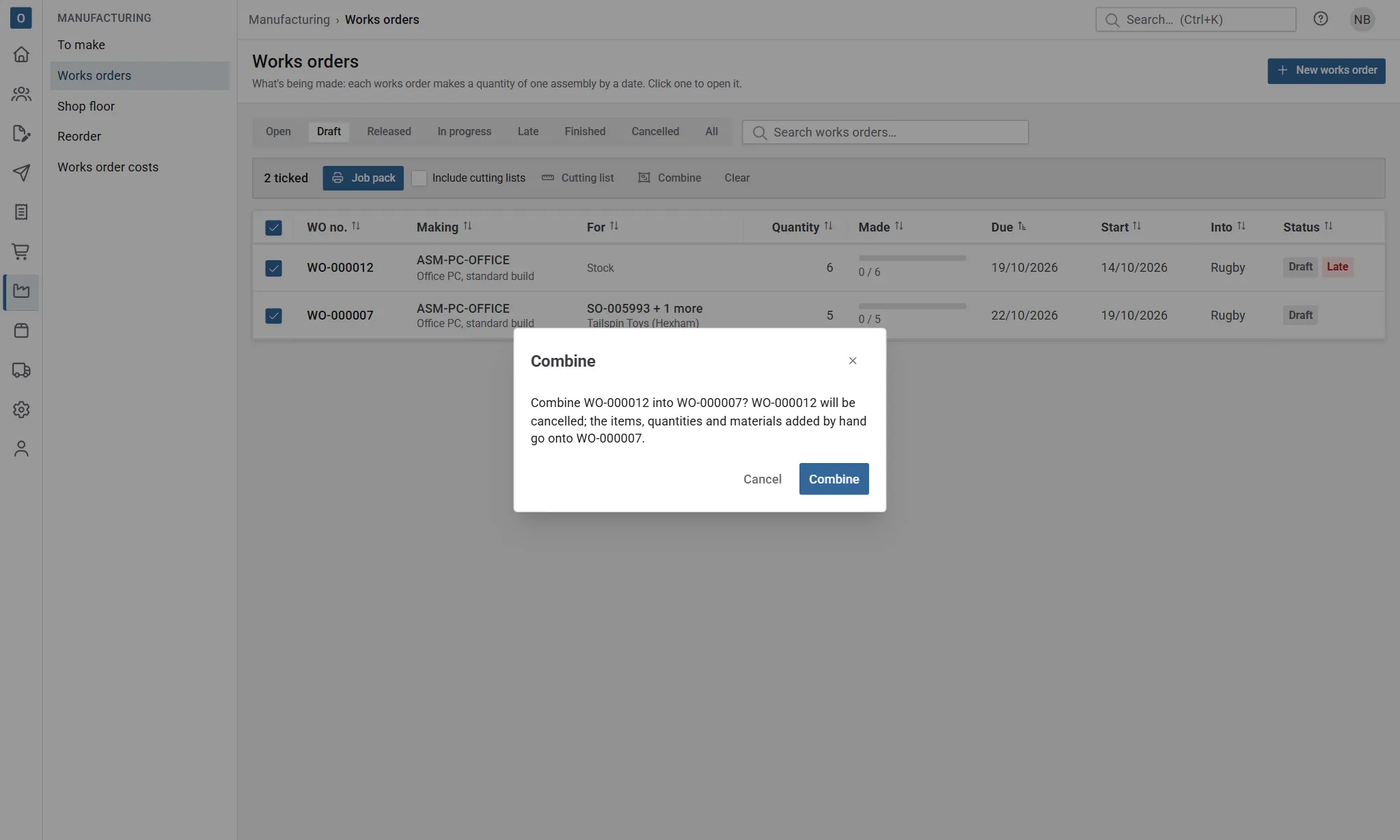
- They must all make stock, or all make made parts, never a mix: stock works orders the same assembly, made parts’ the same made part with an identical specification.
- Each must be a Draft, or Released with nothing issued, made or booked.
- The lowest number is kept. It takes the others’ quantities, each order’s or item’s link (with its own quantity and due date), and their materials added by hand, each needing what it needed between them. It’s due with the earliest of them, its materials and operations follow the new quantity, and a released one’s planned cost is worked out again.
- The others are cancelled, with the reason Combined into WO-…. Their history says so, and the kept one’s history lists what came in.
If the ticked works orders can’t be combined, nothing changes: the rows that stop it are highlighted and the first reason is named, for example WO-000124 has started or finished, so it can’t be combined. A combined made parts’ works order is for several items: see Works orders for several items.
Stages
Section titled “Stages”| Stage | What it means | Materials |
|---|---|---|
| Draft | Being set up. Anything can change. | Not reserved. |
| Released | Ready to make. | Reserved. |
| In progress | Something has been issued or made, or an operation started or time booked. | Reserved until used. |
| Completed | Everything made. | No longer reserved. |
| Closed | Finished short: the rest won’t be made. | No longer reserved. |
| Cancelled | Nothing made. | No longer reserved. |
Release it
Section titled “Release it”Select Release. Releasing:
- takes the materials from the assembly’s bill of materials as it is now, so a change made to the bill since the draft was raised is included;
- takes the assembly’s operations as they are now, and fixes each work centre’s hourly rate;
- fixes each material’s cost and the Planned cost (materials, services and operations);
- reserves the materials.
After that, changes to the bill of materials never reach this works order: its materials are frozen. An assembly with an empty bill of materials asks you to confirm before it’s released with no materials. A made part’s materials from its configuration and those added by hand are kept as they are.
Reserved materials count as allocated everywhere allocated stock is shown: the product’s Stock tab (where the works order is listed under Reserved by), the free stock when adding products to a purchase order, and the reorder worksheet. They leave the stock on hand when they’re used.
Issue materials by hand
Section titled “Issue materials by hand”Once a works order is released, you can take its materials out of stock as they go to the workshop, whatever the issue setting.
- Select Issue materials….
- Each material starts at what it still needs. Change the Quantity, or clear it for ones you’re not issuing. Issuing more than required is allowed (spoiled material issued again, say): add a Note to say why.
- Choose From to take it from one place, or leave it empty to take it from where most of the product is kept, then from wherever there’s most.
- Select Issue.
The stock leaves on hand (Used on a works order in the product’s stock movements), and what’s issued stops being reserved. The works order moves to In progress. If a material is short, issuing is refused, or asks you to confirm when Allow stock to go below zero is on in Stock settings.
Return unused materials
Section titled “Return unused materials”To put back material that was issued by hand and not used:
- Select More → Return materials….
- Enter how many of each come back, and Back to where they go (empty: where they were last issued from).
- Say Why, then select Return.
Only what was issued by hand and hasn’t been used can come back this way, at the cost it was issued at (Back from a works order in the stock movements). What’s been made or scrapped has used its share, even when it was issued by hand, so that much stays. Material that was backflushed belongs to its completion: reverse the completion to put it back. If everything issued is returned and nothing has been made, the works order goes back to Released.
The Issues tab lists every row: issued, returned and backflushed, with where, who, when and the note. A negative quantity came back to stock.
Record what’s made
Section titled “Record what’s made”A supervisor records what’s been made on the works order page.
- Select Record what’s made.
- Enter how many were Made, and how many were Scrapped: started, but won’t come out good. Either can be 0, and together they can’t be more than what’s still to make.
- Change Into if they went somewhere else, and When if it was an earlier day (not before the works order was released, and never a day still to come in your company’s time zone).
- Add a Note if you like, then select Record.
Recording:
- puts the made assemblies into stock (Made on a works order in the product’s stock movements). Scrap doesn’t go into stock;
- backflushes materials as your issue setting says:
- Backflush at completion: each material’s share of what’s made and scrapped (required ÷ quantity × made and scrapped), less what’s already been issued by hand. When the whole quantity is done, each material’s full requirement has been used, with nothing left over from rounding;
- Issue by hand: no materials are taken; you issue them yourself;
- By hand, backflushing the rest: nothing is taken until the completion that finishes the works order, which takes whatever is still to issue. Materials are taken from the Into location first, then from wherever there’s most;
- costs services (such as labour) on the bill of materials at their share, whatever the setting, without touching stock.
You can record in parts: the works order stays In progress until made and scrapped reach the quantity, then it’s Completed. On a made part’s works order for several items, each completion is shared between the items, earliest due first, and the dialog’s Allocate section lets you share it differently; Re-allocate… on the Completions tab moves it later (see Record what’s made on a shared works order).
If a material is short, recording is refused and lists what’s short where. When Allow stock to go below zero is on in Stock settings, you’re asked to confirm instead, and Record anyway takes it below zero.
What each completion costs
Section titled “What each completion costs”Each completion is costed at each material’s share of what it adds (made and scrapped), at the average cost that material was issued at, so material issued by hand ahead is spread over what’s made rather than all landing on the first completion. Services are costed at their share. Labour is shared the same way: each operation’s share of its planned minutes, at the average rate of the time booked to it so far, so set-up time is spread over everything made. The completion that finishes the works order takes whatever is left of the actual cost, so the stock value of everything made adds up to what was spent.
Scrapped assemblies use their materials. A completion with something made and something scrapped carries the scrap’s cost into what it made. A completion that only scrapped puts nothing into stock: its cost is picked up by the completion that finishes the works order. If the last completion only scrapped, that cost stays on the works order and isn’t in any stock value: it shows as Left on the works order once it’s finished (see Against plan). To record spoiled material only (a sheet cut wrong, say), issue it again by hand with a note.
Operations and time
Section titled “Operations and time”The Operations tab lists the operations copied from what’s made: each with its work centre, what’s done and its instructions, the Planned (min) (set-up + minutes each × the quantity), the time Booked (min) so far, and its Status (Not started, Started, Done). A made part’s works order takes its made product’s operations.
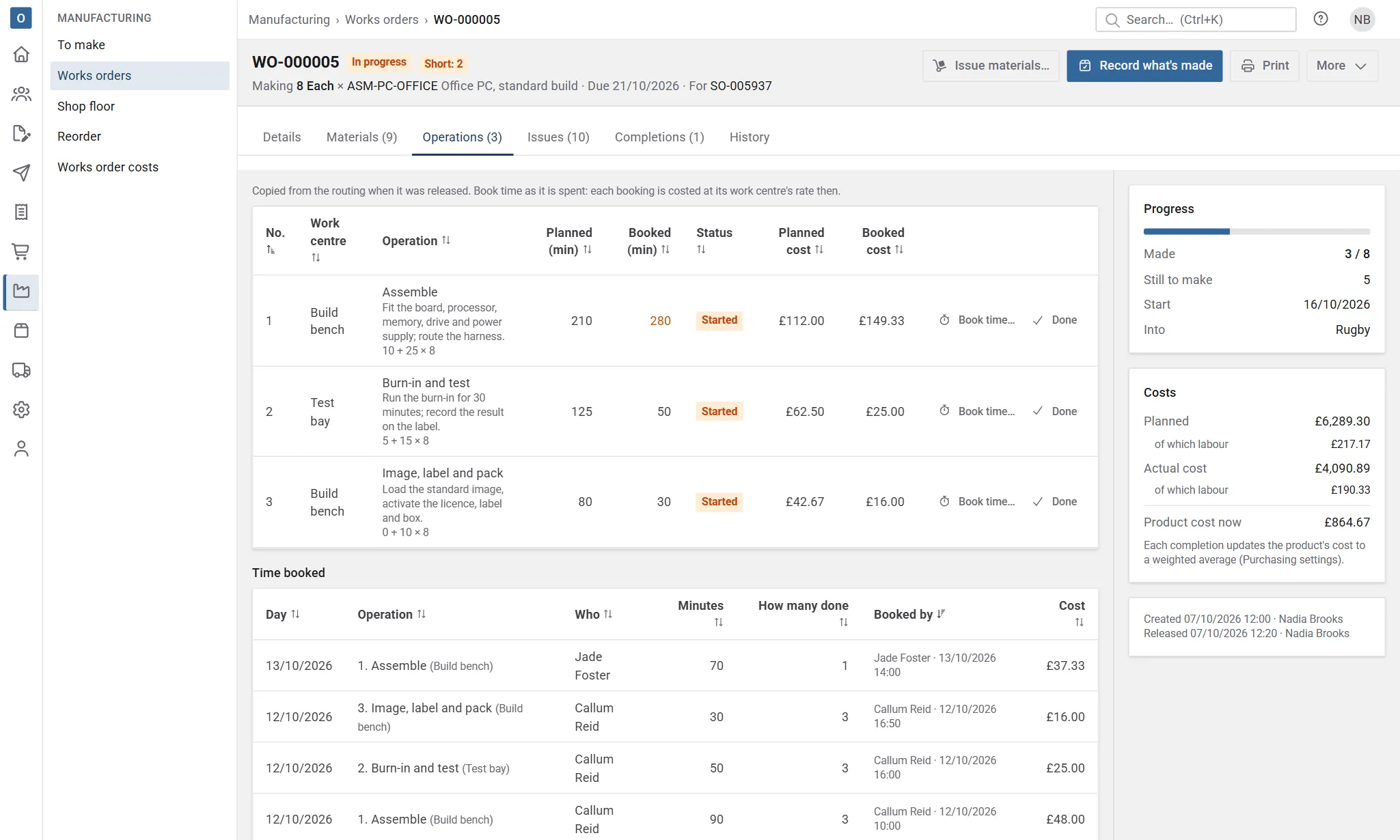
Once the works order is released, whoever records the work can, on each row:
- select Start when work on it begins;
- select Book time… to record time spent: the Minutes, Who did it (leave it empty for yourself), the Day (today unless you change it, not in the future or before it was released), How many done if you like, and a Note;
- select Done when it’s finished (it needn’t have been started first).
Starting an operation or booking time puts the works order In progress, so it’s then closed rather than cancelled. Booking time to an operation that hasn’t started starts it. Time can be booked to a done operation too, if it’s booked late.
Started (or marked done) by mistake? While nothing is booked on the works order (no time, no materials issued, nothing made), Undo start takes the operation back to not started. Once no operation is started, the works order goes back to Released and can be cancelled again.
To correct a booking, book negative minutes with a note saying why: it takes that time off, at the average rate the operation’s time was booked at (not today’s rate), so taking off what was booked takes off what it cost. It can’t take off more than is booked, nor time whose cost has already gone into what’s been made or scrapped: the dialog shows how much Can come off. Bookings are never changed or deleted, so the Time booked list under the operations shows every one, with who booked it and when.
Once a works order is completed, closed or cancelled, or its cost has been written off, its operations can’t change and no more time can be booked.
On a phone or tablet at the bench, the Shop floor page does the same: find the works order by scanning its QR code or typing its number, then start, book time, mark done and record what’s made.
Reverse a completion
Section titled “Reverse a completion”If a completion was recorded by mistake, select Reverse… on its row in the Completions tab, say why, and select Reverse completion. Reversing undoes it exactly:
- what it made comes back out of stock (Works order completion reversed);
- what it backflushed goes back to where it came from, at the same cost (Back from a works order);
- its cost comes off the works order’s actual cost.
Time booked to its operations stays: it was spent, whether or not what it made stands. It’s refused once what it made has gone and there isn’t that much left where it went. Like reversing goods in, it only checks the stock on hand at that location, not what orders have allocated. It’s also refused when a later completion has already carried this one’s material and labour cost into stock (reverse that one first), and a closed works order’s completions can’t be reversed. The row stays, marked Reversed with who, when and why, and the works order goes back to In progress (or Released if nothing else is booked).
Short materials
Section titled “Short materials”The Short tag on the page counts materials that free stock can’t cover.
- A sub-assembly that’s short shows Make on its row in the Materials tab, with what other works orders are already making of it. Selecting it raises a draft works order for what’s still short, due by this works order’s start; its header links back to this one.
- A bought material: select More → Buy for this works order…. It lists each bought material with what it still needs, the free stock it can have, what’s already being bought for it and what’s short. Tick lines, check quantities and suppliers, then raise a requisition or add them to draft purchase orders, as your Purchasing settings allow. Each line names the works order material, so its next look shows it as being bought.
Materials
Section titled “Materials”The Materials tab lists each material with its quantity per one made, tagged Added by hand or, for a made part, From the configuration (the bill’s are then tagged Bill of materials), and:
| Column | What it shows |
|---|---|
| Required | For the whole works order. |
| Used | Issued or backflushed so far, less what’s come back. |
| Reserved | What this works order still holds: required less used, while it’s released or in progress. |
| On hand | The product’s stock, everywhere. |
| Free | On hand less everything allocated, this works order included. |
| Short | What it still needs that free stock can’t cover. |
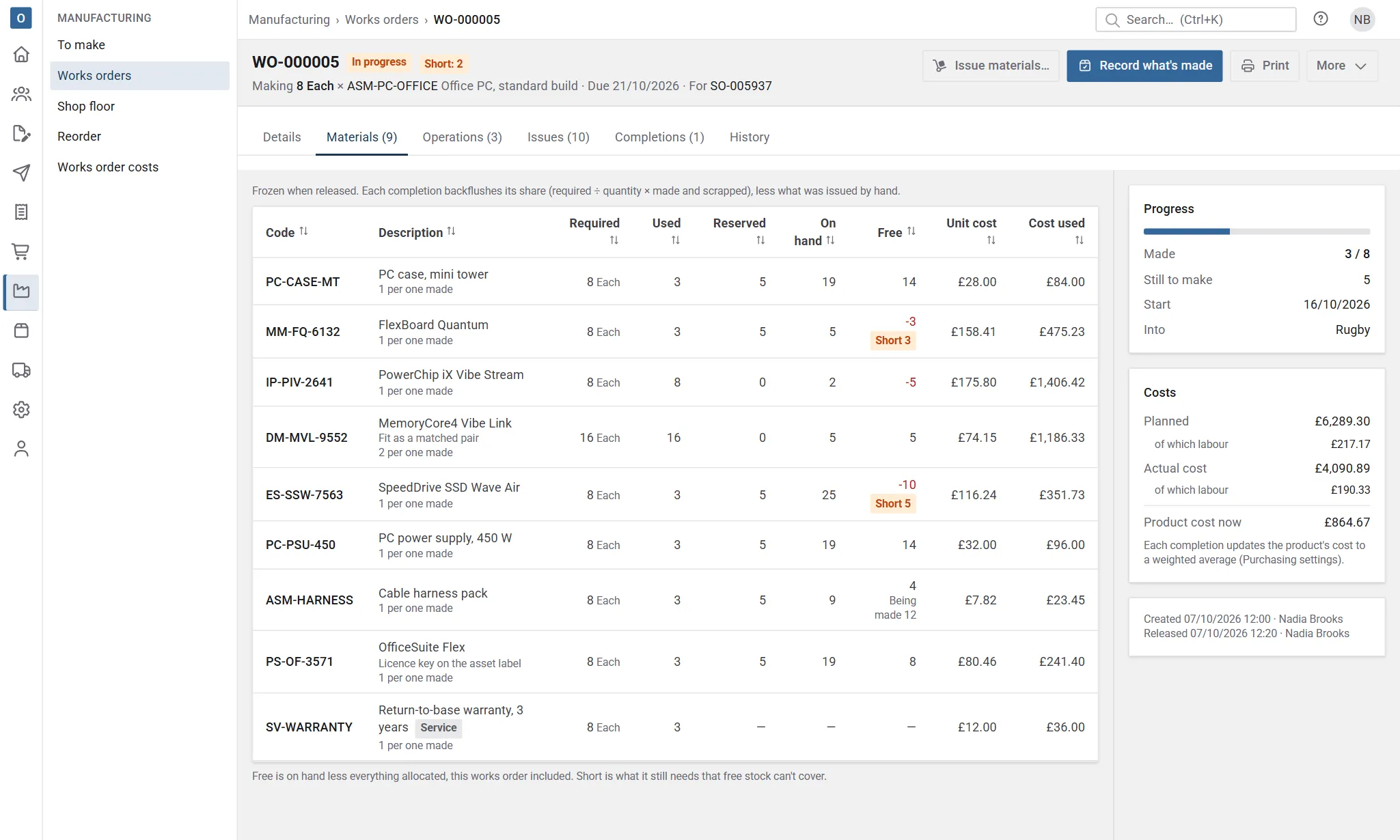
With permission to see costs, the page shows:
- Planned: fixed when it was released, from each material’s cost and each work centre’s rate then, with its labour shown under it;
- Actual cost: what’s been used so far, at each material’s cost when it was used, plus the time booked at its rates, with its labour shown under it;
- each completion’s Unit cost: the cost that completion took (the materials and services used for it, and its share of the time booked) divided by how many were made. Its stock goes in at that cost. A material with no cost counts as nothing, and the completion is marked Cost incomplete; with a weighted average, the assembly’s cost isn’t updated from that completion, and its history says so.
The assembly’s own cost follows Purchasing settings → Stock cost, as goods in does. Leave the cost as typed doesn’t change it. Keep a weighted average updates it each time something’s made, blending the stock on hand with what’s just been made.
Against plan
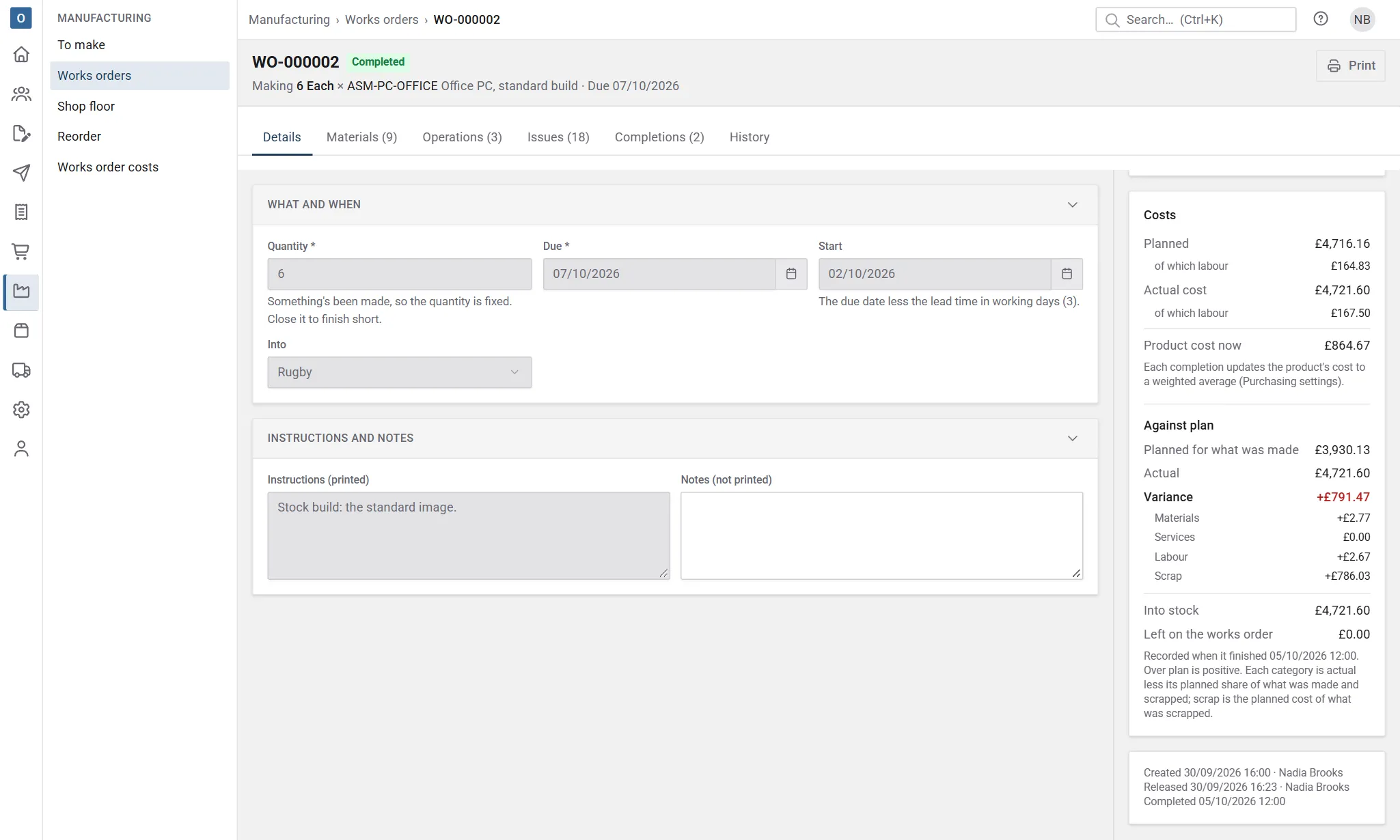
Section titled “Against plan”When a works order finishes (it’s completed, or closed with the rest not made), its costs are compared with what was planned and recorded, and the Costs panel shows them under Against plan. They’re recorded then, so later changes to costs or rates never move them.
-
Planned for what was made: the planned cost’s share for how many were made. For 8 made of 10, that’s 8/10 of the planned cost.
-
Actual: what was spent, materials and services at their cost when used, and time at the rates it was booked at.
-
Variance: actual less planned for what was made. Over plan is positive. It’s split into:
- Materials: materials used (issued and backflushed, less returns) less their planned share of what was made and scrapped. Using more than planned, or a material costing more when it was used than when the works order was released, shows here.
- Services: the same for services on the bill of materials.
- Labour: time booked less its planned share of what was made and scrapped. The set-up is spread over the whole quantity, so a works order closed short shows the set-up it didn’t spread.
- Scrap: the planned cost of what was scrapped.
The four always add up to the variance.
-
Where the actual cost went:
- Into stock (for a made part, Carried by the made parts): the value its completions took;
- Cost written off, when its order was cancelled after its made parts were made (see Cancelling the order);
- Left on the works order: the rest, such as material issued but not used when it was closed short, or the cost of a last completion that only scrapped. It isn’t in any stock value.
These three always add up to the actual cost.
| Example, 10 planned at 210 | Variance |
|---|---|
| Made as planned | Nothing |
| 4 of a material issued beyond what was needed (8 more) | Materials +8, carried into stock |
| 60 minutes more at Cutting, at 30 an hour | Labour +30 |
| 8 made and 2 scrapped | Scrap +42 (2/10 of 210); if the last completion only scrapped, 42 is left on the works order |
| 4 made, then closed, with 2 issued but not used and all the set-up booked | Materials +4 and labour +18; 22 left on the works order |
If a completion is reversed and the works order is open again, what was recorded is cleared, and it’s recorded again when it finishes. When a works order’s cost is written off, it’s recorded again with the whole actual cost written off. Each time, the History tab has a Costs recorded entry with the figures. Works orders finished before costs were recorded have them recorded once, as at when they finished.
Manufacturing → Works order costs lists these figures for every works order, and downloads them.
Without permission to see costs, none of these are shown, and the history leaves out Costs recorded.
Close or cancel
Section titled “Close or cancel”- Close (More → Close with the rest not made…) finishes a works order that’s in progress when the rest won’t be made. Say why. What it still reserves is released. If material was issued by hand beyond what’s been made and scrapped, you’re asked first: return it, or close anyway and it stays as cost on the works order.
- Cancel (More → Cancel works order…) is for one with nothing made or issued yet, whether a draft or released. Say why. Its reserved materials are released. A works order raised for an order lets go of that order’s line when it’s cancelled.
Once something has been made or issued, a works order is closed rather than cancelled, and its quantity can’t change. Return what was issued first if you want to cancel it.
A works order raised for an order (For in its header links to it) keeps that order line from being removed while it’s open.
While an assembly or a material is on an open works order, its product Kind can’t change.
Print it
Section titled “Print it”Select Print for the works order as a PDF: what’s made, how many, the due date and start, where it goes, each material with the quantity needed and where it’s kept, the Operations in order (work centre, what’s done with its instructions, the planned minutes, and Done by and Date boxes to sign each one off), the instructions, and boxes to sign. A made part’s works order also prints its order, item and details and its Specification. A draft is marked DRAFT. Costs are never printed, and works orders aren’t emailed.
Beside the reference details is a QR code of the works order’s number, with the number under it. Scan it on the Shop floor page to open the works order there. Each works order in a job pack has its own. The template can leave it off.
Its layout is set in Administration → Document templates → Works order, with your company’s branding. See Documents and branding.
A made part’s works order with cut pieces has a Cutting list tab: its pieces by material, the bars planned with their offcuts, and the sheets, with Print cutting list. Tick works orders on the list and select Cutting list for one list across them all, and tick Include cutting lists to put each one’s after it in the job pack. See Cutting lists.
History
Section titled “History”The History tab lists what’s happened: created, released, materials added by hand, items or quantities added, works orders combined into it (or it combined into another), issued, returned, operations started and done, time booked, each completion and any reversal, closed or cancelled, and (with permission to see costs) the costs recorded when it finished, with who and when.
Who can do what
Section titled “Who can do what”Each is a Manufacturing permission in Administration → Roles:
| To | The permission that says |
|---|---|
| See works orders and print them | See works orders and print them. |
| Raise, change, release, close and cancel them | Create, edit, release, close and cancel works orders. |
| Issue and return materials, record what’s made and scrapped, start operations, book time and mark them done | Record what’s been made on works orders (completions)… |
| Reverse a completion | The same, and Adjust stock. |
| Raise works orders from the reorder worksheet or an order, add to one, or combine them | Create, edit, release, close and cancel works orders. |
| Buy for a works order | Raise requisitions or Manage purchase orders. |
| Change manufacturing settings and work centres | Change manufacturing settings. |
| See and download works order costs | Any of the first three, and the permission to see cost and margin. |
Costs also need the permission to see cost and margin. See Users and permissions.