

Products and stock
A product is anything you sell or buy: its code, name and category, how it’s measured, who you buy it from, what it costs and sells for, and how many you have where. This page covers the product record and its stock. What a product’s kind decides (stock item, service, kit, assembly) is in Kinds and services.
Find a product
Section titled “Find a product”Products lists every product, 25 to a page, sorted by name.
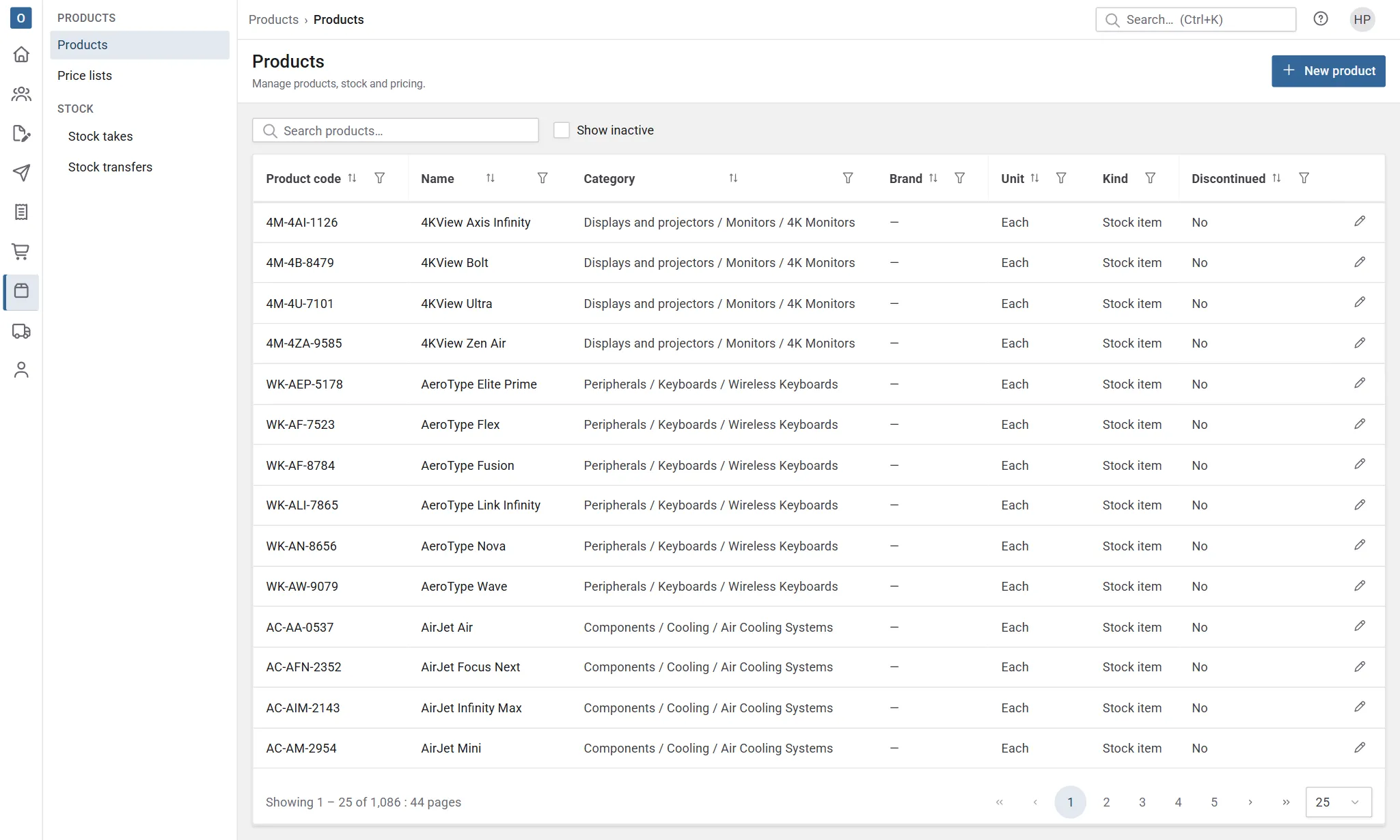
- Search finds products whose code or name contains what you type.
- Filter with the funnel on a column heading: Product code and Name match text; Category, Brand, Unit and Kind let you tick one or more; Discontinued is yes or no.
- Sort by selecting a column heading. Kind can’t be sorted.
Select a product’s code, name or pencil to open it.
Add a product
Section titled “Add a product”- In Products, select New product.
- Fill in the Details tab. Product code, Name, Category and Unit of measure are required. The product code has to be unique, up to 50 characters.
- Select Save.
The other tabs open once the product is saved. If the type you choose has a default kind, Kind is filled in for you. See Default kinds for product types.
Details
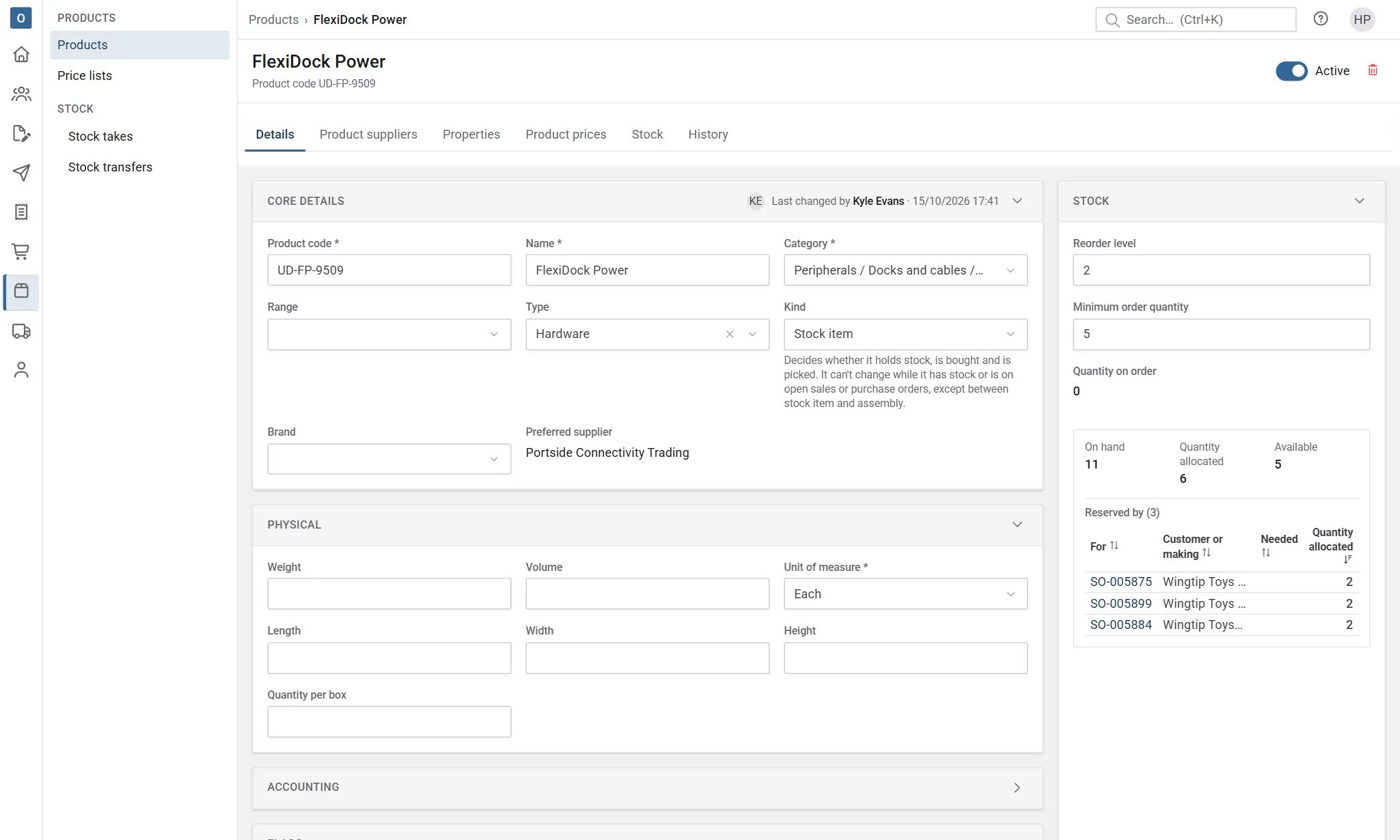
Section titled “Details”The Details tab is the product itself. When you change anything, Save and Cancel appear at the top, and changed fields are highlighted until you save.
| Section | What’s in it |
|---|---|
| Core details | Product code, Name, Category, Range, Type, Kind and Brand. For products you buy, the Preferred supplier, set on the Product suppliers tab. |
| Physical | Weight, Volume, Unit of measure, Length, Width, Height and Quantity per box. Weights give a delivery its estimated weight. |
| Accounting | Nominal code and Purchase nominal code, and Lead time (days). Closed until you open it. |
| Flags | Discontinued, Quote only and Serialised item. |
| Descriptions | Sales description and Extended description. |
- Category, Range, Type and Brand are lists kept in Administration (Product Categories, Product Ranges, Product Types and Product Brands). Add new … at the foot of each list adds one without leaving the product. Categories can have sub-categories, at as many levels as you like, and a product can go in a category at any level. The list shows each category’s path, such as Doors / Internal / Oak. See Organise product categories.
- Unit of measure is how the product is counted and sold, such as each, metre or box. Add new … opens a form for a new unit: its Name and Conversion factor are required, with an Alternate unit and Alt quantity mode if it needs them. Units are kept in Administration → Units of Measure.
- Sales description is what goes on a sale line when you add the product. Leave it blank to use the name. A customer’s special price can have a description of its own, which wins.
- Extended description is a longer specification. With Add the product’s extended description to order lines on in Purchasing settings, it goes on purchase order lines under the name.
- Nominal code is where the product’s sales go in your accounts, before its category’s. See Sage 50 export.
- Lead time (days) is how long the product takes to get. When you buy it, it’s used where the supplier has no lead time of its own. For an assembly, a works order’s start is its due date less this many working days.
- Quote only is a marker: it shows next to the product when you add it to a sale.
- Serialised item is a marker only.
The Stock panel on the right shows the stock figures: see Stock at a glance.
The History tab lists every change made to the product, with who made it and when. Changes to its Standard cost are only listed if you’re allowed to see costs.
Stop selling a product
Section titled “Stop selling a product”Tick Discontinued and select Save. A discontinued product:
- is marked Discontinued when you add it to a sale or a purchase order,
- comes after current products when you search for one to add,
- is left off the reorder worksheet, so it isn’t suggested for buying or making.
You can still sell what’s left of it.
Make a product inactive or delete one
Section titled “Make a product inactive or delete one”At the top of a product, switch Active off to make it inactive. An inactive product keeps its history, but leaves the Products list and can’t be added to a sale or a purchase order. To find it again, tick Show inactive on the list; it’s tagged Inactive. Use Discontinued instead while you still want to sell what’s left.
The bin at the top deletes a product, after you confirm. Only a product that’s never been used can be deleted, such as one added by mistake: if it’s on sales, purchase orders or stock movements, or it’s part of a kit, the message says so, and you make it inactive instead. Deleting a product also deletes its prices, suppliers, properties and stock locations.
Organise product categories
Section titled “Organise product categories”Product categories are kept in Administration → Product Categories as a tree: a category can have sub-categories, and they can have sub-categories of their own. Select the arrow beside a category to show or hide what’s under it. Search shows the categories that match along with the categories they sit under.
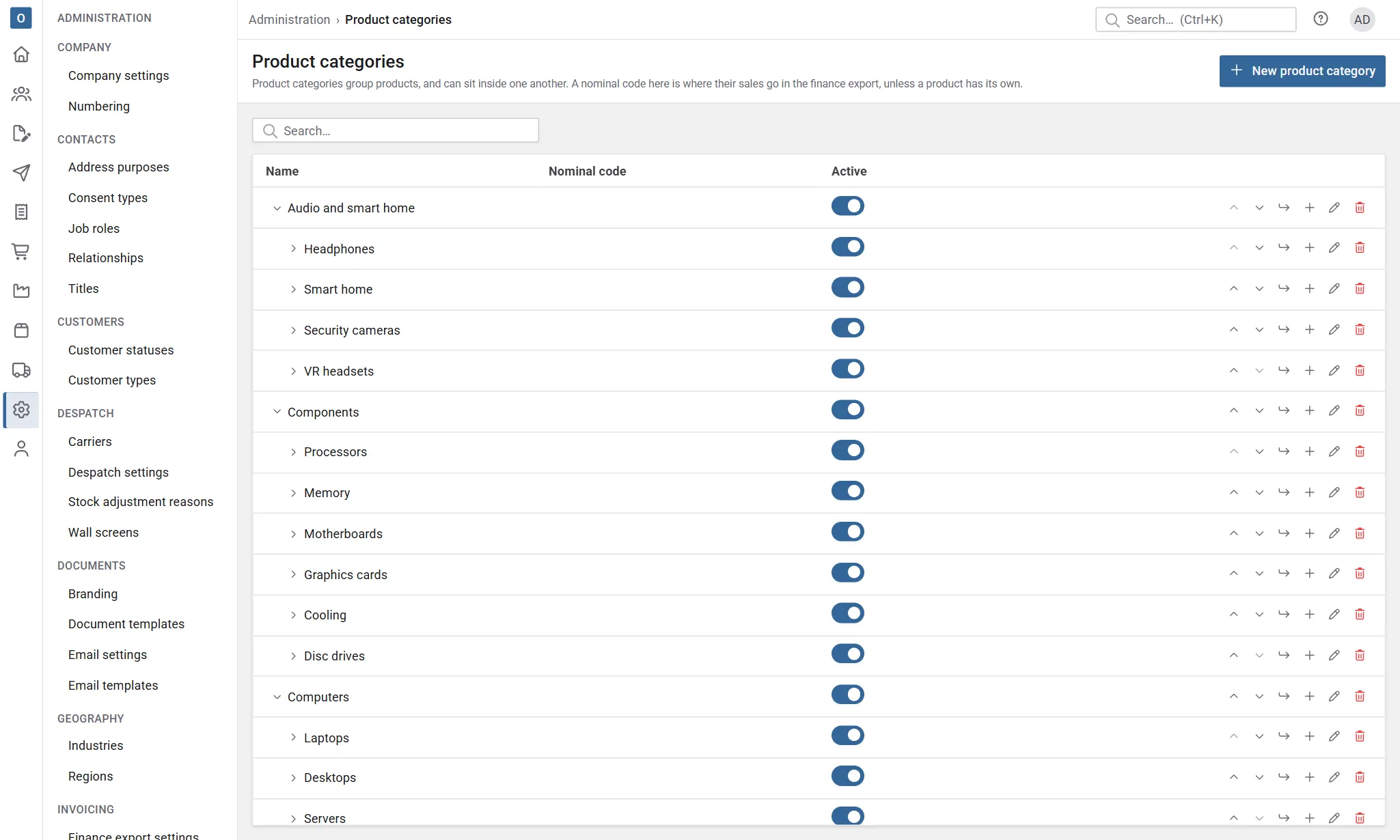
- New product category at the top adds a top-level category.
- On a category’s row, New sub-category adds one under it, and New product category below adds one at the same level, straight after it.
- Move up and Move down change a category’s place among the categories at its level. Everything under it moves with it.
- To move a category somewhere else in the tree, edit it and choose a different Parent product category. Leave Parent product category empty to make it a top-level category. Its sub-categories go with it.
- Names have to be different among categories at the same level. The same name can be used under different parents, such as Internal / Oak and External / Oak.
- A category with sub-categories can’t be deleted. Move or delete its sub-categories first.
Choosing a category also covers the categories under it. Filtering the Products list or a price list by Doors shows the products in Doors / Internal / Oak too. The same goes for the category filters when you add products to a sale or a purchase order, the reorder worksheets, and a stock take of some categories.
A category with no Nominal code of its own uses its nearest parent’s, which the list shows greyed out. See Sage 50 export. For how customer discounts work with sub-categories, see that page.
Suppliers
Section titled “Suppliers”The Product suppliers tab lists who you buy the product from, with their part number, last purchase price, delivery cost and lead time, and which one is Preferred. Select Add product supplier to add one, the name or pencil to change one, and Set preferred to choose the preferred one. See The products a supplier supplies.
The tab is only there for products you can buy.
Properties
Section titled “Properties”The Properties tab holds what the product is like, in the properties your company has set up: a colour, a width, a fire rating and so on. See Product properties.
Prices and costs
Section titled “Prices and costs”The Product prices tab shows:
- Unit cost, if you’re allowed to see costs: the product’s Standard cost if it has one, else its preferred supplier’s last purchase price (plus delivery cost, if your company settings include it). The card says which. Type a Standard cost and select Save to use a fixed cost instead of the supplier’s.
- Price check: what a customer would pay for a quantity on a date, and where the price comes from. Leave the customer empty for the standard price.
- Prices: the product’s prices on each price list, from a quantity upwards, with the margin each gives. A price that isn’t in force today is greyed and marked Inactive, Scheduled or Expired. Select Add product price to add one.
See Price lists for how prices are set up and chosen.
Stock at a glance
Section titled “Stock at a glance”For stock items and assemblies, three figures are shown on the Details tab and again on the Stock tab:
| Figure | Means |
|---|---|
| On hand | What’s in your stock locations now. |
| Quantity allocated | What’s set aside: for open orders whose status reserves stock, and as materials for released works orders. |
| Available | On hand less allocated. Shown in red when it’s below zero. |
Reserved by lists what’s holding the allocated stock, biggest first: each order with its customer and required date, or each works order with what it’s making and its planned start. Select one to open it.
The Details tab’s Stock panel also has:
- Reorder level: the stock you want to keep. Below it, the reorder worksheet suggests buying enough to get back to it (or, for an assembly, making it). See The reorder worksheet.
- Minimum order quantity: the worksheet’s suggestions are rounded up to this, and to whole boxes when Quantity per box is set.
- Quantity on order: what placed purchase orders still have to deliver, with each order listed. For an assembly this is Being made, with its open works orders. See Assemblies and bills of materials.
A service or kit holds no stock, so it has none of these. See Kinds and services.
Stock by location
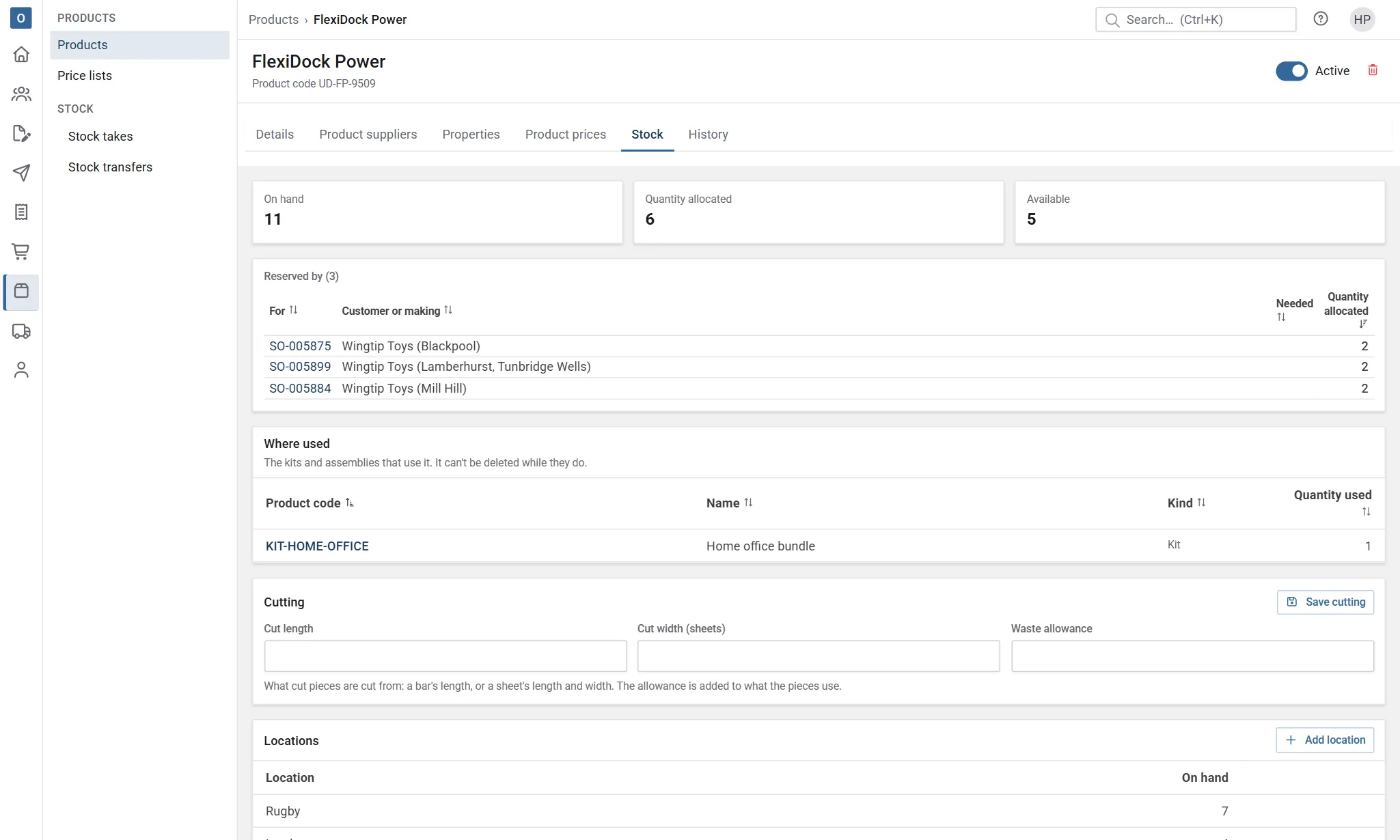
Section titled “Stock by location”The Stock tab shows the product’s stock in each stock location, everything that’s moved it, and Where used: the kits and assemblies that use it. Stock items and assemblies also have a Cutting card. See Cut sizes.
Keep stock in a new location
Section titled “Keep stock in a new location”- On the Stock tab, select Add location.
- Choose the Location.
- If you’re allowed to adjust stock, enter the Stock there now. It’s recorded as a stock adjustment.
- Select Add.
Stock locations are kept in Administration → Stock Locations. To stop keeping a product somewhere, bring its stock there to zero, then select the bin on that row. Its history is kept.
Move stock between locations
Section titled “Move stock between locations”Select Move stock… to move some of the product from one location to another at once. To send stock between sites and receive it at the other end, or move several products together, use Stock transfers. Stock on its way between locations shows under Locations as In transit, and is included in On hand.
Adjust stock
Section titled “Adjust stock”Use an adjustment to put the figures right after a count, a breakage or a find.
- On the Stock tab, select Adjust stock…, or Adjust… on a location’s row.
- Choose the Location, if there’s more than one.
- Choose Add stock or Take away, and enter the Quantity. The form shows what’s there now and what there’ll be afterwards (in red if it goes below zero).
- Choose the Stock adjustment reason. It’s required.
- Add a Note if it helps, then select Adjust.
To count a whole location, or many products at once, use a stock take instead.
Reasons are kept in Administration → Stock Adjustment Reasons. Two of them, Stock take and Lost in transit, are kept for stock takes and transfers, so they aren’t offered here; you can rename them, and they keep their meaning.
Taking stock below zero
Section titled “Taking stock below zero”Taking away more than is in a location follows Allow stock to go below zero in Stock settings:
- Off: the adjustment is refused, and the form says what’s short, for example There isn’t enough stock to take this away: BOLT-8 at Main: need 5, have 3. The Quantity is highlighted. Take away less, or check the count.
- On: the form asks first, saying what goes below zero. Select Adjust anyway to go ahead, or change the quantity.
Adding stock is always allowed, even where the location is already below zero.
Stock movements
Section titled “Stock movements”Stock movements lists every change to the product’s stock, newest first: when, who, what, the change, the balance afterwards, and the details. With more than one location, choose one at the top to see only its movements.
| What | Comes from |
|---|---|
| Opening balance | Stock brought in when you started. |
| Adjustment | An adjustment, with its reason and note. |
| Despatch / Despatch reversed | A delivery despatched, or its despatch reversed, with the delivery and order. See Despatching. |
| Goods in / Goods in reversed | Goods booked in from a supplier, or a booking taken back out, with the goods received note and purchase order. See Goods in. |
| Return | Goods put back into stock on a credit note. See Credit notes. |
| Used on a works order / Back from a works order | Materials issued to a works order, or returned from it. |
| Made on a works order / Works order completion reversed | Finished assemblies booked into stock, or a completion reversed. See Works orders. |
| Transfer out / Transfer in | Stock moved between locations, or sent and received. See Stock transfers. |
Select a reference in Details to open the delivery, order, purchase order, works order or transfer.
Where a product is used
Section titled “Where a product is used”Where used on the Stock tab (a service’s Details tab) lists the kits and assemblies that use the product, with the quantity each uses. Select one to open its components or bill of materials. See Kits and Assemblies and bills of materials.