

Signing in
Customry One runs in your web browser. There’s nothing to install: open the address your company gave you and sign in.
Sign in
Section titled “Sign in”- Enter your Email and Password.
- Select Log in.
You land on your start page, which is Home unless you’ve chosen somewhere else. See Your account.
Your first sign-in
Section titled “Your first sign-in”If an administrator set your password for you, Customry One asks you to choose your own before you carry on. Enter the password you were given, then your new one twice.
A password needs at least 6 characters, with an uppercase letter, a number and a symbol.
Two-step verification at sign-in
Section titled “Two-step verification at sign-in”Two-step verification asks for a code as well as your password, so someone who learns your password still can’t sign in as you. If it’s on for your account, Customry One asks for the code straight after your password:
-
Enter your Email and Password, and select Log in.
-
Enter the 6-digit code:
- From an authenticator app (such as Microsoft Authenticator, Google Authenticator or 1Password): open the app and type the code it shows for Customry One. The code changes every 30 seconds, and each one works once.
- By email: Customry One emails you a code as soon as you’ve entered your password. It lasts 10 minutes and works once.
On a phone the boxes bring up the number keypad, and a code your phone offers from a message can be filled in with one tap. You can also paste the code.
-
Select Verify (or press Enter). The code doesn’t go in by itself, so you can still tick Remember this device first.
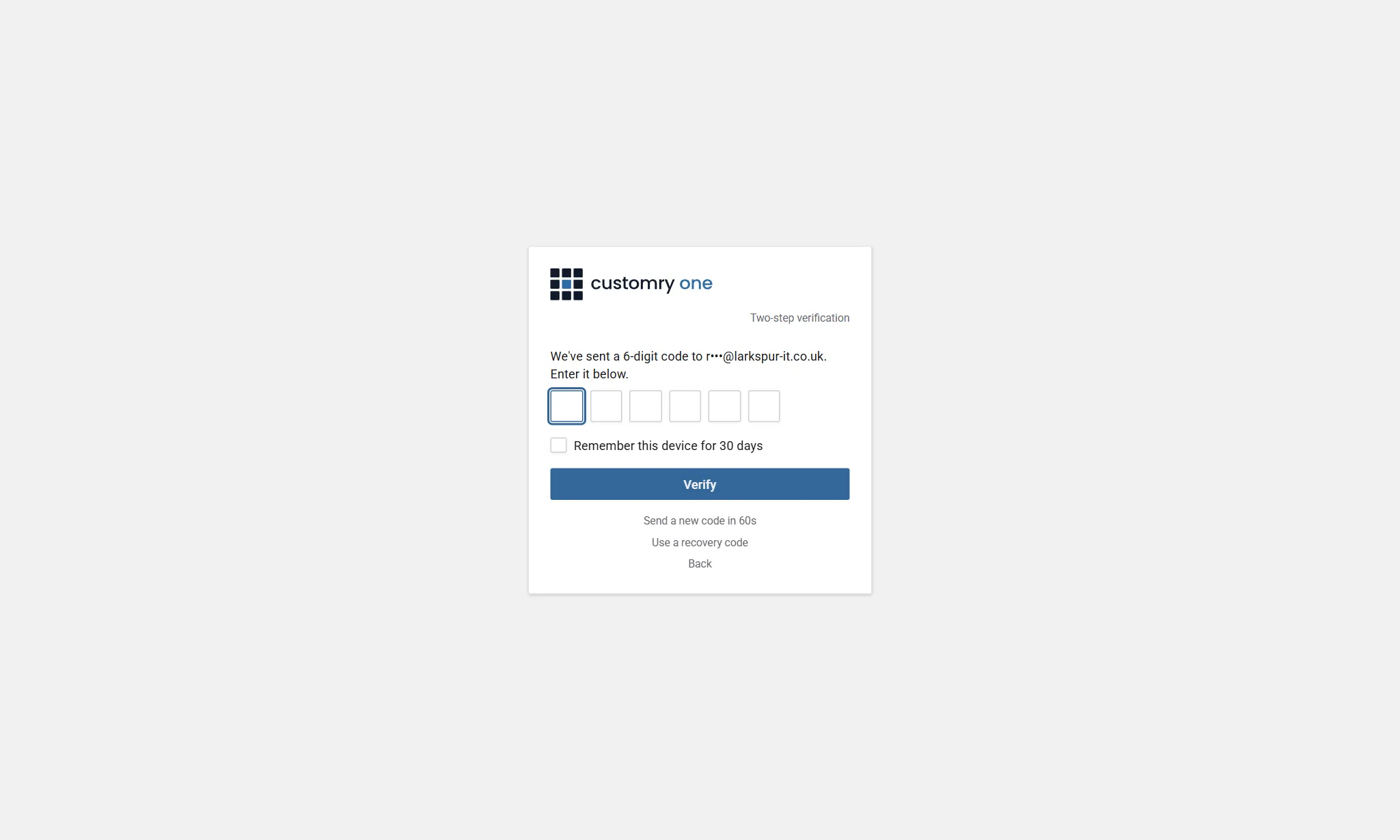
The email hasn’t arrived. Check your junk folder. After a minute, select Send a new code; only the newest code works. You can ask for up to 5 codes an hour.
Wrong codes. If the code isn’t right, the boxes turn red: check it and type it again. Five wrong tries, codes or passwords, lock your account for 15 minutes. The sign-in page says how long to wait.
Start again. If you leave the code step for more than 10 minutes, the sign-in page asks you to start again with your email and password. Select Back to go back to them yourself.
Remember this device
Section titled “Remember this device”Tick Remember this device for 30 days before you enter the code, and this browser won’t ask you for a code again for that long. You still enter your password. Your company decides how long devices are remembered, or whether they’re remembered at all, in which case the tick isn’t there.
Only tick it on a device that’s yours. On a shared device, such as a tablet on the shop floor, each person is remembered separately, so the next person to sign in is still asked for their own code. Even so, don’t tick it on a shared device.
Changing your password forgets every device you’ve remembered, so you’re asked for a code on each one again.
If you’ve lost your phone
Section titled “If you’ve lost your phone”Use one of the recovery codes you saved when you set up two-step verification:
- Sign in with your email and password.
- On the code step, select Use a recovery code.
- Enter one of your recovery codes, for example
BCDFG-HJKMN, and select Verify. Capitals, spaces and the hyphen don’t matter.
Each recovery code works once. Customry One emails you to say a recovery code was used, and how many you have left.
If you have no recovery codes left, or can’t find them, ask your administrator to reset your two-step verification. For your security there’s no “email me a code instead” for someone who uses an authenticator app.
When your company requires it
Section titled “When your company requires it”Companies require two-step verification for everyone unless they choose otherwise, and Customry staff always use it. When it first applies to you, you have 14 days (or however long your company chose in Security settings) from your next sign-in to set it up, and you sign in as usual until then. Once that time is up, signing in takes you to My Account → Two-step verification, and nothing else opens until it’s set up. See Two-step verification for how.
Forgotten your password
Section titled “Forgotten your password”- On the sign-in page, select Forgot your password?
- Enter your email address and select Send reset link.
- Open the email and follow the link to choose a new password.
The link lasts 3 days. If it has run out, or the page says the link is incomplete, select Request a new link.
Why you might be signed out
Section titled “Why you might be signed out”You weren’t active for a while. Customry One signs you out after a period of inactivity. The sign-in page says so, and tells you that changes you hadn’t saved weren’t kept. Sign in again to carry on where you were.
You were signed out somewhere else. If you sign out of your other devices, change your password, or an administrator ends your session, you’re asked to sign in again.
You can see and end your own sessions from My Account → Sessions & Devices. See Your account.
Notices about your company’s account
Section titled “Notices about your company’s account”Sometimes Customry needs to pause or limit your company’s account. The sign-in page tells you when it does.
Suspended. Nobody at your company can sign in, and anyone already signed in is taken back to the sign-in page. The notice says why and who to contact. Your data is kept exactly as it was.
Read-only. You can sign in and look things up, but you can’t add or change anything. If you try to save, a warning explains why. This usually lasts a short while, for example during maintenance.
Being updated. For a few minutes while Customry One is updated, you see Customry One is being updated. Try again in a few minutes. Wait a moment, then try again. During the update itself your account is read-only for a few seconds, so a save at that moment shows a warning: try it again shortly.
Being set up. A new account shows This account is being set up until Customry has finished preparing it, usually within a minute. Your invitation email arrives when it’s ready.
If a notice doesn’t go away, ask your administrator to contact Customry.