

Reorder and requisitions
The reorder worksheet
Section titled “The reorder worksheet”Purchasing → Reorder shows, product by product, what you have and what you need:
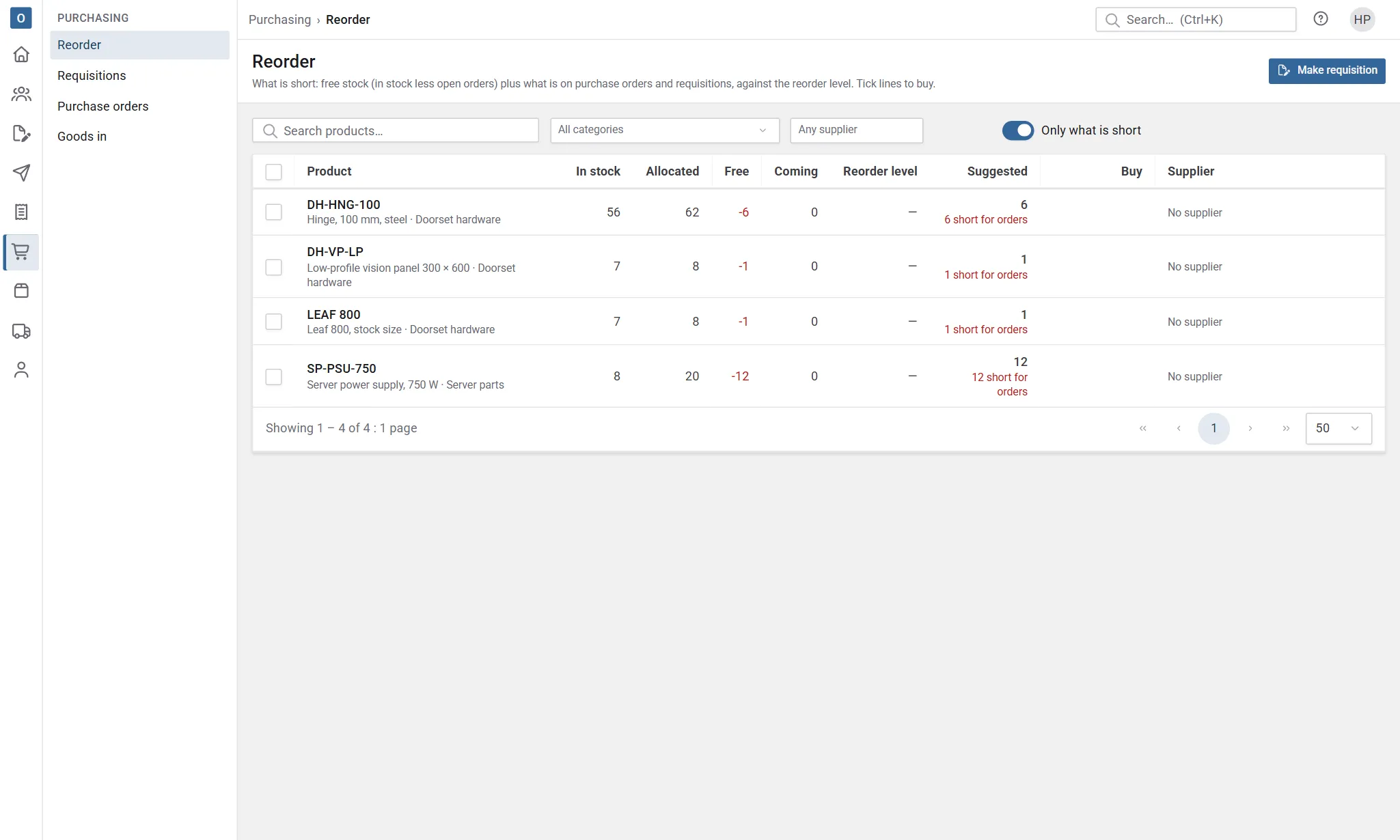
- In stock, allocated to open orders and released works orders, on order from suppliers, and on requisitions not yet ordered,
- the product’s reorder level,
- a suggested quantity to buy.
The suggestion covers whichever is bigger: what’s short for orders, or what’s needed to get back to the reorder level. It’s rounded up to the product’s Minimum order quantity and whole boxes (its Quantity per box).
Tick Only what is short to see just the products that need buying. The worksheet lists stock items only: services hold no stock, so they’re never suggested. Assemblies are made, not bought, so they’re on the Make view.
Buy from the worksheet
Section titled “Buy from the worksheet”- Tick the products, and check the supplier and quantity on each.
- Select Make requisition, or Make purchase orders if your company doesn’t use requisitions.
A product with no supplier says so. Add a supplier on the product first.
Make assemblies
Section titled “Make assemblies”With a Manufacturing permission, the worksheet has a Make view (also at Manufacturing → Reorder). It lists assemblies the same way, with Being made, what open works orders still have to make, where buying has on order. The suggestion covers what’s short for orders, or what’s needed to get back to the assembly’s reorder level.
- Tick the assemblies, and check each quantity under Make.
- When an assembly already has a works order that hasn’t started, choose under the quantity whether to make it on A new works order or Add to WO-… that one.
- Select Raise works orders.
One works order is raised for each (or the quantity is added to the one you chose: see Add to an open works order), due after the assembly’s lead time in working days. It’s a draft, or released at once if your Manufacturing settings say so. An assembly with no bill of materials is flagged: its works order has no materials until you add them to the bill.
Requisitions
Section titled “Requisitions”A requisition is a request to buy something. It can come from the worksheet, from an order that’s short (see Buying for an order), or be raised by hand in Purchasing → Requisitions.
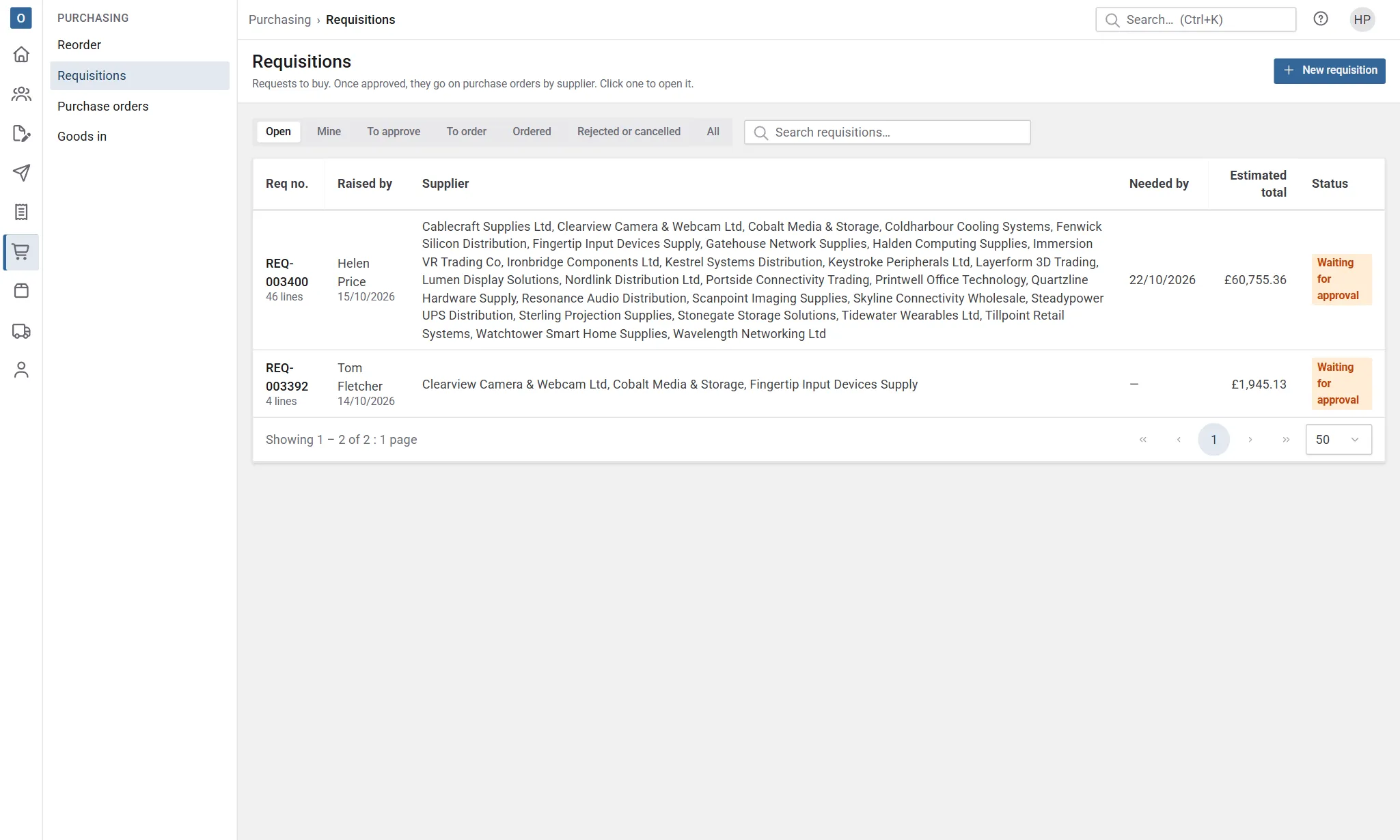
A requisition has a number from the start, and moves through these stages:
| Stage | Means |
|---|---|
| Draft | Being put together. Check it and submit it. |
| Submitted | Waiting for approval. |
| Approved | Ready to order. If no approval was needed, submitting approves it straight away. |
| Part ordered / Ordered | Some or all of its lines are on purchase orders. |
| Rejected | Turned down, with the reason. Return to draft lets the requester change it and try again. |
| Cancelled | Won’t go ahead. |
Raise one by hand
Section titled “Raise one by hand”- In Requisitions, start a new one.
- Add products, or describe something that isn’t stocked.
- Save it, then submit it.
Each line shows how many are in stock and on order, so you can check before asking.
Choose who to buy from
Section titled “Choose who to buy from”When you pick a product, its line takes the product’s preferred supplier, estimated at their last price. If the product has more than one supplier, the Supplier list on the line shows them all, preferred first and then cheapest, each with their last price (in their currency) and lead time. Choose another and the estimate changes to that supplier’s last price; if they’ve never been paid for it, the estimate is the product’s cost when you save.
To buy from a supplier who isn’t set up for the product, choose Other supplier… and search all your suppliers; Its suppliers (or clearing the search) goes back to the product’s own list. Lines for something that isn’t stocked always search all your suppliers.
Lines by supplier
Section titled “Lines by supplier”The lines show By supplier: grouped under each supplier with how many lines and their estimated total, as a preview of the draft purchase orders they’ll go on. Lines with no supplier come first under No supplier, flagged, so you can choose one before they’re ordered. Switch to As entered to see them in the order they were added; your choice is remembered on that device. Grouping only changes how the lines are shown, not their order on the requisition.
When you change a line’s supplier, the line moves to that supplier’s group and stays selected, so you can carry on.
Approve requisitions
Section titled “Approve requisitions”If your company uses approval, requisitions waiting for you are in the Requisitions to approve widget on Home. Open one and select Approve, or Reject… with a reason.
- Approvers can approve up to their own purchasing limit, set on their staff record.
- Nobody approves their own requisition.
Put requisitions on purchase orders
Section titled “Put requisitions on purchase orders”Approved lines go on draft purchase orders, one per supplier. Depending on your settings, that’s a new draft or the supplier’s open draft. You can choose or change the supplier for each line as you do it, from the product’s own suppliers or, with Other supplier…, any supplier. The purchase order line is priced at that supplier’s last price where there is one.
Each purchase order line shows which requisition it came from, and the requisition shows its order.