

Assemblies and bills of materials
An assembly is a product you make from other products. It holds stock and is sold and picked like a stock item, but it’s never bought: you make it. A frame made from tubes, bolts and an hour’s labour is an assembly.
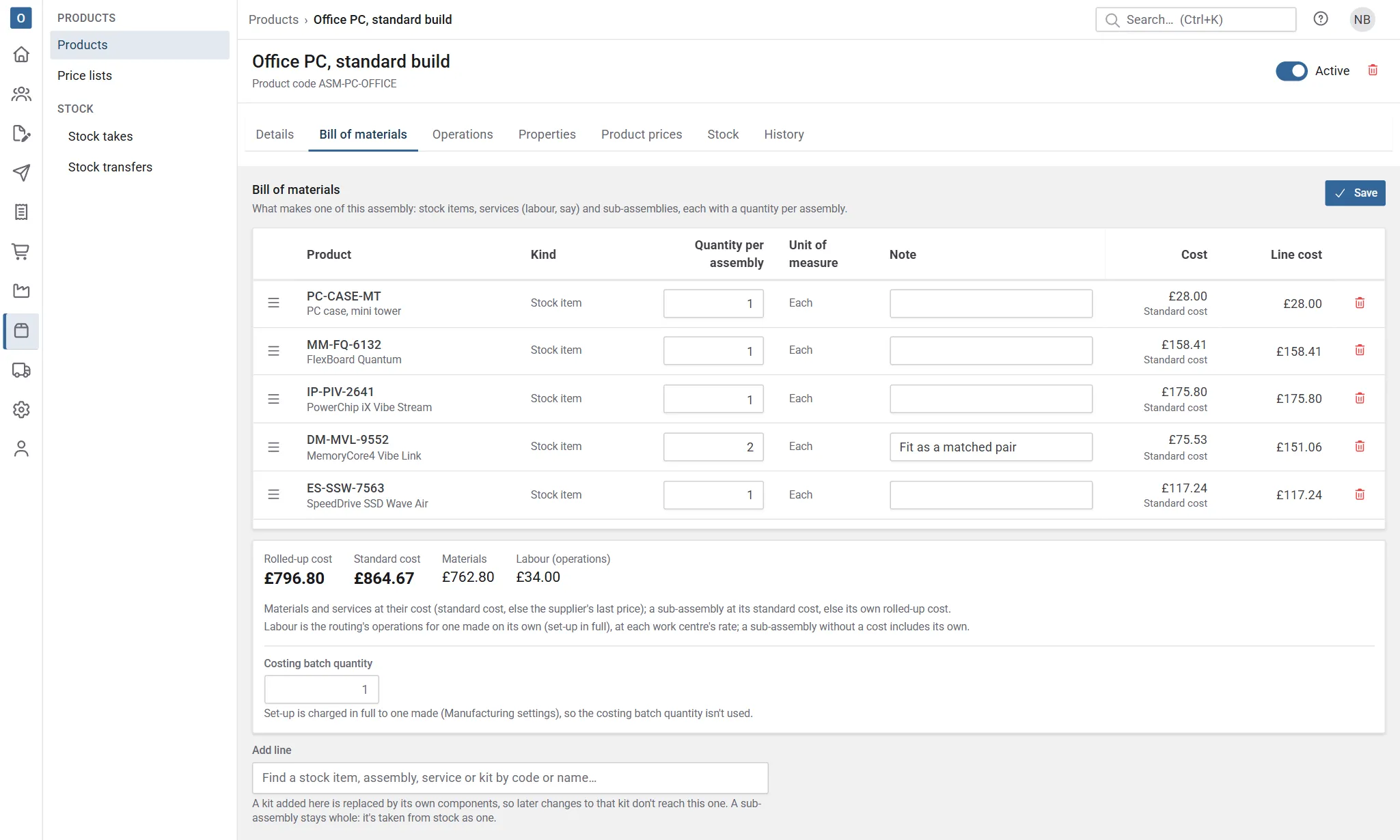
What one assembly is made from is its bill of materials: a list of products, each with a quantity per assembly and a note.
Make an assembly
Section titled “Make an assembly”- Create a product, or open one, and choose Assembly as its Kind on the Details tab. Select Save.
- Open its Bill of materials tab.
- In Add line, type a code or name and choose the product. It’s added with a quantity of 1.
- Set each line’s Quantity per assembly, and a Note if the workshop needs one (Cut to 600 mm, say). Drag rows to change their order.
- Select Save.
A product type can default to Assembly too, so new products of that type start as assemblies. See Default kinds for product types.
What can go in a bill of materials
Section titled “What can go in a bill of materials”| Line | What happens |
|---|---|
| Stock item | Kept as it is: a material taken from stock. |
| Service | Kept as it is: labour, or an operation you buy in, costed at its standard cost. |
| Assembly (a sub-assembly) | Kept whole: it’s taken from stock as one, and has its own bill of materials. Select its code to open it. |
| Kit | Replaced by its own components (times its quantity) when you save, as a kit in a kit is. A note on the kit line goes on each line it becomes. |
| Configured product | Not allowed. |
The same product added twice is merged into one line, with its quantities added and both notes kept.
A quantity can have up to four decimal places, up to 100,000 per assembly, and a note up to 500 characters. Save always works: if a line isn’t right, it’s highlighted and the cursor goes to it.
If someone else changes the same bill of materials while you have it open, your Save is refused: reload to see their changes.
Operations
Section titled “Operations”An assembly’s Operations tab lists the operations that make one, in order: its routing. Each operation has:
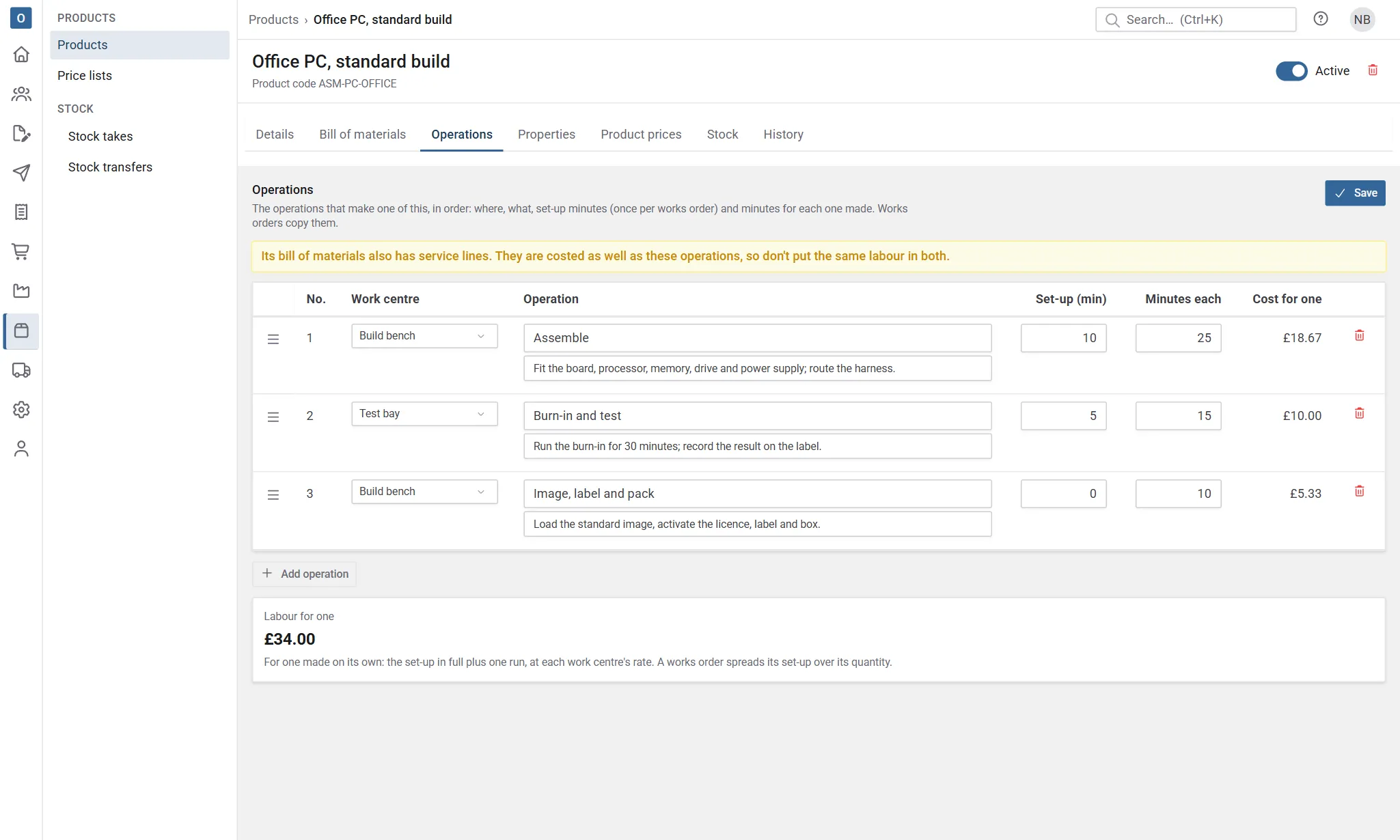
- a Work centre, where it’s done (see Work centres);
- what’s done (Cut to size, Assemble and test);
- Set-up (min): minutes once per works order, however many are made (setting up a machine, say);
- Minutes each: minutes for each one made;
- Instructions, printed on the works order under the operation.
Select Add operation for a new row, drag rows to change their order (they’re numbered 1, 2, 3 in that order), and select Save. Save always works: a row without a work centre or a description, or with minutes below 0, over 100,000 or with more than two decimal places, is highlighted and the cursor goes to it. If someone else changes the operations while you have them open, your Save is refused: reload to see their changes. An inactive work centre can stay where it is but can’t be chosen for a new row.
A stock item has an Operations tab too when a configurable product makes it as a made part: its works orders take these operations.
Every works order copies the operations of what it makes, with its minutes worked out from its quantity (set-up + minutes each × quantity). Releasing it takes the operations as they are then, as it does the bill of materials, so later changes never reach it.
If you can see costs, each row shows its Cost for one and the tab shows the Labour for one: the set-up in full plus one run, at each work centre’s rate, or, for an assembly when Manufacturing settings spread set-up over the costing batch quantity, its share of the set-up plus one run. A work centre without a rate is named, and its time left out.
The rolled-up cost
Section titled “The rolled-up cost”If you can see costs, the bill of materials shows each line’s Cost and Line cost, and under the list the assembly’s Rolled-up cost beside its Standard cost. When it has operations, the Materials and Labour (operations) that make it up are shown too.
- A stock item or service costs what a sale would cost it at: its standard cost, else its preferred supplier’s last price.
- A sub-assembly costs its standard cost, or, when it has none, its own rolled-up cost (worked out the same way, as many levels down as it goes, its own operations included).
- Labour is the operations’ time for one made on its own: the set-up in full plus one run, at each work centre’s rate. A works order spreads its set-up over its own quantity, so a batch usually costs less each than the rolled-up cost says. To cost a typical batch instead, see Costing batch quantity.
- A line with no cost is shown in red and left out of the total, and a note says the rolled-up cost isn’t complete. So is a work centre with no hourly rate, which is named.
The costs are for the saved bill of materials, so Save your changes to see them in the cost.
Costing batch quantity
Section titled “Costing batch quantity”Under the rolled-up cost, an assembly has a Costing batch quantity: how many you usually make at once. It’s used only when Set-up in the rolled-up cost in Manufacturing settings is Set-up spread over the costing batch quantity; then the labour shares each operation’s set-up over that many, plus one run. Leave it blank to count as 1 (the set-up in full). Type a number (more than 0, up to 4 decimal places) and select Save batch quantity; the rolled-up cost is worked out again. A note under it says how set-up was counted. A sub-assembly rolled up into it uses its own batch quantity.
Changing it needs permission to change products, and it’s shown with the costs.
Use as standard cost
Section titled “Use as standard cost”The rolled-up cost never changes the assembly’s standard cost by itself. When you’re happy with it, select Use as standard cost and confirm: the standard cost becomes the rolled-up cost, and sales costed from then on use it. You can still type a standard cost on the Product prices tab.
It’s refused when a line has no cost or a work centre no rate (the message names them), when there are no lines yet, or when the cost has changed since you looked (check the new figure and try again). It needs permission to manage prices as well as to see costs.
Made parts from the configurator
Section titled “Made parts from the configurator”A configurable product’s made part can name an assembly as its Made product, and list its own materials and cut pieces worked out from the answers. Also use the made product’s bill of materials (on by default) puts the two together: the bill gives what every one needs, such as fixings and labels, and the materials what changes with the size. Off, the materials are the whole list.
A made part with materials and no cost formula is costed from them, plus the bill’s Rolled-up cost when the bill is used, with set-up counted as Set-up in the rolled-up cost says.
Where a product is used
Section titled “Where a product is used”A product’s Stock tab lists Where used: the kits and assemblies whose lists hold it, with the quantity each uses. Select a code to open its list. A service shows the same list on its Details tab.
While a product is used:
- it can’t be deleted (the message names the kits and assemblies; take it out of them, or make it inactive instead);
- it can’t become a kind their lists can’t take: a product in a bill of materials can’t become a kit or a configured product.
Changing to and from an assembly
Section titled “Changing to and from an assembly”- A stock item can become an assembly, and back, even with stock, allocations and open orders: both hold stock and are sold and picked the same way.
- Its suppliers are kept but not used while it’s an assembly. It shows no preferred supplier, and its cost never comes from a supplier’s price: it’s its standard cost (use the rolled-up cost for it). Change it back to a stock item and its suppliers and prices count again.
- It can’t become an assembly while it’s on an open purchase order or requisition, because assemblies aren’t bought. Finish, delete or cancel those first.
- An assembly with a bill of materials keeps its kind until you remove its lines.
- A product with operations can change between stock item and assembly, but not to another kind until you remove them.
Other kind changes follow the usual rules. See When the kind can’t change.
Make some
Section titled “Make some”To make an assembly, raise a works order: its materials come from the bill of materials, and its operations from the Operations tab.
Never bought
Section titled “Never bought”An assembly has no Product suppliers tab and can’t go on a purchase order or requisition. It’s on the reorder worksheet’s Make view instead, and Buy for this order lists it under Make for this order: both raise works orders.