

Configurable products
A configurable product isn’t kept in stock. It’s put together each time from the answers to a few questions: which chassis, how much memory, which drives. The answers choose the parts, and the parts and answers give the description and the price.
You set one up with forms, not code. It’s in two places, both under Products in the menu:
- Products → Families holds what a range of products has in common.
- Products → Configurable products holds the products themselves, with their steps, options and components.
Only people allowed to set up configurable products see these pages.
How it fits together
Section titled “How it fits together”| Part | What it is | Example (a server build) |
|---|---|---|
| Family | A range of products that share their attributes, sections and kits. | Server builds |
| Attribute | Something a configuration is made of. Steps fill attributes; rules and formulas test them. | Chassis, Memory modules, Drive count, Power needed |
| Value | One choice of a choice attribute. | Tower, Rack 1U, Rack 2U |
| Section | A heading that groups the parts on documents, in order. | Hardware, Services |
| Kit | A named set of parts that an option can bring in. | Rail kit |
| Configurable product | The product you sell, with its own steps, options and components. | Rack server 2U |
| Step | One question in the order it’s asked. | Choose the memory |
| Option | One answer to a step. It sets attributes, and can bring parts and kits. | 4 × 32 GB |
| Component | A part of what’s made: a stock product, a made part, a service or a printed note. | Assembly and testing |
Families
Section titled “Families”Open Products → Families and select New family. Give it a Name, and a Description if it helps. The family opens on its tabs.
Details and sections
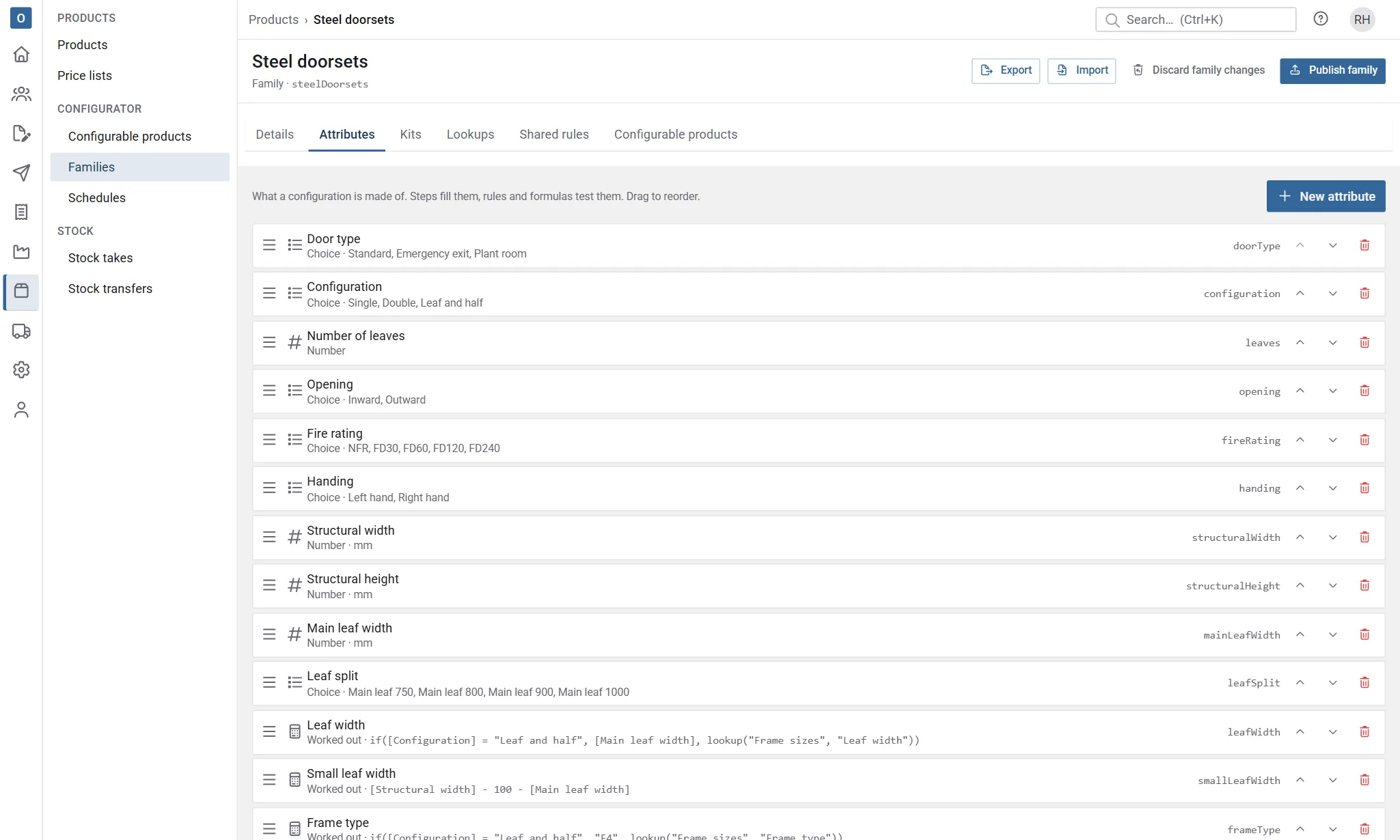
Section titled “Details and sections”Details has the name, description and whether the family is Active. Next to it are the family’s Sections: type a name and select Add. Parts print on documents grouped by section, in this order, so drag them into place (or use the up and down arrows).
Delete removes the family and everything in it. It’s refused while any configurable product uses the family.
The family’s Schedule decides which schedule its items show on, on every sale: choose one from the list, or clear it for None. With none, the family’s items don’t appear on a schedule, its printout or its export, and they can’t be given a new reference or schedule field value. The choice is saved straight away and needs no publish. See Schedules.
Production days are the working days to make one of the family’s made parts when its made product has no lead time of its own. They set the planned start of the made parts’ works orders and the warning on confirming an order. They’re advice only, saved straight away, and need no publish.
Below it are the family’s Schedule columns: the attributes that matter most when a sale has many items, such as fire rating, width and height. Choose an attribute, select Add, and drag the columns into order. They’re used where a sale lists its configured items side by side and on the printed schedule; with none chosen, each item’s description is shown instead. They’re only used while the family has a schedule. Changing them doesn’t change the draft, so there’s nothing to publish, and items built with older versions show the same columns (blank where their version doesn’t have the attribute).
Attributes
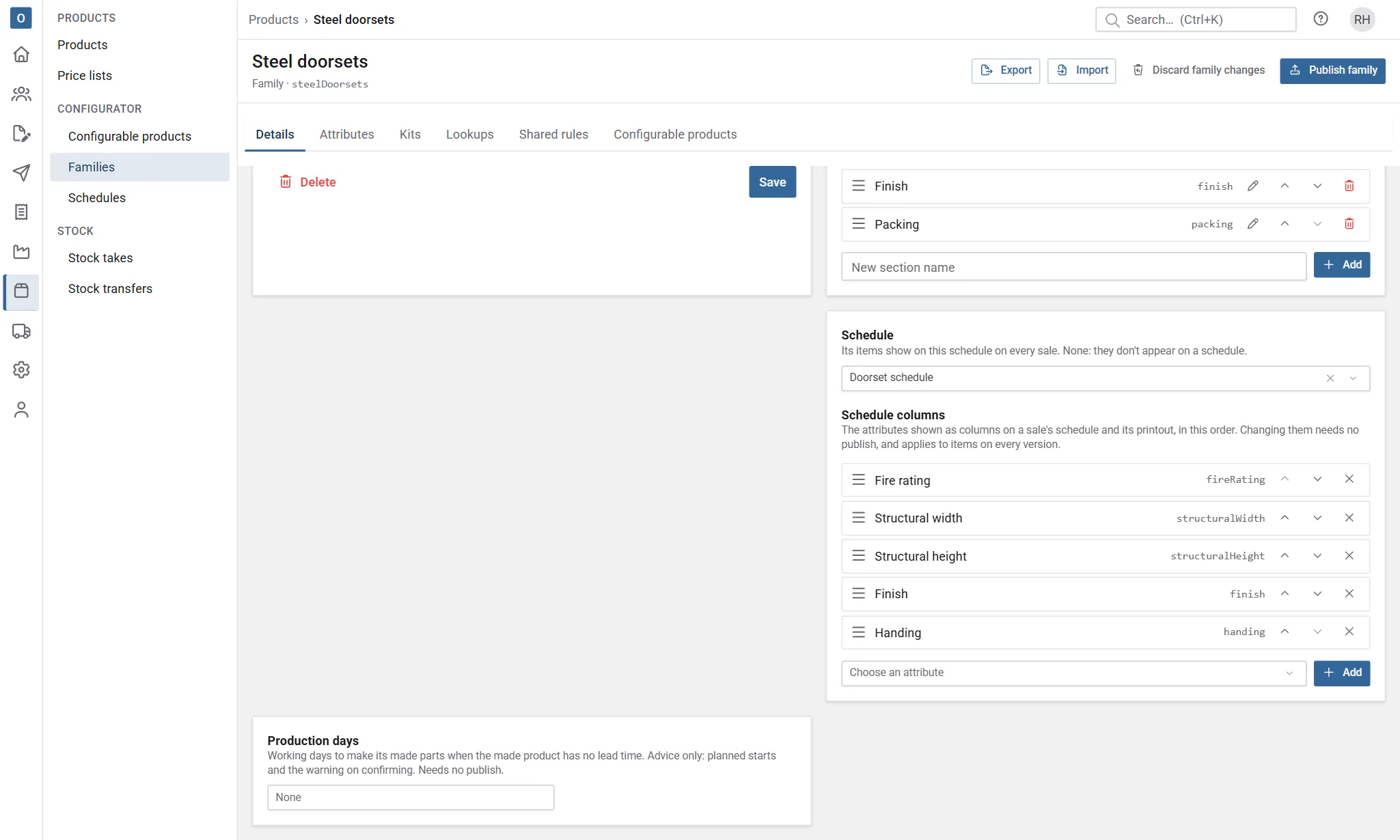
Section titled “Attributes”Attributes lists what configurations in this family are made of. Select New attribute and choose its Kind:
| Kind | Holds | Example |
|---|---|---|
| Choice | One of a list of values. Tick Holds several values for a pick-several step. | Chassis: Tower, Rack 1U, Rack 2U |
| Number | A number, with a Unit and Decimals. | Drive count, Width in mm |
| Yes/no | Yes or no. | Redundant power |
| Text | Free text, such as a colour reference. Rules can only test whether it’s answered. | Asset label |
| Worked out | The result of a formula, worked out from other attributes. Choose what it Gives: a number, yes/no or text. | Power needed = [Drive count] * 12 + 150 |
Select Save. A choice attribute stays open so you can add its Values: type a Name (and a Code if you want), then Add. The code is what descriptions and code templates use, such as 2U for Rack 2U. Change a value by typing over it; drag values to reorder them.
Attributes and values can’t be deleted while anything uses them. The message says what does, such as Chassis is used by 3 rules and 2 steps.
Families, attributes, values, sections, kits, steps and options each have a Key, a short name such as memoryModules. It’s made from the name when you add the item, or you can type your own (letters, digits, - and _). Spreadsheets and saved answers use the key, so it can’t change afterwards. Names can change at any time.
A kit is a named set of components, such as a Rail kit with rails, screws and a cable arm. Options bring kits in, so the same parts don’t have to be added to every option that needs them.
Select New kit, give it a name and Save, then Add component for each part. See Components.
Lookups, shared rules and products
Section titled “Lookups, shared rules and products”- Lookups are tables that give values from the answers, such as the power supply for the power needed. Each opens on its own page; see Lookups.
- Shared rules apply to every product in the family. See Rules.
- Configurable products lists the family’s products, whether each is published, and whether its draft has changes. Publish family and Discard family changes are at the top of the page; see Testing and publishing.
Configurable products
Section titled “Configurable products”Open Products → Configurable products and select New configurable product. Choose the Family, and give the Product code, Name, Category and Unit, as for any product, and how it’s Priced (you can change this later). Select Save and the product opens, ready for its steps, options and components.
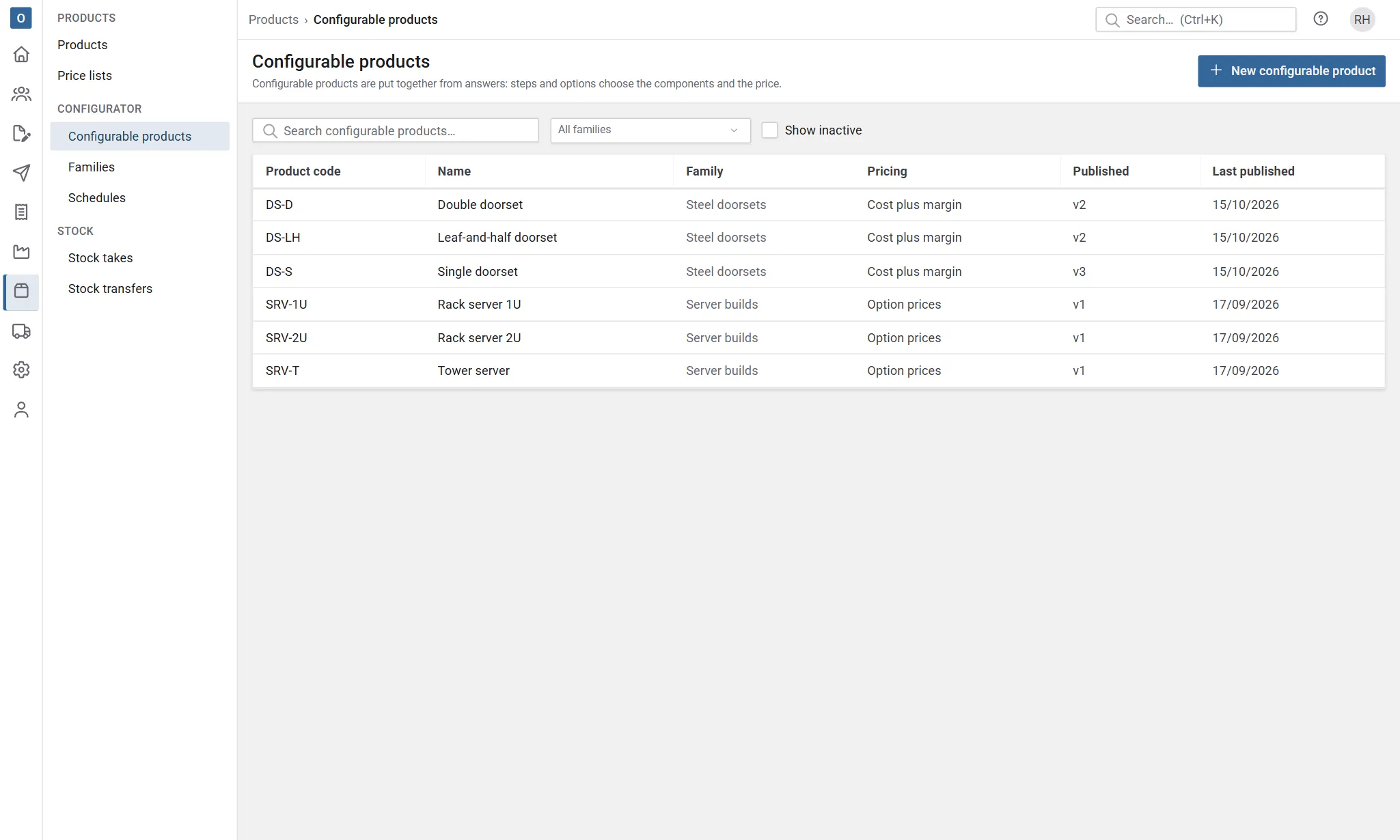
The list shows each product’s family, pricing and whether it’s published. Choose a family at the top to see only its products, and tick Show inactive to include retired ones.
A configurable product is also a normal product in Products → Products, where its Kind is Configured. It has no stock or suppliers, so those tabs aren’t shown; its Configuration tab opens it here. To retire one, make it inactive on its product record.
Pricing and description
Section titled “Pricing and description”On the product’s Pricing and description tab:
- Pricing is either:
- Cost plus margin: the Base cost plus the cost of every part, then the margin is added. The Default margin % is gross profit on the selling price, so a cost of 60.00 at 40% sells at 100.00.
- Option prices: the Base price plus the price of each option chosen.
- Minimum margin % marks a price that comes out below it. On a sale, a price below it needs permission to price configured items below their minimum margin. See Configured items.
- Round to and Rounding round the price, for example up to the next 5.
- Description is the text each configuration gets, with attributes in braces:
{Chassis} server, {Memory size} GB. Pick one from Insert an attribute, or type{to pick one.{Chassis:code}gives the value’s code and{Width:0.0}formats a number.
Margins for each customer
Section titled “Margins for each customer”A product priced at cost plus margin uses the first margin that’s set, in this order:
- a margin typed on the item itself, by someone who can see costs;
- the customer’s own Margin on configured items, on the customer’s Price lists tab;
- the customer’s other price lists, in their order of priority: the first one with a Margin on configured items;
- your standard price list’s Margin on configured items;
- the product’s Default margin %.
Your standard price list’s margin is a fallback: it applies only when none of the customer’s other price lists has one, even when the standard list is assigned to the customer ahead of them (new customers get it first).
Set a price list’s margin in Administration → Price lists, and a customer’s on their Price lists tab (you need to be allowed to manage pricing; people who can see costs can see them). Leave either blank to follow the next one down. One margin covers every configurable product, so a trade customer can get 40% on all of them.
People who can see costs see the margin in the summary, with where it came from: Trade (Price list), for example.
Products priced by option prices don’t use a margin. A customer’s discount for the product’s category comes off the product’s own option prices (its base price and the fixed and worked-out option prices), but not off parts priced from your price lists, which already have the customer’s prices.
Prices in other currencies
Section titled “Prices in other currencies”Costs are always in your home currency. For a customer who buys in another currency, the price is worked out in your home currency, converted at the currency’s rate in Administration → Currencies, and then rounded. Option prices you set on the product are converted the same way, and parts priced from a price list in that currency keep their price.
Fixed values
Section titled “Fixed values”Fixed values are attributes this product always has, set before any step is asked. A Rack server 2U product might fix Chassis to Rack 2U, so the family’s rules about chassis still apply without asking.