

Invoices and credit notes
Draft and issued
Section titled “Draft and issued”An invoice starts as a draft. You can change a draft, or use Delete draft.
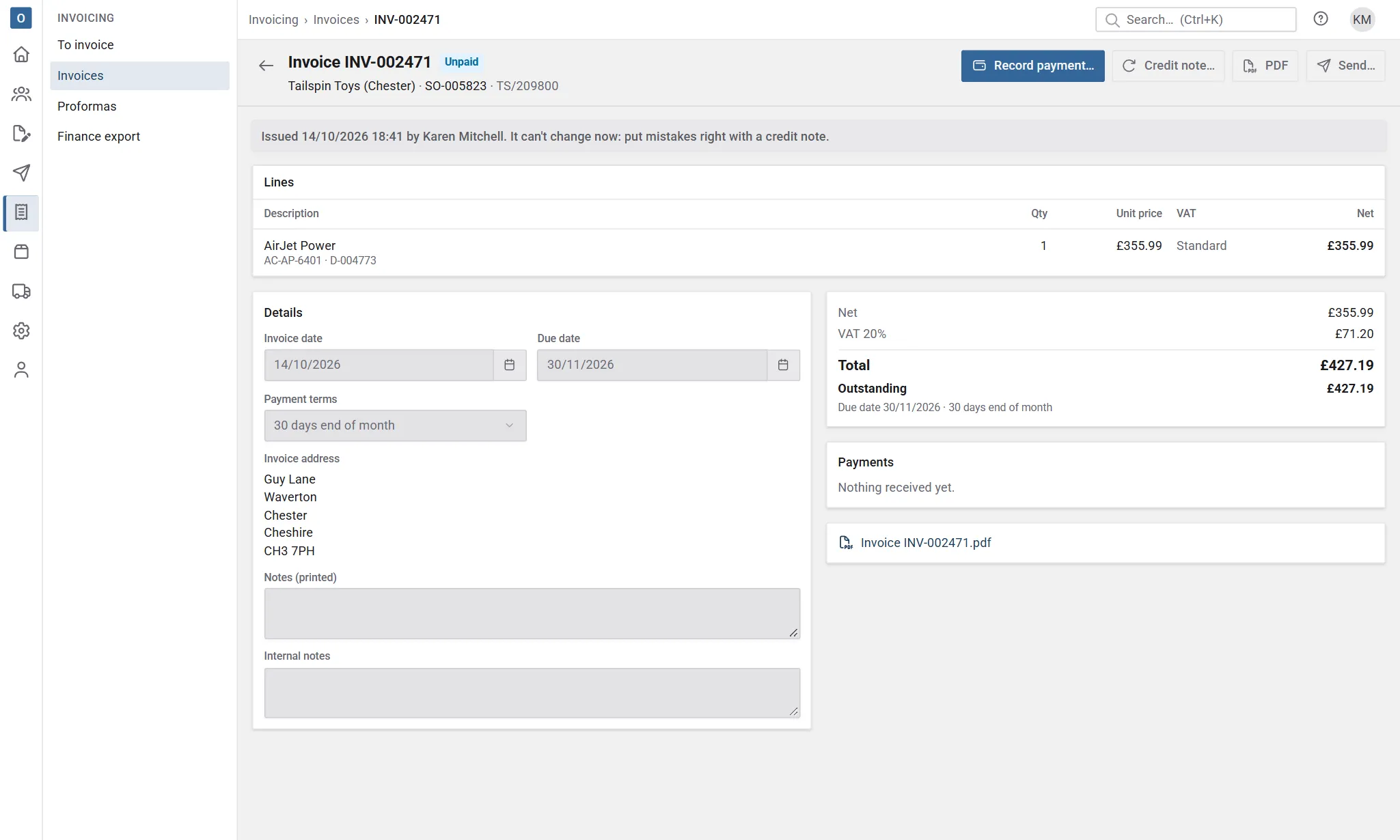
Issuing gives it its number and keeps its PDF. An issued invoice can’t change. That keeps your records and your accounts in step: anything wrong is put right with a credit note.
The invoice shows the order it came from, who issued it and when, and whether it has been transferred to your accounts package.
Send an invoice
Section titled “Send an invoice”Select Send… to email the PDF kept when it was issued. After the first email the button reads Re-send, which repeats it in one click. PDF opens it without sending.
Payments
Section titled “Payments”If your company records payments in Customry One:
- On the invoice, select Record payment….
- Enter the date it was paid and the amount, and if you like how it was paid, a reference and a note.
Customry One warns you if a payment is more than is outstanding; it will show as overpaid.
If a payment was recorded by mistake, use Void payment. It stops counting against the invoice but stays listed, so there’s a record.
Credit notes
Section titled “Credit notes”To put right an issued invoice, select Credit note… on it and choose:
- Credit it in full credits everything on it, with its headings.
- Choose lines or an amount credits some lines, or a sum of money.
Either way you get a draft credit note to check before you issue it. On a credit for returned goods, you can put the goods back into stock. For a kit, its stock components go back. See Kits. For a configured item, its picked parts go back, but not its made parts or services. See Configured items.
Credits on an invoice are listed on it, and an account with more credit than it owes shows as in credit.
Find invoices
Section titled “Find invoices”Invoicing → Invoices lists every invoice and credit note. Each customer’s record also has an Invoices tab, and each sale has one too.