

Quotes and orders
A sale in Customry One runs from the first enquiry to the finished order as one record with one number. Its stage tells you where it is:
| Stage | Means |
|---|---|
| Enquiry | The customer has asked; nothing is priced up yet. |
| Quote | Priced and offered to the customer. |
| Order | Confirmed. Stock is set aside, and it can be despatched and invoiced. |
| Completed | Everything is done. |
| Lost | A quote the customer didn’t take up, with the reason. |
| Cancelled | An order that won’t go ahead. |
Within each stage your company can have its own statuses, such as “Awaiting drawings”. Change one with More → Change status…
Start a sale
Section titled “Start a sale”- In Sales, select New quote or New order.
- Choose the Customer. You can still switch Start as between Enquiry, Quote and Order.
- Select Create.
The sale picks up the customer’s contact, addresses, terms, currency, VAT rate and salesperson. Change any of them on the Details tab.
Add lines
Section titled “Add lines”Open the Lines tab.
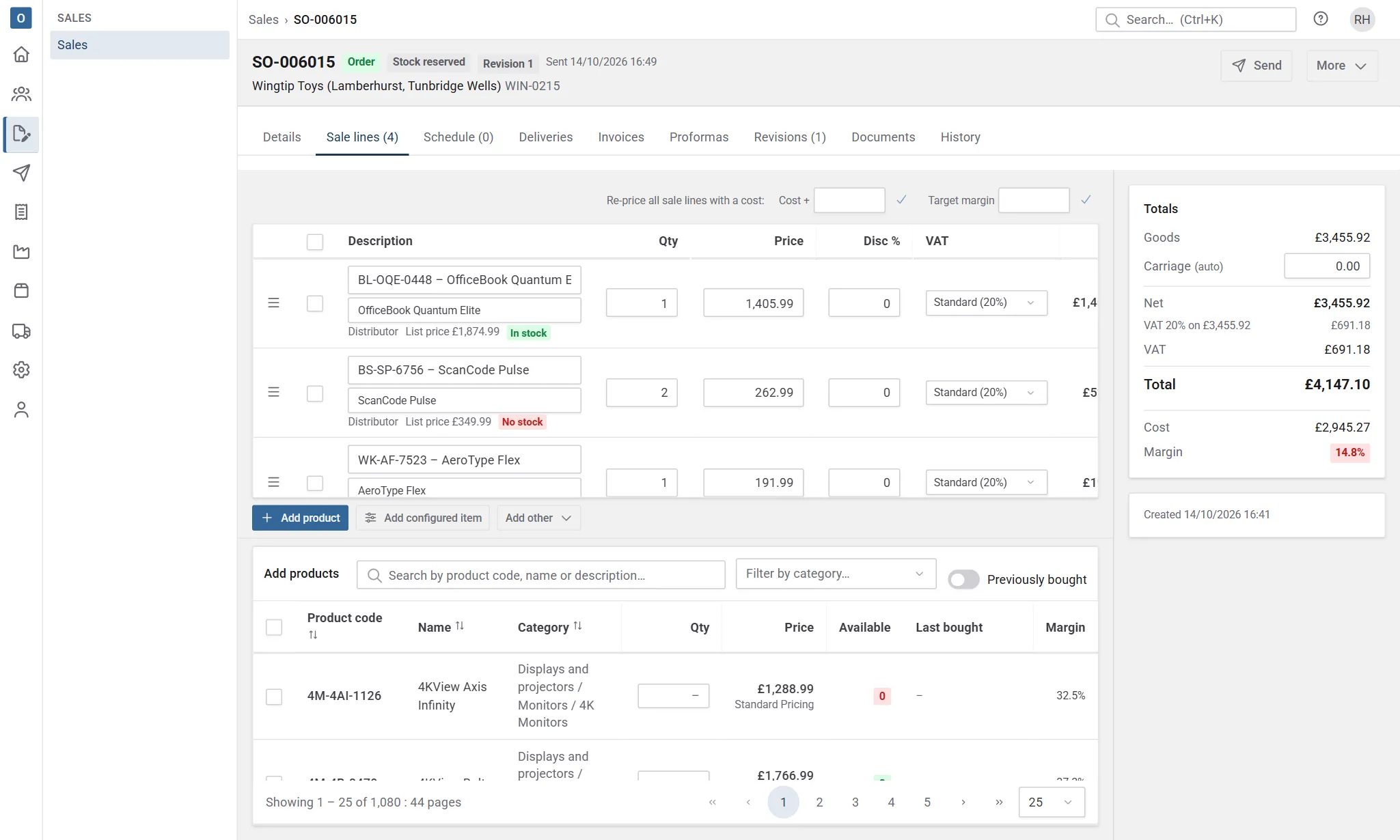
- The product list is below the lines. Search, filter by category, or switch on Previously bought to see what this customer has bought before. Tick what you need, set quantities, and select Add … to sale.
- Add product adds an empty product line, where you type the product code or name.
- On a phone, the lines have the screen to themselves: select Browse products to open the product list, and Done to go back.
- Add other adds a line that isn’t a stock product: a non-stock item with a price, such as a one-off charge, or a heading or note with no price.
- Services you sell often, such as installation or carriage, can be products of their own, added like any other product. See Kinds and services.
- A configured item is built to the customer’s answers: select Add configured item, choose the product and answer its steps. See Configured items.
- A kit is added like any product. When you save, its components appear under it, with their quantities and no price; they follow the kit’s quantity and can’t be edited. See Kits.
Drag lines to reorder them. Use Copy and Remove on ticked lines.
Prices
Section titled “Prices”Each line is priced for you, in this order:
- a special price for this customer,
- the customer’s price lists, in their order of priority,
- your standard price list.
You can type over a price or discount. Customry One remembers where each price came from, and shows how it compares with list price. If you’re allowed, you’ll also see cost and margin.
Prices don’t change by themselves once they’re on a sale. To pick up changes to price lists and special prices, use More → Refresh prices… It prices at the sale’s quote date (or its order date if it has no quote date), so a price that only starts after that date isn’t used; to price at today’s date, change the quote date first.
To give the customer a price you’ve typed every time, save it as their special price from the line.
Each product line shows In stock, Short (with how many) or No stock, so you can see straight away what can go now. Services hold no stock, so they show none, and they’re never reserved. A kit shows its stock against each of its components.
Carriage and totals
Section titled “Carriage and totals”Carriage is worked out from the customer’s carriage settings when you save. Type a figure to set it yourself. The totals show net, VAT by rate, and the total.
Select Save, or Discard to throw away your changes. The sale gets its number the first time it’s saved.
Send the quote
Section titled “Send the quote”Select Send to email the quotation PDF. See Sending documents. If you sent it some other way, use More → Mark as sent so it’s recorded and a revision is kept.
Confirm an order
Section titled “Confirm an order”When the customer accepts, select Confirm order. As you confirm you can fill in the customer’s order number and the required date, and the promised despatch and delivery dates if your company uses them. Your administrator can make any of these required.
Any alerts on the customer’s account are shown here. A stop alert, or a customer status that stops sales, stops the order being confirmed until it’s cleared.
If the customer has a credit limit and confirming would take what’s committed on their account over it, a warning says by how much. You can still confirm. A branch invoiced at its parent is checked against the parent’s limit.
Confirming:
- moves the sale to the Order stage,
- sets stock aside for it,
- keeps a revision of exactly what was confirmed,
- puts it in Despatch → To despatch.
If you confirmed by mistake, More → Revert to quote takes it back.
Other actions
Section titled “Other actions”All under More:
| Action | What it does |
|---|---|
| Make quote | Moves an enquiry on to a quote. |
| Buy for this order… | Raises requisitions or a purchase order for what’s short. See Buying for an order. |
| Mark complete | Closes an order by hand. Orders usually complete themselves once everything is despatched and invoiced. |
| Mark lost… | Closes a quote the customer didn’t take, with a reason. |
| Cancel order… | Cancels an order that won’t go ahead. |
| Reopen | Brings back a lost, cancelled or completed sale. |
| Copy… | Starts a new sale from this one, for the same customer or another. |
| Delete | Removes an enquiry or quote that hasn’t been sent and has no revisions. Anything else is marked lost or cancelled instead, so there’s a record. |
Change the customer
Section titled “Change the customer”On the Details tab, select Change next to the customer. The sale takes on the new customer’s contact, addresses, terms, currency and VAT rate, and keeps its number and history. Tick Re-price every line to use the new customer’s prices; a different currency is always re-priced.
Find a sale
Section titled “Find a sale”The Sales list shows Open sales by default. Switch to Closed or All, and filter by customer, status, salesperson or date. Each customer’s record also has a Sales tab.
The Items column, just before Net, counts each sale’s item lines: products, non-stock lines and configured items. Headings, notes and the parts under a kit or configured item aren’t counted. Select the column heading to sort by it.