

Calls, meetings, emails and notes
When you’ve rung someone, met them or emailed them, log it on the record it was about. It then shows in that record’s Recent activity for everyone who can see the record, so a colleague picking up the account can see who said what, and when.
You can also keep notes: facts worth knowing that aren’t something to do, such as Buyer changes in April or Always deliver before 10am.
You can log an activity or add a note on a lead, an opportunity, a customer or a sale.
Log a call, meeting or email
Section titled “Log a call, meeting or email”- Open the lead, opportunity, customer or sale.
- In Recent activity, beside its details, select Log and choose what it was: Call, Email, Meeting or Visit.
- Fill in What it was about, such as Prices for next year.
- Check When and At. They start as now; change them if it was earlier. It can’t be in the future.
- Optionally, say how many Minutes it took. A call or a meeting starts with its type’s usual length.
- For a call or an email, choose Out if you made it or In if they did.
- Choose the Contact you spoke to, if it was a customer. If more people were there, and its type has attendees (as a meeting or a visit does), choose the customer’s other contacts under Client attendees, and your colleagues under Colleague attendees. They’re listed with the activity, and it shows when you look at any of those contacts’ activity. To let someone know about it, such as your manager, choose them under Keep informed. See People on a task.
- Under What was said or agreed, write what happened, such as Happy with the samples; will decide after their board meets on Friday.
- Select Log.
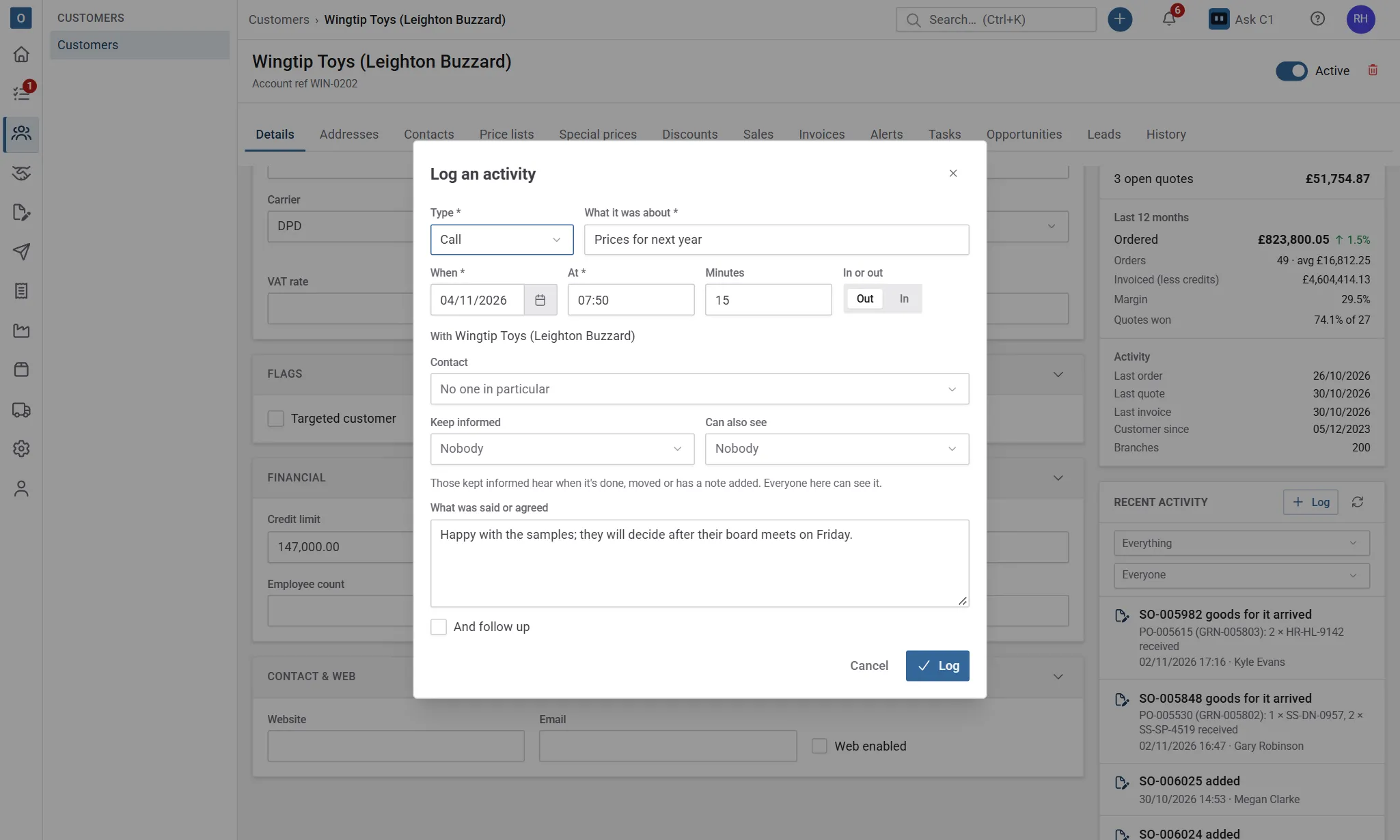
It shows straight away at the top of Recent activity, as Call (out · 15 min): Prices for next year, with what was said underneath.
With a contact
Section titled “With a contact”On a customer’s Contacts tab, select the speech bubbles beside a contact to log a call or meeting with them. The customer and the contact are already filled in.
From anywhere
Section titled “From anywhere”When the phone rings and you’re on another page, select the + beside the search box at the top of the page and choose Log a call or meeting. Choose who it was With: a customer, a sale, a lead or an opportunity, and find them by name or reference. The rest is the same.
Plan what happens next
Section titled “Plan what happens next”Tick And follow up before you select Log to start the next task at the same time, such as Ring back on Friday. Give it a Due date and choose who it’s For. It starts as your company’s default type of task, due in three days, for you. Once the activity is logged, the new task opens in the panel on the right so you can add anything else. See Tasks.
Change one
Section titled “Change one”Select it in Recent activity to open it in the panel on the right. Change what you need to and select Save. Only the person who logged it can change it, unless your role lets you manage everyone’s tasks. Every change is kept on its History tab.
You can also add a note under Updates, for anything that comes to light later.
A logged activity is already done, so it isn’t reopened, ticked off or cancelled like a task.
Keep a note
Section titled “Keep a note”- In Recent activity, select Log and choose Note.
- Write the note.
- If it’s about one of the customer’s contacts, choose them under About.
- Tick Pin it to the top for something people should see every time, such as delivery instructions.
- Select Save.
Pinned notes stay at the top of Recent activity, however old they are. Other notes take their place in the list by when they were written.
To change or delete a note, select the pencil or the bin beside it. Only the person who wrote it can, unless your role lets you manage everyone’s notes.
When a lead is qualified, its notes move to the customer, contact and opportunity it became. When two leads are merged, the notes go to the one you keep.
On suppliers and purchase orders
Section titled “On suppliers and purchase orders”Suppliers and purchase orders have Recent activity too: beside a supplier’s details, and beside a purchase order’s totals (under them on a narrower screen). Select Log and choose Note to keep a note there, such as Ships on Tuesdays only, about one of the supplier’s contacts if you like. A note on a purchase order also shows on its supplier. Calls and meetings are logged with customers and leads, so on the buying side Log only offers Note. The tasks done on a supplier or its orders show there for the people who can see those tasks.
See one contact’s activity
Section titled “See one contact’s activity”On a customer, choose a contact in the second box at the top of Recent activity to see only the calls, meetings, emails, tasks and notes with them. Clear it to see everything again.
When you last spoke
Section titled “When you last spoke”Last contacted on the Leads, Opportunities and Customers lists is the date of the newest call, meeting or email logged there. Sort by it to find the ones nobody has spoken to for a while. A customer’s counts what’s logged on their sales and opportunities too. On a narrow screen the column is hidden.
The Calls and meetings widget on Home counts what’s been logged this week or this month, by type and by person.
A call logged on a lead counts towards its score like any task done, if your scoring rules give points for that type.
Who sees what
Section titled “Who sees what”- Logged activities and notes show to anyone who can see the record they’re on.
- Tasks that are done show there too, whoever did them: they’re part of the record’s history.
- Open tasks stay with the person they’re for, the person who set them and the people on them, unless your role lets you see everyone’s.
On a lead or an opportunity, you only see its activities and notes if you can see the lead or opportunity itself.
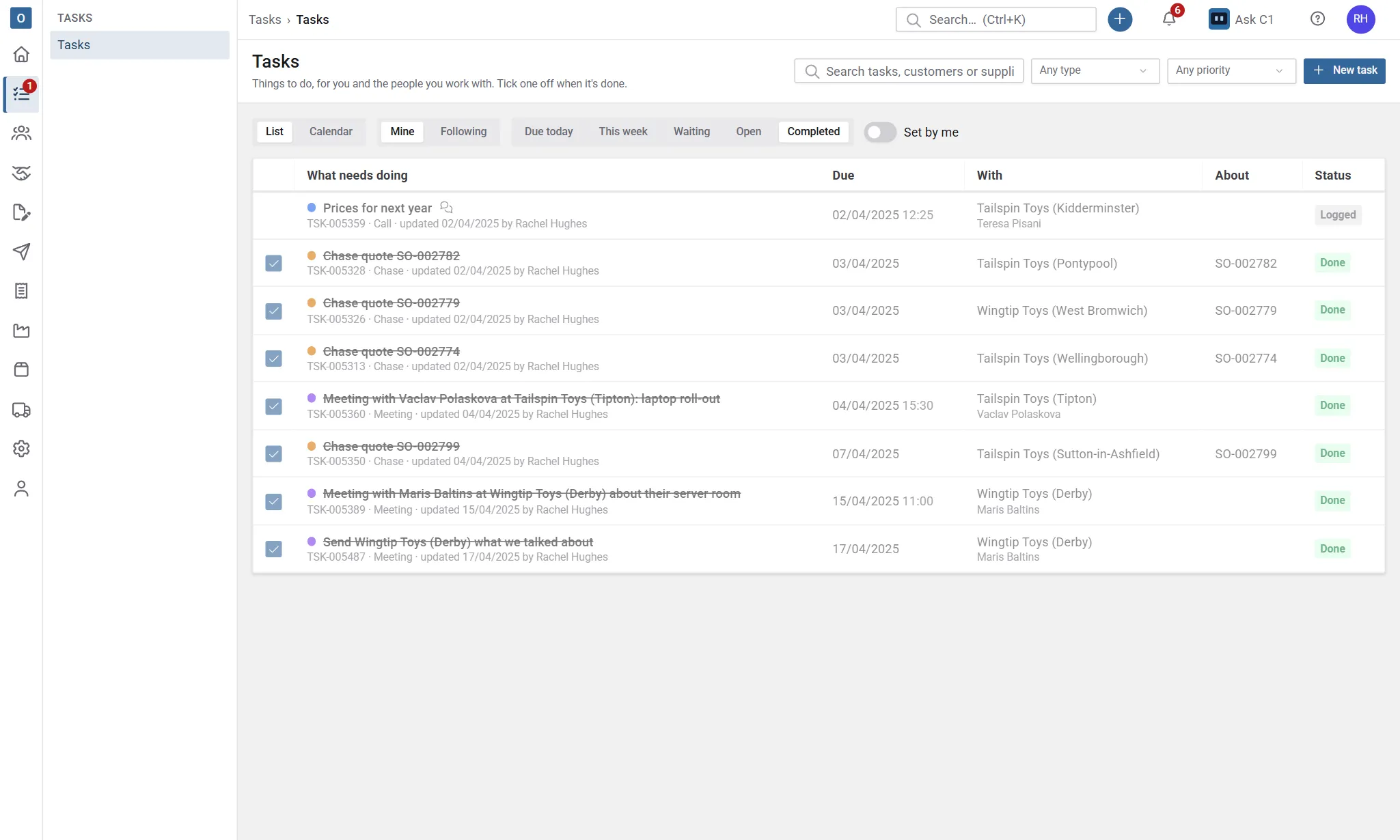
Logged activities are kept as tasks, so they also appear under Completed in Tasks for the person who logged them, marked Logged with a speech bubble and no tick box.
Choose what can be logged
Section titled “Choose what can be logged”Administration → Task Types sets which types appear under Log. Turn on Can be logged for a type that’s something that happens, such as a call or a site visit. Turn on Goes in or out, like a call or an email to ask which way it went. A new company starts with Call, Email, Meeting and Visit under Log, and with Call and Email going in or out. See Task types.