Notifications
The bell at the top of every page tells you when something needs you, or when someone has done something that affects you. A number on the bell shows how many you haven’t read yet.
What you’re told about
Section titled “What you’re told about”| When | You’re told |
|---|---|
| Your company has used its C1 questions for the month (if you manage company settings) | “C1 has reached its limit for the month” |
| Someone gives you a task, or passes one on to you | “Name gave you TSK-000123”, with what needs doing and when it’s due |
| A task of yours is due today | “TSK-000123 is due today”, first thing in the morning |
| A task of yours has gone late | “TSK-000123 is late”, once, the morning after it was due |
| The person you gave a task to completes or cancels it | “Name completed TSK-000123”, with what happened |
| Someone submits a requisition you can approve | “Name asks you to approve REQ-000123”, with what’s on it and its total |
| Someone approves or rejects your requisition | “Name approved REQ-000123”, with their note |
| A purchase order over the approval amount is saved, and you can approve purchase orders | “Name asks you to approve PO-000123”, with the supplier and total |
| Someone approves a purchase order you raised or buy for | “Name approved PO-000123” |
| Someone gives you a delivery to pick | “Name gave you D-000123 to pick”, with the sale, customer and despatch date |
| Someone makes you the salesperson on a sale | “Name made you the salesperson on SO-000123”, with the customer |
| A works order for one of your sales is completed, or one you raised | “WO-000123 is completed” |
| The accounts package no longer accepts the connection, and you look after it | “Reconnect Xero to Customry One”, with what to do |
| The accounts package turns down an invoice, credit note or payment | “Xero turned down invoice INV-000123”, with its reason |
| A document you emailed couldn’t be sent | “Quote SO-000123 to jo@example.com didn’t send”, with the reason |
| A quote you’re the salesperson on runs out in three days | “SO-000123 runs out on Fri 23 Oct” |
| An order you’re the salesperson on should have gone out yesterday | “SO-000123 is late”, once |
| A purchase order you buy for (or raised) should have arrived yesterday | “PO-000123 is overdue”, once |
| Invoices went overdue yesterday | People who record payments: “3 invoices have gone overdue”. Each customer’s account manager: their own, with what’s owed. |
| Works orders went late yesterday, and you manage works orders | “2 works orders have gone late” |
| Products are below their reorder level, and you raise requisitions | “12 products are below their reorder level”, in the daily digest only to start with |
| A supplier’s confirmed date for a purchase order moves later, and you’re its buyer or the salesperson on a sale it’s for | “PO-000123 is now due 30/10/2026, not 23/10/2026” |
| Goods bought for a sale you’re the salesperson on are booked in | “Goods for SO-000123 have arrived”, with what came |
| Someone makes you the owner of a lead | “Name gave you lead LEAD-000123”, with the company or person |
| A lead is added with no owner, and you manage leads | “New lead LEAD-000123 needs an owner” |
| Someone makes you the owner of an opportunity | “Name gave you OPP-000123: its name”, with the customer |
| Someone confirms a quote on an opportunity you own | “SO-000123 on OPP-000123 is confirmed” |
| An open opportunity you own passed its expected close date yesterday | “OPP-000123 was expected to close on Wed 28 Oct”, once |
| Nothing has been done on an open lead or opportunity you own for the days set in CRM settings | “OPP-000123 has stalled: nothing done for 14 days or more”, once until it picks up again |
| An open lead you own reaches the hot score (with no owner, to people who manage leads) | “Lead LEAD-000123 is hot: it has scored 50 or more”, with the company or person |
You’re never told about something you did yourself. Giving yourself a task doesn’t ring the bell. Nor are you told about parts of Customry One your company’s licence doesn’t include.
When a request waiting for approval is approved or rejected by someone else, it’s marked Done for everyone else who was asked. Notifications that need someone to act, such as approvals waiting, things the accounts package turned down, and emails that didn’t send, turn the bell red.
Read them
Section titled “Read them”- Select the bell. Your latest notifications open beneath it, newest first. The ones you haven’t read are in bold, with a dot.
- Select one to open what it’s about. A task opens in the panel on the right, as it does from the Tasks list. The notification is then marked as read.
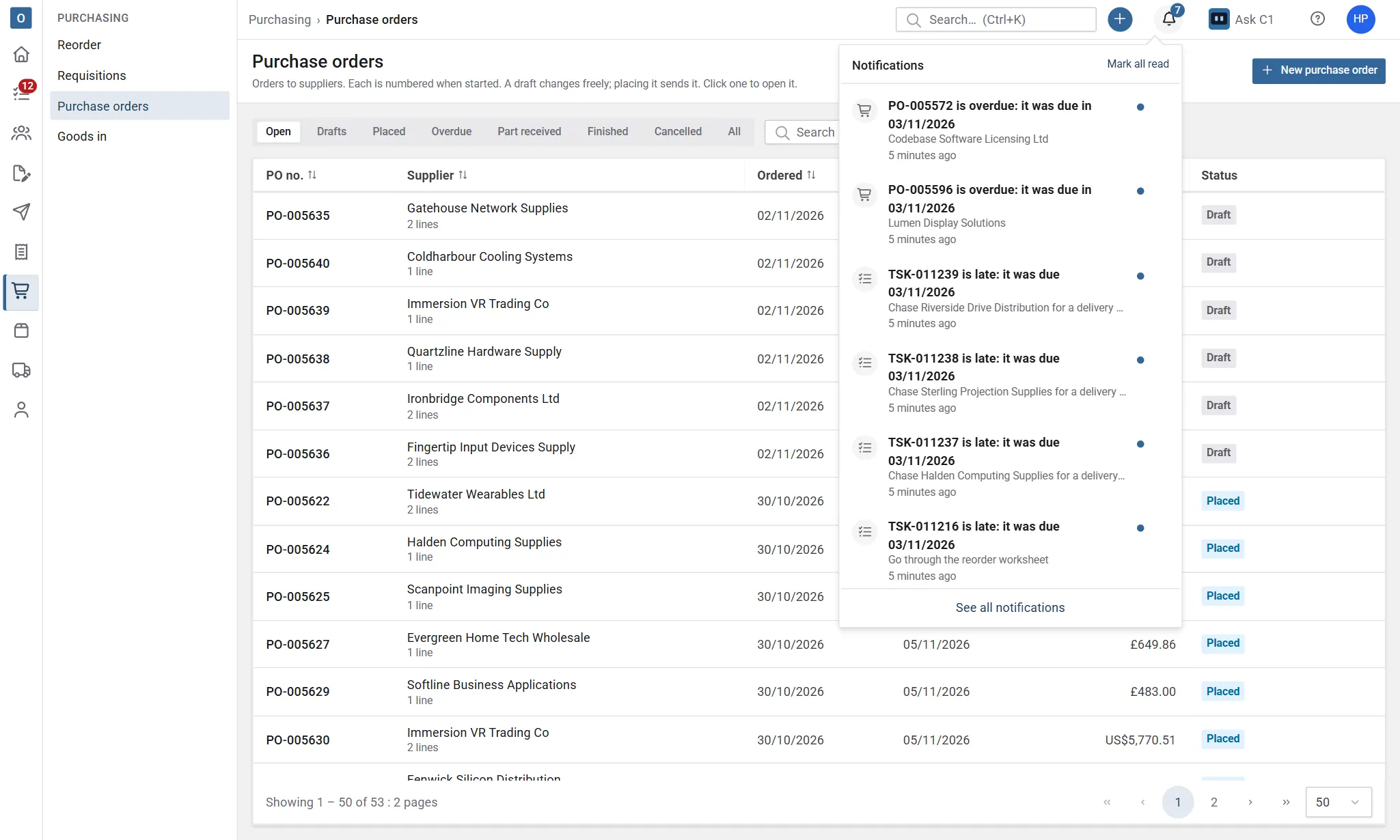
Select Mark all read to clear the number on the bell in one go.
Keep one as a reminder
Section titled “Keep one as a reminder”To come back to a notification later, mark it as unread. It goes back to bold, with a dot, and counts on the bell again.
- Point to the notification. On a phone or tablet, the button is always there.
- Select the envelope button on the right, Mark as unread.
The same button on an unread notification is Mark as read, which marks it read without opening it.
Some notifications stop needing you before you read them. For example, a task given to you that someone else then completes. These are greyed out and marked Done, and the bell doesn’t count them.
See them all
Section titled “See them all”Select See all notifications at the bottom of the bell, or go straight to the Notifications page.
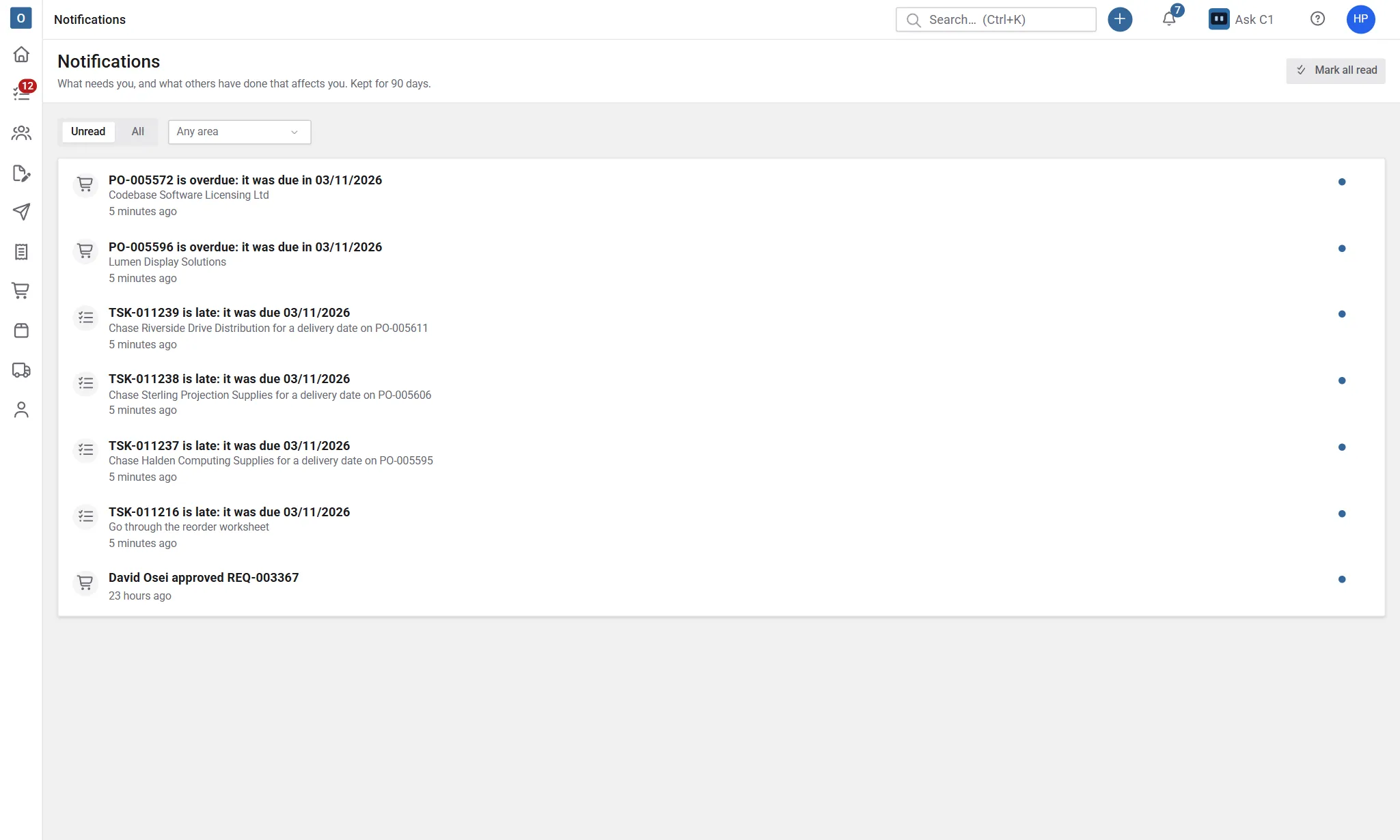
- Unread shows the ones you haven’t read; All shows everything.
- Choose an area, such as Tasks, to see only those.
Notifications are kept for 90 days. The records they’re about keep their own history for longer.
By email
Section titled “By email”Notifications can be emailed to you as well:
- At once: an email for each one, as it happens. A task someone gives you is emailed this way to start with.
- In the daily digest: one email each morning with everything since the last one, grouped by area. Tasks due today and late tasks go this way to start with.
Each email has a link straight to what it’s about, and a link to change which emails you get.
Choose what you get
Section titled “Choose what you get”Under My Account → Notifications (also in the account menu), each kind of notification you can get has:
- Under the bell: whether it shows under the bell;
- Email: No email, At once or In the daily digest.
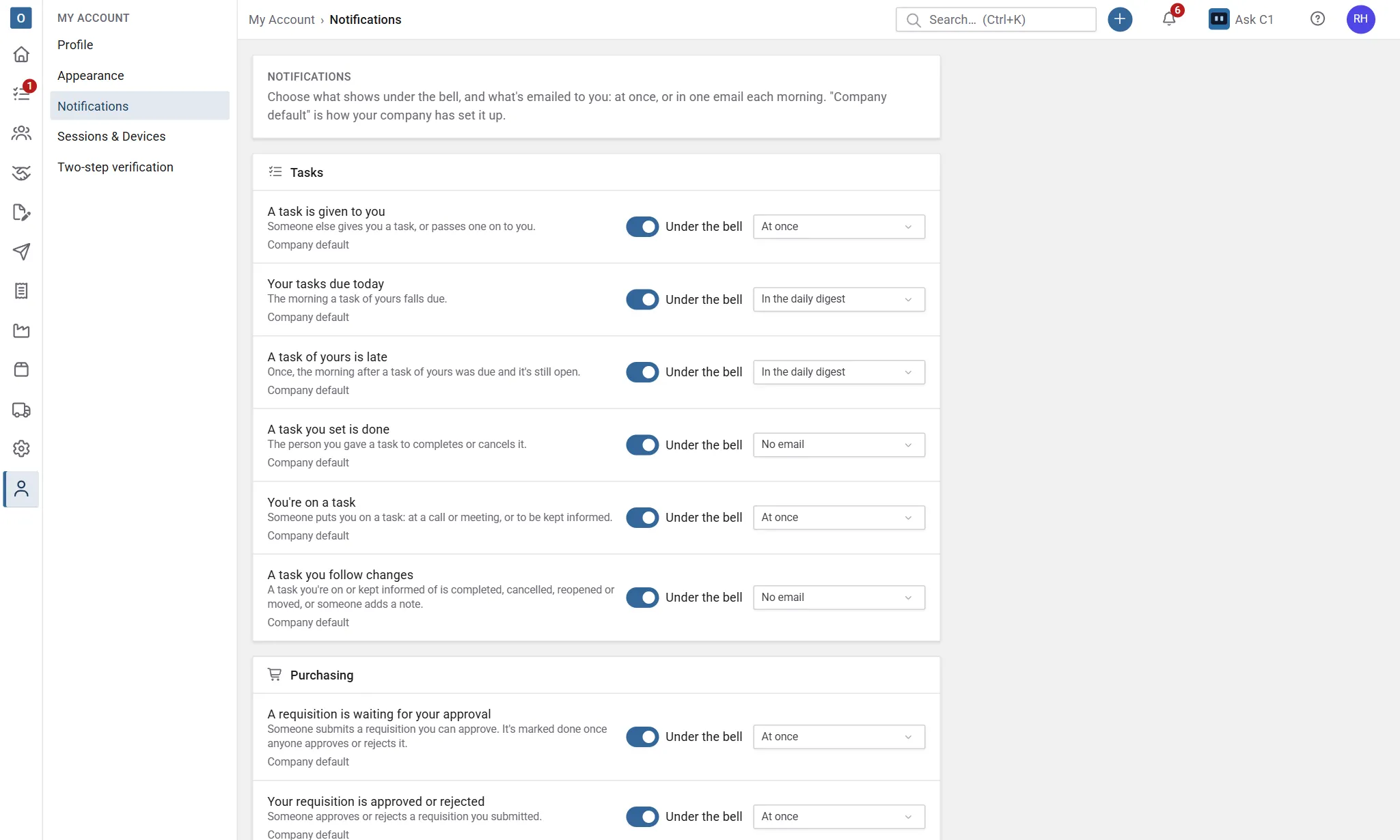
Company default means it’s as your company has set it up. Change either, select Save, and it says Your choice. Select Use the company default to go back. A choice the same as the company’s default follows the company if it changes it later.
You only see the kinds of notification you can get. Some need a permission, and your company may have switched some off.
For the company
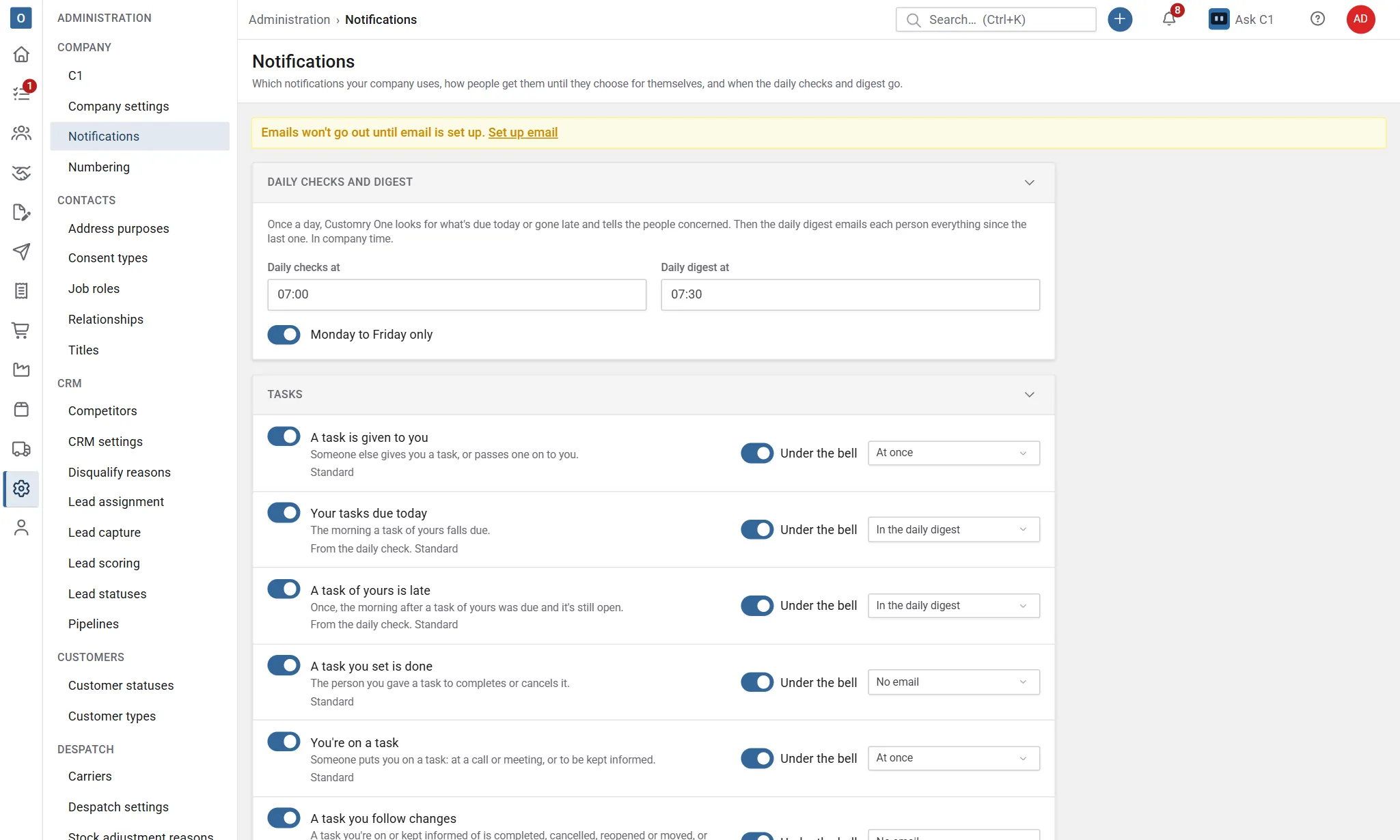
Section titled “For the company”Administration → Notifications sets up notifications for everyone. Only people allowed to manage notifications can change it.
-
Daily checks at: when Customry One looks for what’s due today, running out, gone late or overdue, in your company’s time. 07:00 to start with.
-
Daily digest at: when the morning email goes. 07:00 to start with, the same as the checks: the checks run first, so the digest has what they found.
-
Monday to Friday only: no checks or digests at the weekend. Anything that went late over the weekend is in Monday’s.
-
For each kind of notification:
- switch it off to stop it for everyone;
- choose how people get it until they choose for themselves: under the bell, and by email.
Back to standard puts a kind of notification back as Customry One sets it up.